Published on Jul. 25, 2019 | Last updated on Aug. 10, 2020
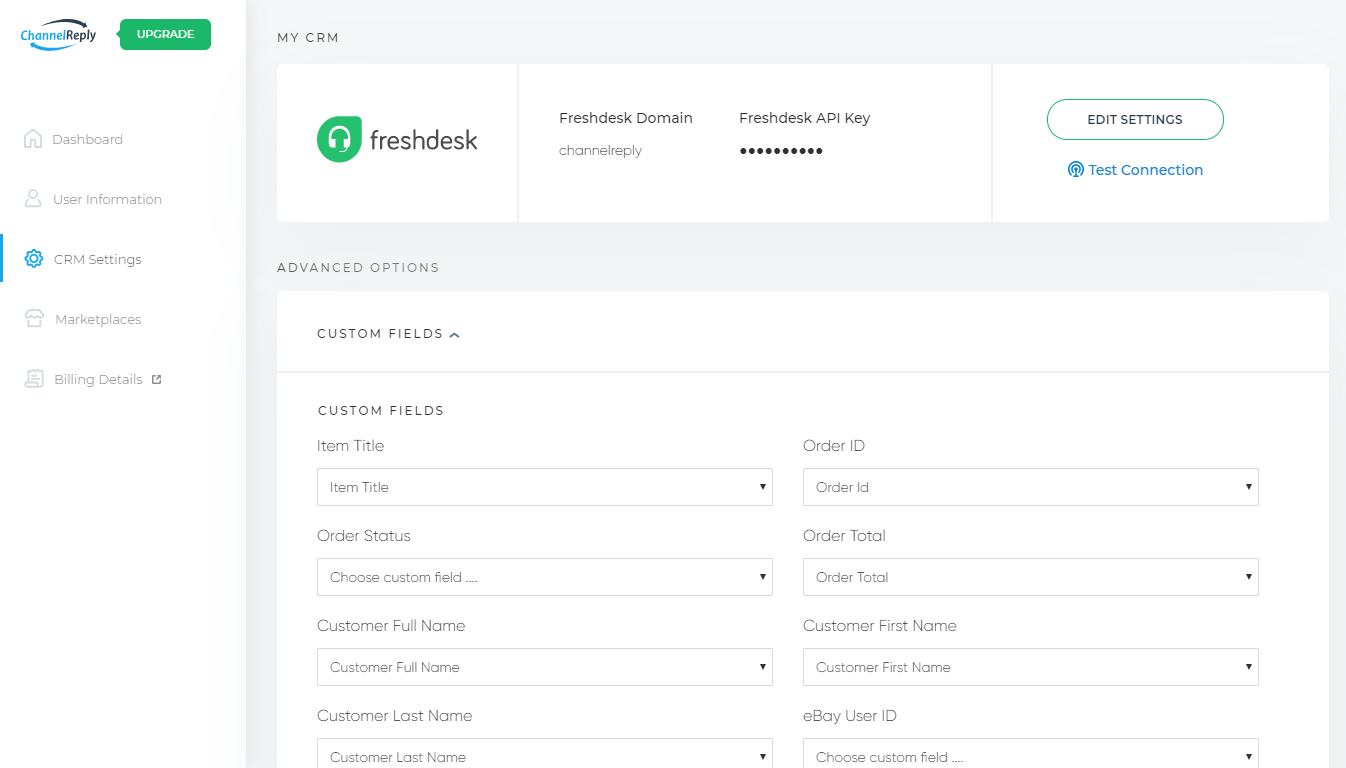
ChannelReply custom fields are snippets of data taken from Walmart, eBay and Amazon for use in advanced Zendesk, Freshdesk, Help Scout and Re:amaze tools. (Gorgias users, see our article on Gorgias variables instead.)
The order ID of the Walmart, eBay or Amazon order. For Walmart orders, this displays the seller order ID.
Order Status
The state of the order. There are several possibilities; the Amazon and eBay statuses are listed below:
Amazon Order Statuses
Pending Availability (Japan only): A pre-order has been placed.
Pending: Payment has not yet been authorized for the order.
Unshipped: Payment has been authorized, but no items ordered have been shipped yet.
Partially Shipped: Appears on multi-item orders when at least one item has shipped and at least one has not.
Shipped: Every item in the order has shipped.
Delivered: The order has been delivered.
Cancelled: The order has been cancelled.
Unfulfillable: Amazon cannot fulfill the order. Occurs only on FBA orders that were placed outside of Amazon.
eBay Order Statuses
Active: The buyer has not yet initiated payment. Actions like offering a combined invoice or changing the shipping service are still possible.
Cancelled: The order has been cancelled.
Cancel Pending: The buyer has requested a cancellation, but the seller has not yet approved or rejected the request.
In Process: The order is being processed.
Completed: The buyer has paid, and the order has been completed.
Order Total
The total amount paid for the entire order, including all item prices, shipping costs, and taxes.
Customer Full Name
The customer’s first and last name as a single field. Sometimes unavailable on Amazon tickets.
Customer First Name
The customer’s first name only. Sometimes unavailable on Amazon tickets.
Customer Last Name
The customer’s last name only. Sometimes unavailable on Amazon tickets.
eBay User ID
The eBay buyer’s username.
Shipping Address
The shipping address associated with the order. Will display all available info from the following possibilities (field names, order, and availability vary between Walmart, eBay and Amazon):
Name
Address Line 1
Address Line 2
Address Line 3
City
County
District
State or Region
Postal Code
Country
Phone Number
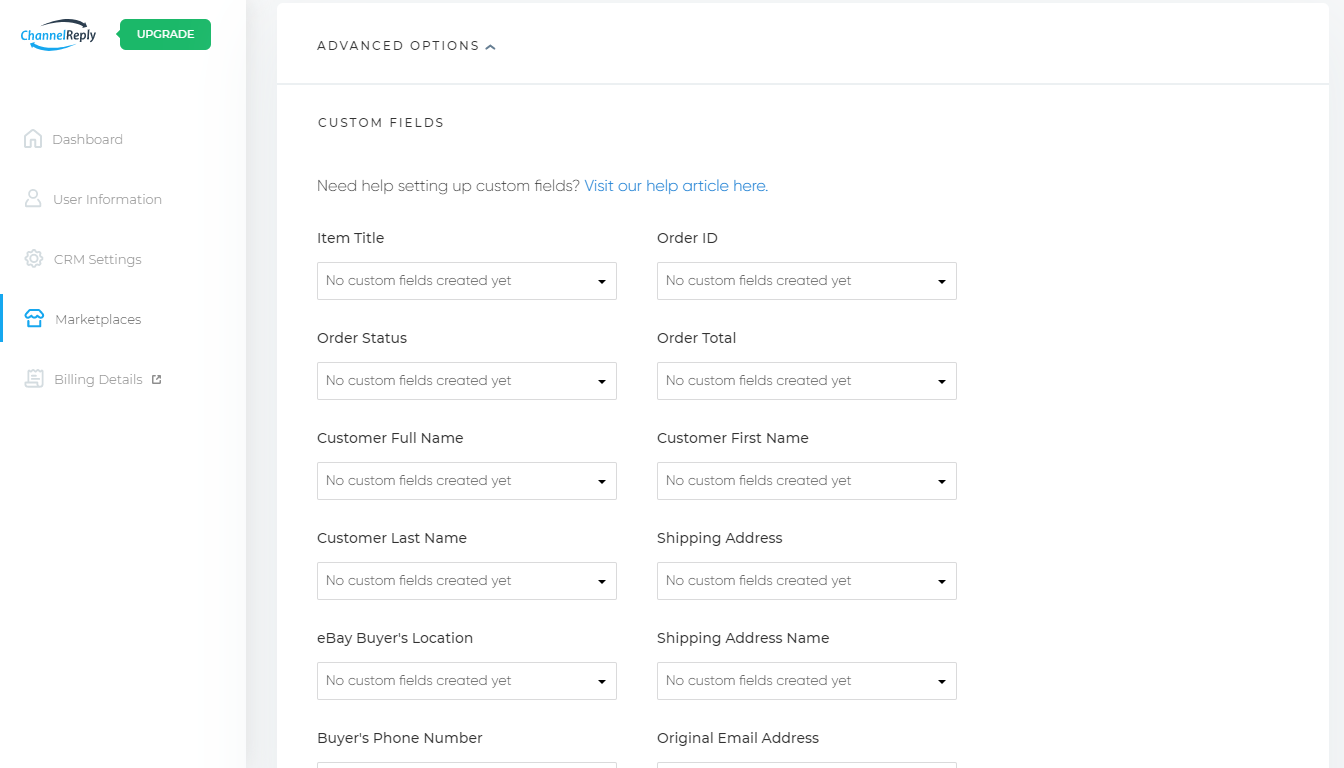
eBay Buyer's Location
Shows the eBay buyer's city, state/province, and country, e.g. Hollywood, California, United States. This information is available even if the customer hasn't purchased anything from you.
Shipping Address Name
The name of the person to whom the item is being shipped. May be different from the buyer’s name.
Buyer's Phone Number
Shows the buyer’s phone number. Privacy restrictions on Amazon mean it is only occasionally available on Amazon orders.
Original Email Address
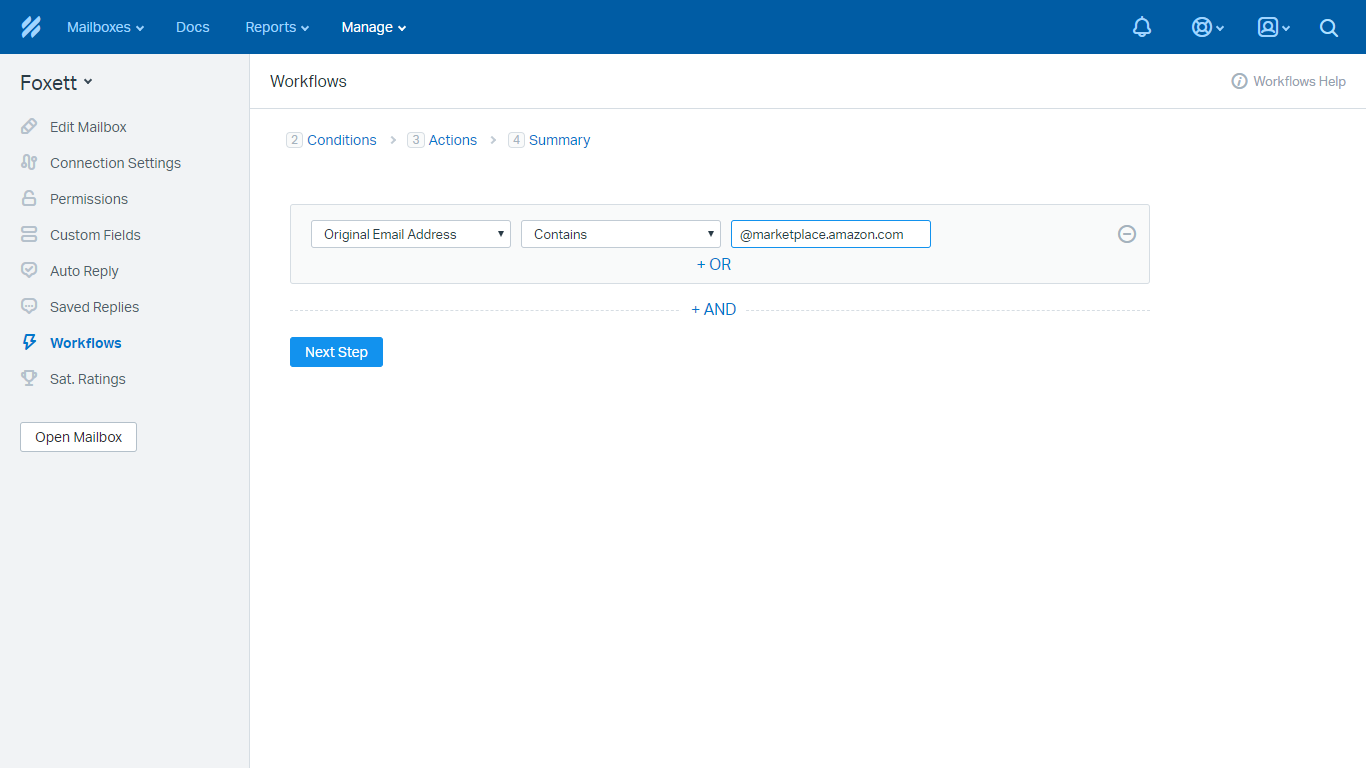
On buyer messages, Original Email Address shows the email address that was originally used on the marketplace, i.e. the user’s @marketplace.amazon or @members.ebay address. This may be different from what is displayed in your helpdesk.
For example, Freshdesk users normally see internal ChannelReply email addresses. They can get the @marketplace.amazon or @members.ebay address using this custom field.
Amazon email addresses sometimes have variations as well (e.g. xyz@marketplace.amazon.com and xyz+123@marketplace.amazon.com). ChannelReply will always display a single version of an Amazon user’s email address in your helpdesk to ensure threading works. However, if the user has contacted you through a variation email address, you’ll be able to see that variation address in this custom field.
On ChannelReply’s eBay Resolution Center Support notifications, this field will display the buyer’s real email address rather than their eBay member address.
Delivery Level
The delivery level for Amazon orders. Shows whether this is an Amazon Prime, Premium or Standard order.
Shipping Carrier
The carrier responsible for delivering the item (for example, USPS, DHL, Canada Post, or Royal Mail). This custom field is not yet available for Amazon MFN orders.
Purchase Date
The date the customer paid for the order.
Earliest Ship Date
The earliest date the customer's order is expected to ship. On Walmart orders, no range of dates is provided, so this field provides the estimated ship date.
Latest Ship Date
The latest date the customer's order is expected to ship. This field only populates on eBay and Amazon orders.
Shipment Date
The date the item shipped. This custom field is not yet available for Amazon MFN orders.
Earliest Delivery Date
The earliest date the customer's package is expected to be delivered. On Walmart orders, no range of dates is provided, so this field provides the estimated delivery date.
Latest Delivery Date
The latest date the customer's package is expected to be delivered. This field only populates on eBay and Amazon orders.
Tracking ID
Shows the package’s tracking number for Walmart, Amazon FBA, or eBay orders. This custom field is not yet available for Amazon MFN orders.
eBay Transaction ID
eBay’s unique ID for the transaction. Different from IDs used by PayPal and other parties.
eBay Sales Record Number
For eBay sellers who use Selling Manager. Shows the sale record ID from Selling Manager.
Amazon Fulfillment Channel
Displays MFN or FBA depending on whether the order is an MFN (Merchant Fulfilled Network) or FBA (Fulfillment by Amazon) order. MFN orders are orders you are responsible for fulfilling, while Amazon is responsible for FBA orders.
ASIN
The Amazon Standard Identification Number is a unique string of 10 letters and numbers identifying the product. If the item is a book, the International Standard Book Number (ISBN) will be used as the ASIN. ISBNs may contain up to 13 characters.
If the customer has ordered multiple products, the ASINs of all items ordered will be provided in this field, separated by commas.
eBay Item ID
The item ID on eBay.
SKU
The item’s parent SKU. If the item only has one SKU, it will be assigned to this field.
Variation SKU
The SKU of the specific item variation. For example, if you sell shirts in red and blue, Variation SKU would show you whether the buyer ordered the red or blue variety. SKU would show the parent SKU for the type of shirt.
Tax Classification Number: CPF
Shows the buyer’s CPF (taxpayer identification number) on transactions in Brazil.
eBay Message ID
The number eBay uses to identify the message you are answering. It is always the number of the most recent eBay message in the ticket.
Customer/Extended Order ID
On Walmart tickets, this will provide the customer order ID, which is the order ID shown to your Walmart customer. This is different from the seller order ID, which is provided in the Order ID custom field.
On eBay tickets, this will provide the extended order ID. This field is highly recommended if you have other eBay integrations, because many apps show only the extended order ID.
Do ChannelReply Custom Fields Ever Update?
Yes. In Zendesk, Freshdesk, and Help Scout, custom fields are refreshed every time the ChannelReply app loads in your right-hand sidebar. Just note that you must open the ticket manually for the app to load and fields to update.
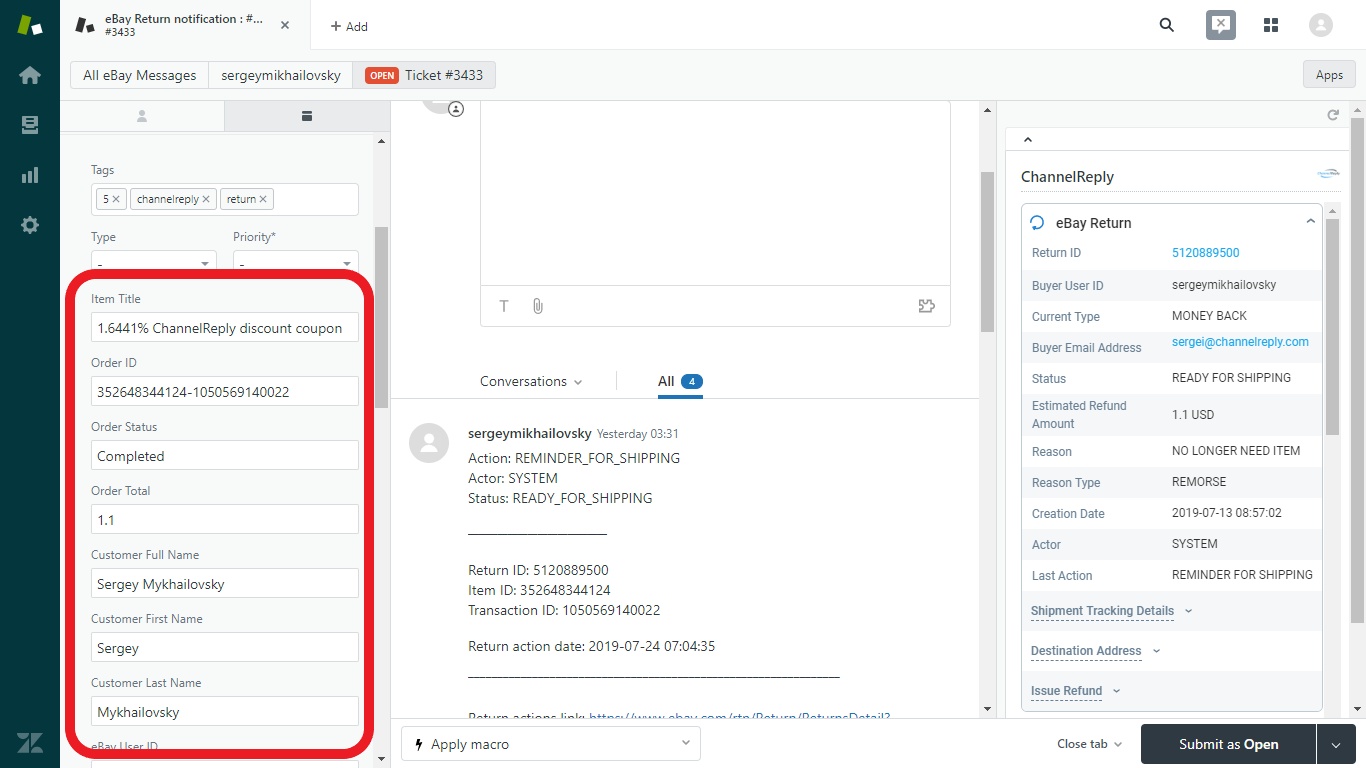
ChannelReply custom fields will automatically populate in the left-hand sidebar in Zendesk. Unlike data in the ChannelReply app, data in the left-hand sidebar can be found when searching Zendesk.
Triggers
You can also create conditions in triggers and other rules based on whether data is present in any custom field.
Note that Zendesk can’t create conditions based on the contents of a field. For example, you would not be able to set a trigger based on whether the Item Title custom field included the name of a specific product. (See below for a workaround.)
Duplicate to Message Body (Workaround for ChannelReply Custom Fields in Zendesk Triggers)
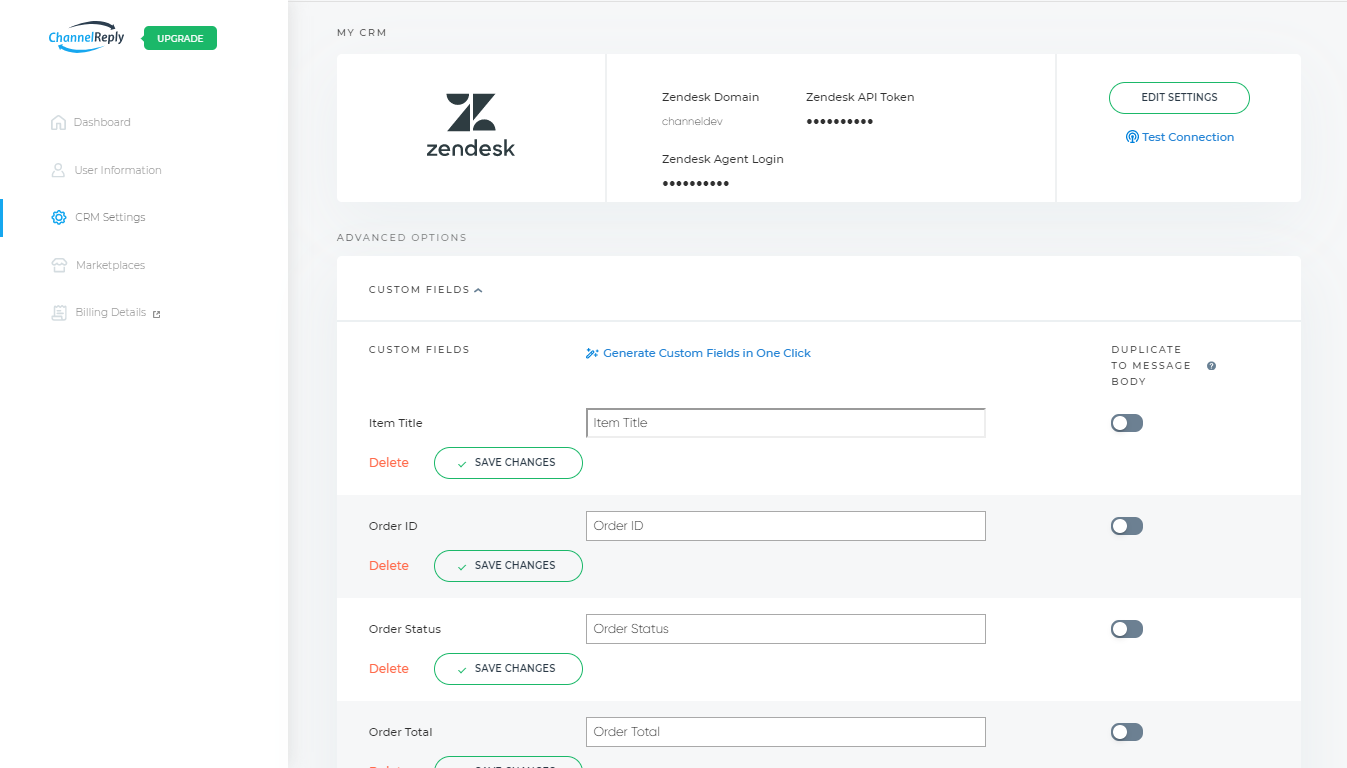
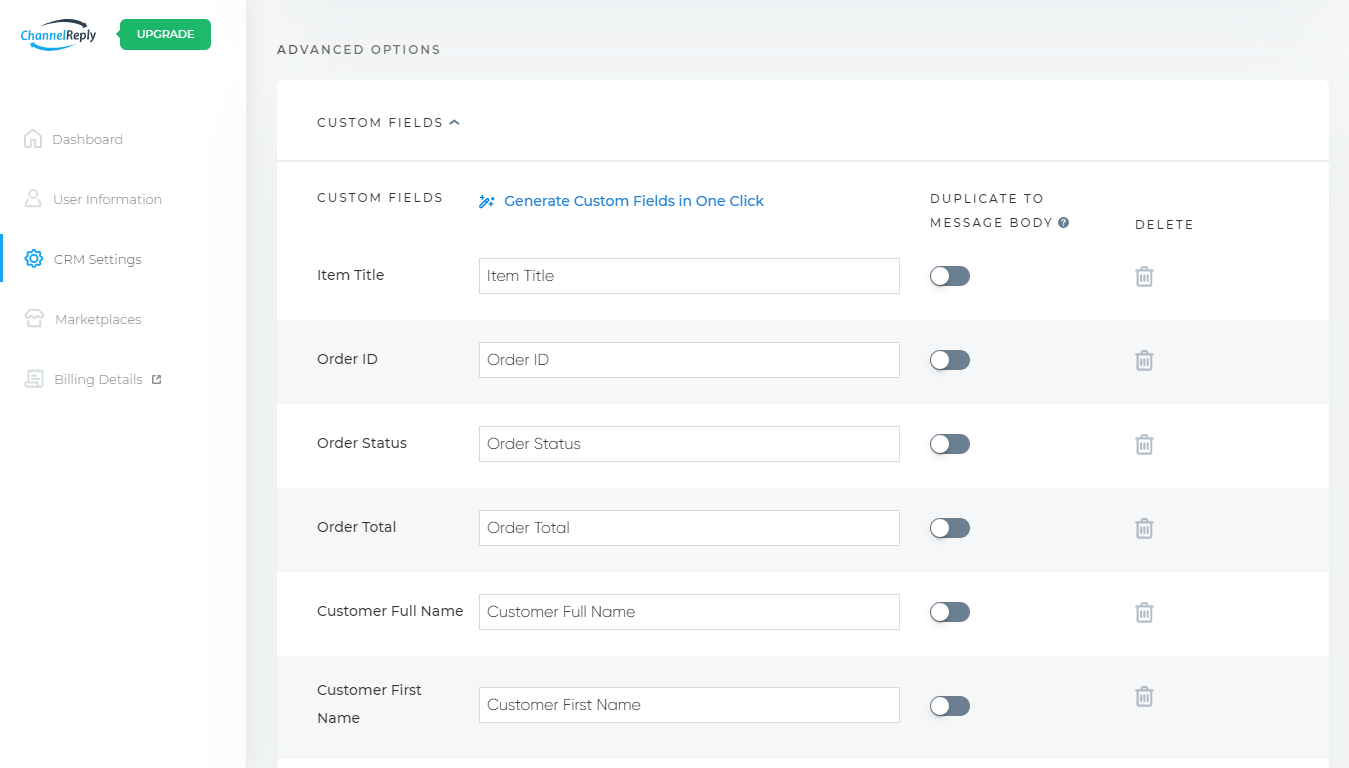
You can have custom field data appear inside tickets. Check the “Duplicate custom field information to message body” box to enable this. The data will then appear at the bottom of each buyer’s first message in a given ticket.
Doing this will allow you to use specific custom field data in Zendesk triggers and other rules. For example, you can use the condition “Comment text | Contains the following string” and then enter the specific text you’re looking for, like the item’s ASIN or SKU. Just note that this in-ticket data only appears in the first message and will never be updated.
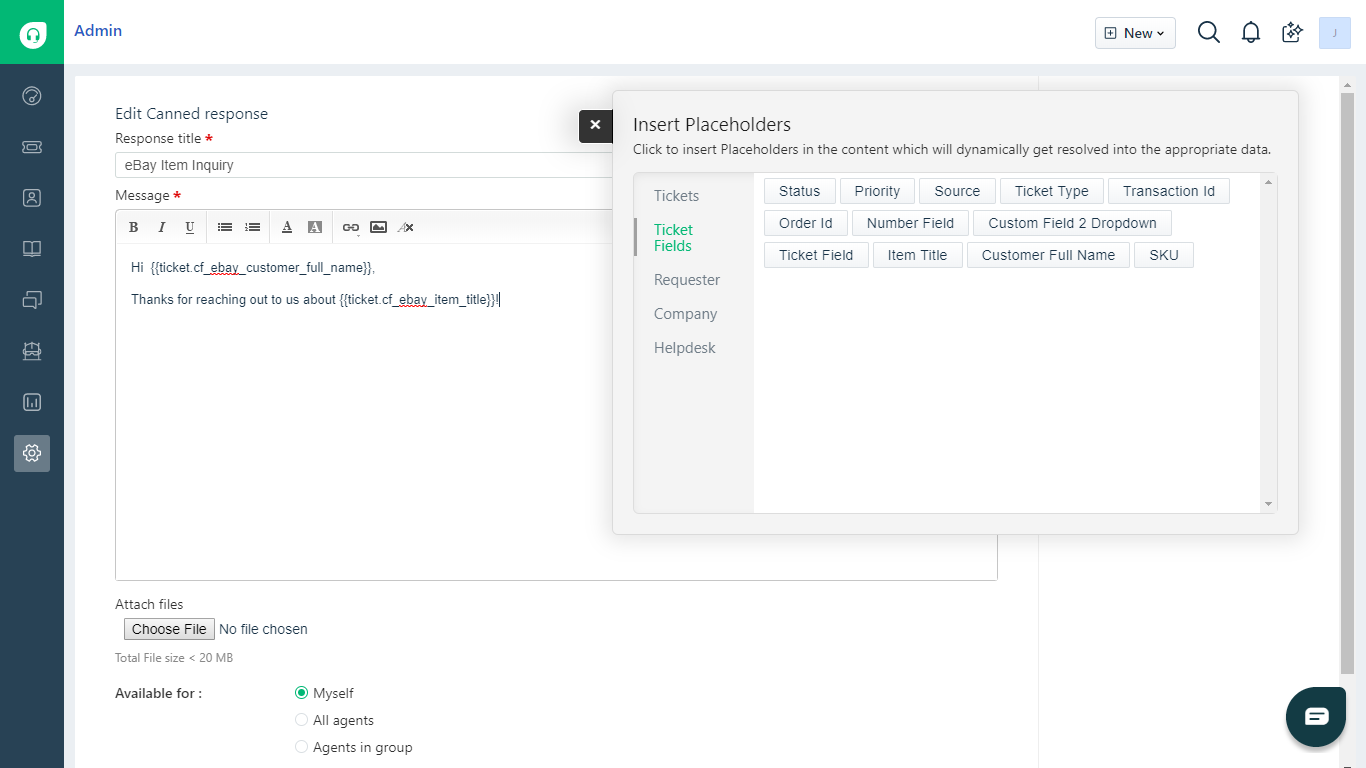
Plus, Freshdesk’s user-friendly “Insert Placeholders” feature makes custom fields a joy to use.
Automations
In Freshdesk, you can also use specific details from custom fields in automations. You can choose any custom field when creating a condition for a ticket creation or ticket update automation. Then, you can base your rule on whether your custom field...
Is or is not
Does or does not contain
Has or does not have any of the words from
Starts or ends with
...the strings you enter. That gives you incredible freedom for automating tasks based on specific Walmart, eBay and Amazon details.
Properties
Custom fields will also appear in the “PROPERTIES” section of the Freshdesk ticket sidebar. However, these details are not searchable in Freshdesk.
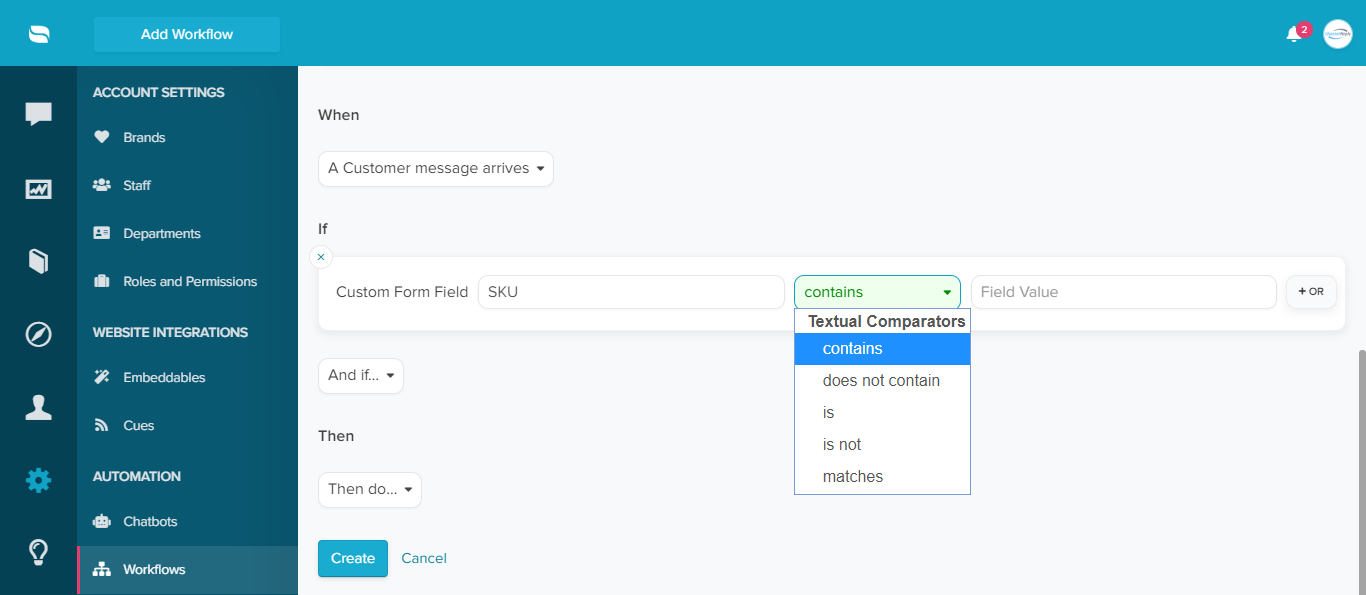
ChannelReply custom fields work perfectly in Re:amaze response templates and auto-replies. Simply follow these instructions to set them up.
Search
Custom fields do not appear in Re:amaze search by default. However, you can use our "Duplicate to Message Body" feature to have us automatically paste your custom fields into the buyer's first message. These fields can then be found in search.
In-Ticket Reference
Your custom fields will appear inside each ticket for easy reference.
More Info
Do you have a question that we didn’t answer here? Contact us and we’ll be happy to help.


 Amazon
 eBay
eBay
 Shopify
 Walmart
 Back Market
 Newegg
 Etsy
Etsy
 WooCommerce
 Zendesk
 Freshdesk
 Help Scout
 Gorgias
 Re:amaze
 Zoho Desk
 Kustomer
 Onsite
 Help Center
 FAQ
FAQ
 Blog
Blog