Published on Jul. 06, 2017 | Last updated on Feb. 26, 2020
This article will guide you through the Freshdesk integration process step by step with detailed screenshots and videos. Follow along and you’ll connect your ChannelReply and Freshdesk accounts in no time.
Notes: Click on any image to see the full-sized screenshot. Last updated 12/19/2019.
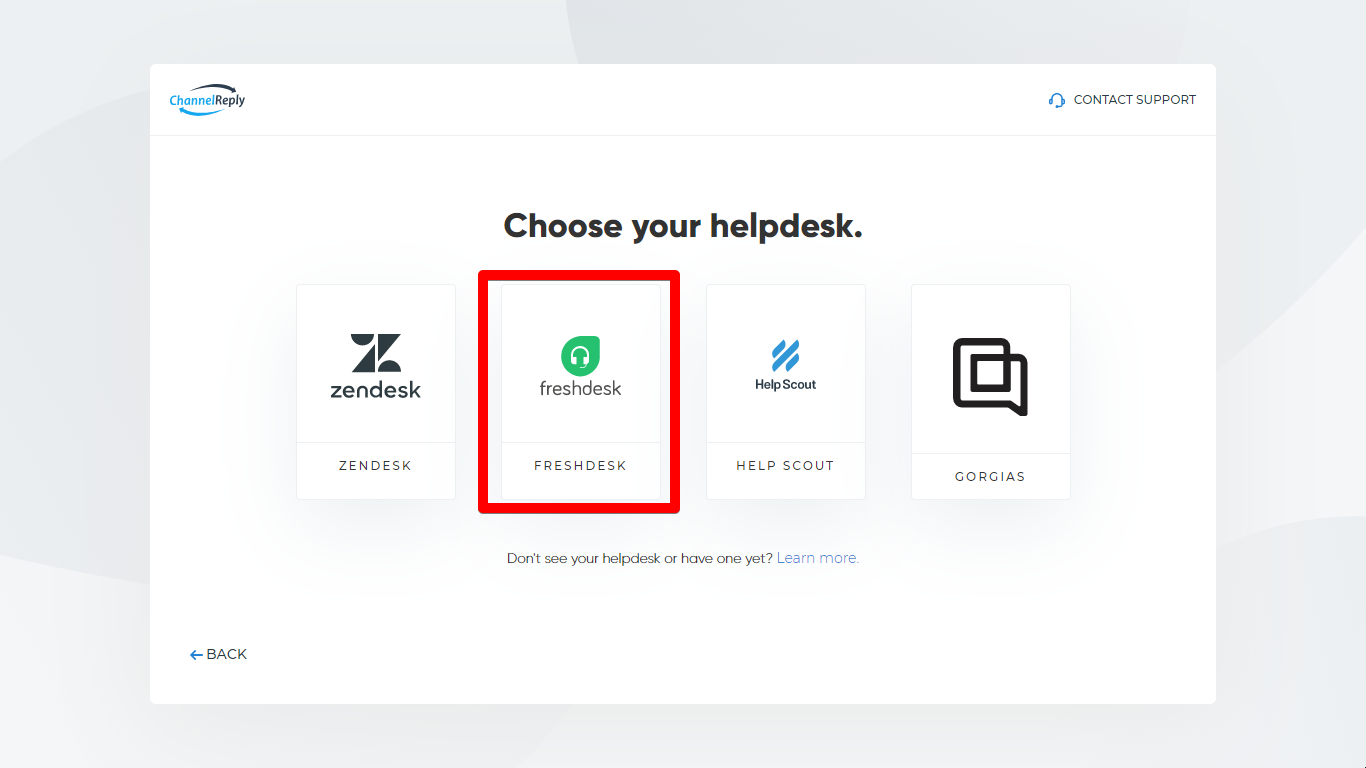
Choose Freshdesk as your helpdesk. You can do this right after you create an account, on the page that follows the welcome screen…
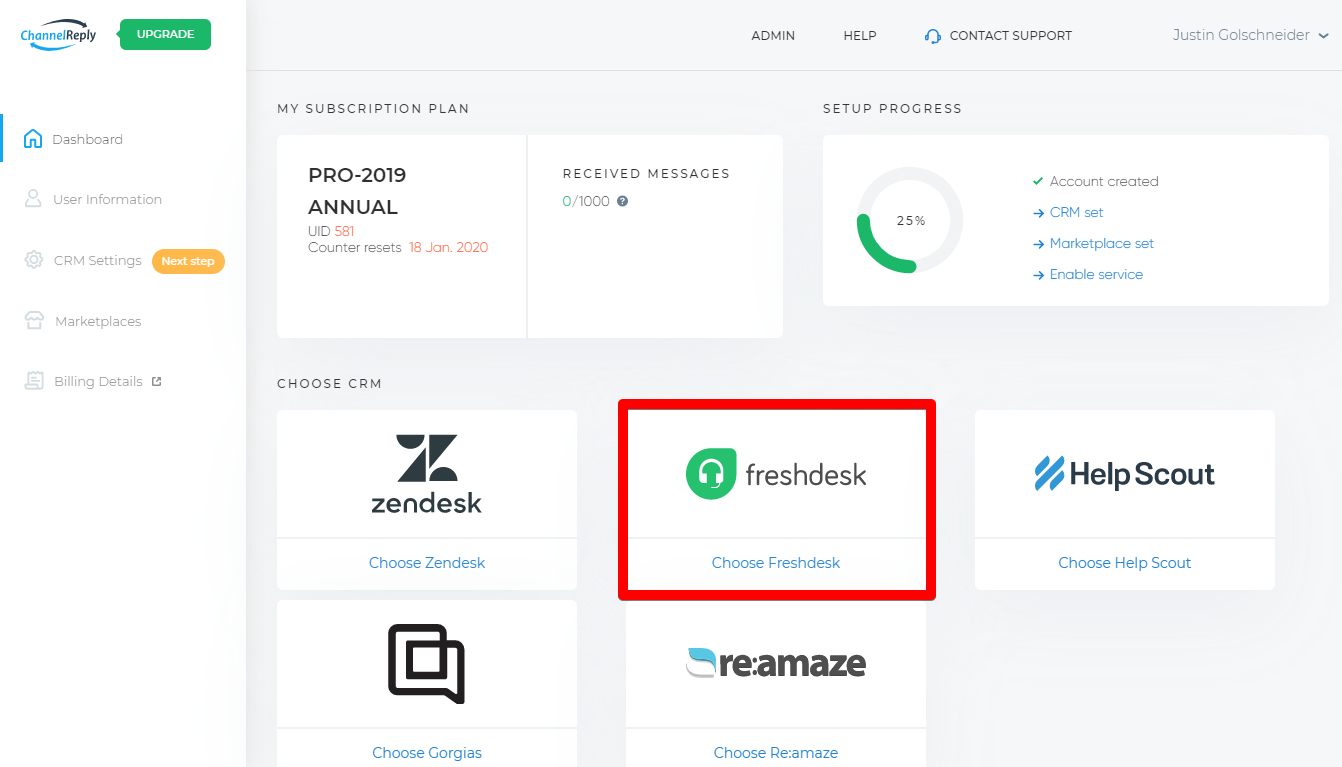
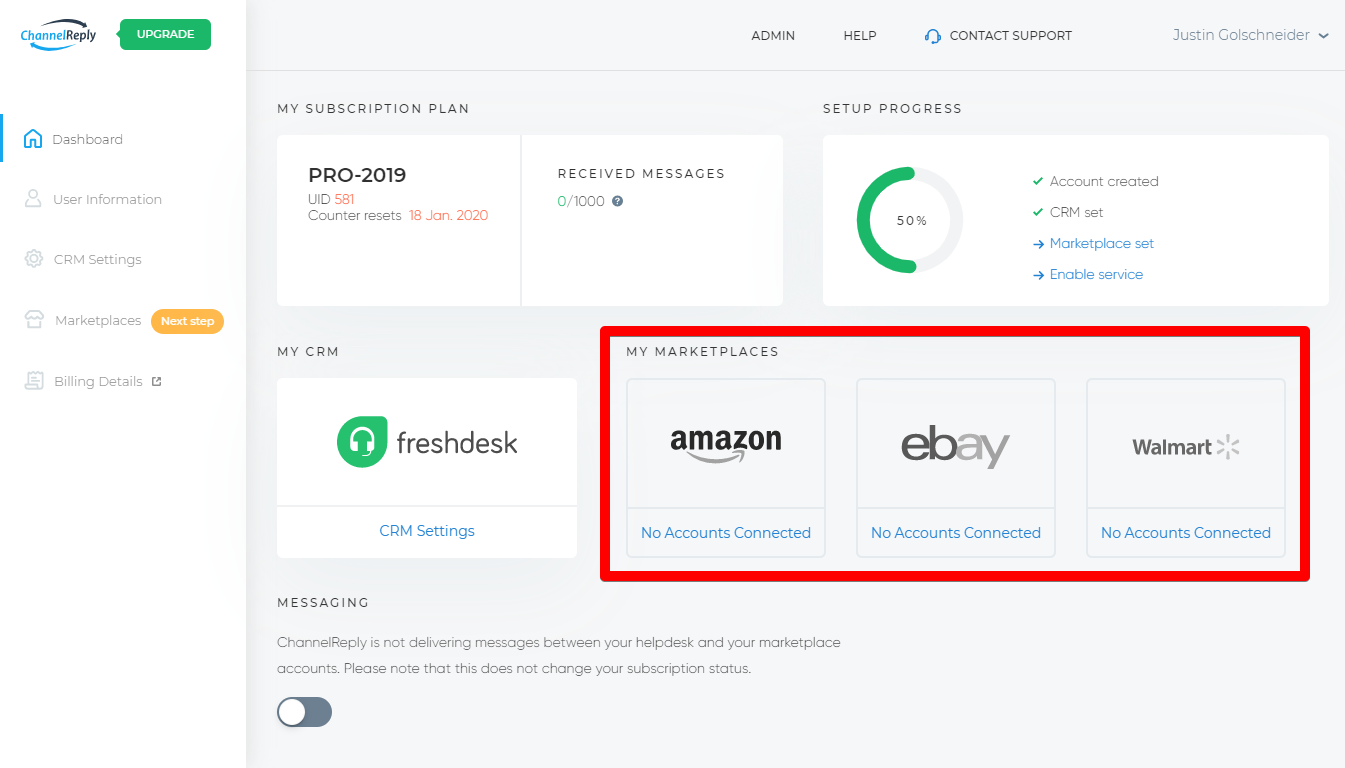
…or from your ChannelReply dashboard.
3. Enter Your Freshdesk Info
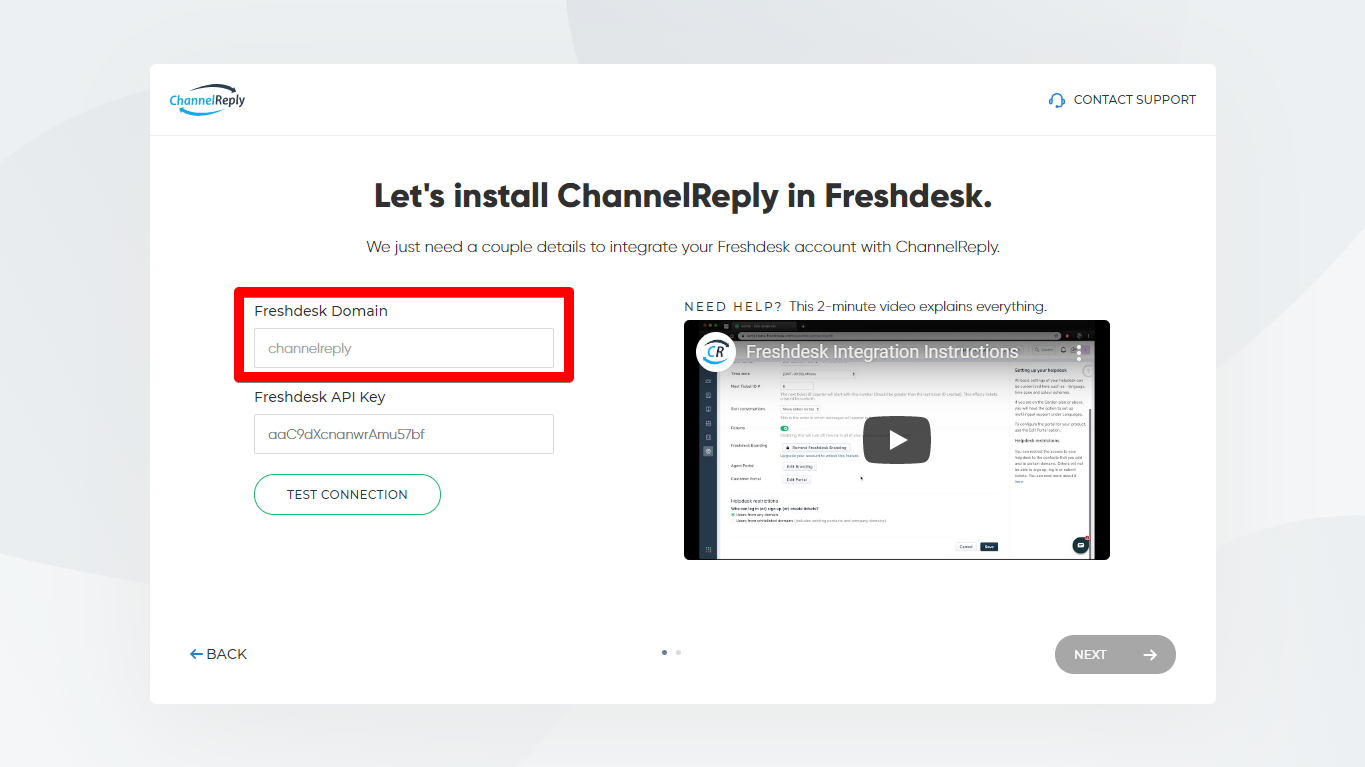
To connect your Freshdesk account to ChannelReply, we’ll need your Freshdesk domain and your API key. You can follow along with the video or the written instructions below to complete this step.
Freshdesk Domain
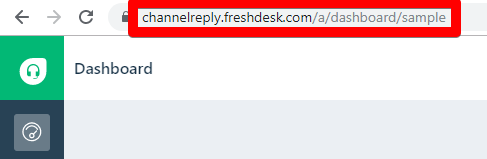
Log in to your Freshdesk account. Look at the URL. If it contains freshdesk.com like the link in the screenshot below, copy it.
Next, paste it into the “Freshdesk Domain” field in ChannelReply. Everything except your unique Freshdesk domain will be removed. For example, when we enter https://channelreply.freshdesk.com/a/dashboard/sample, it becomes “channelreply” instead.
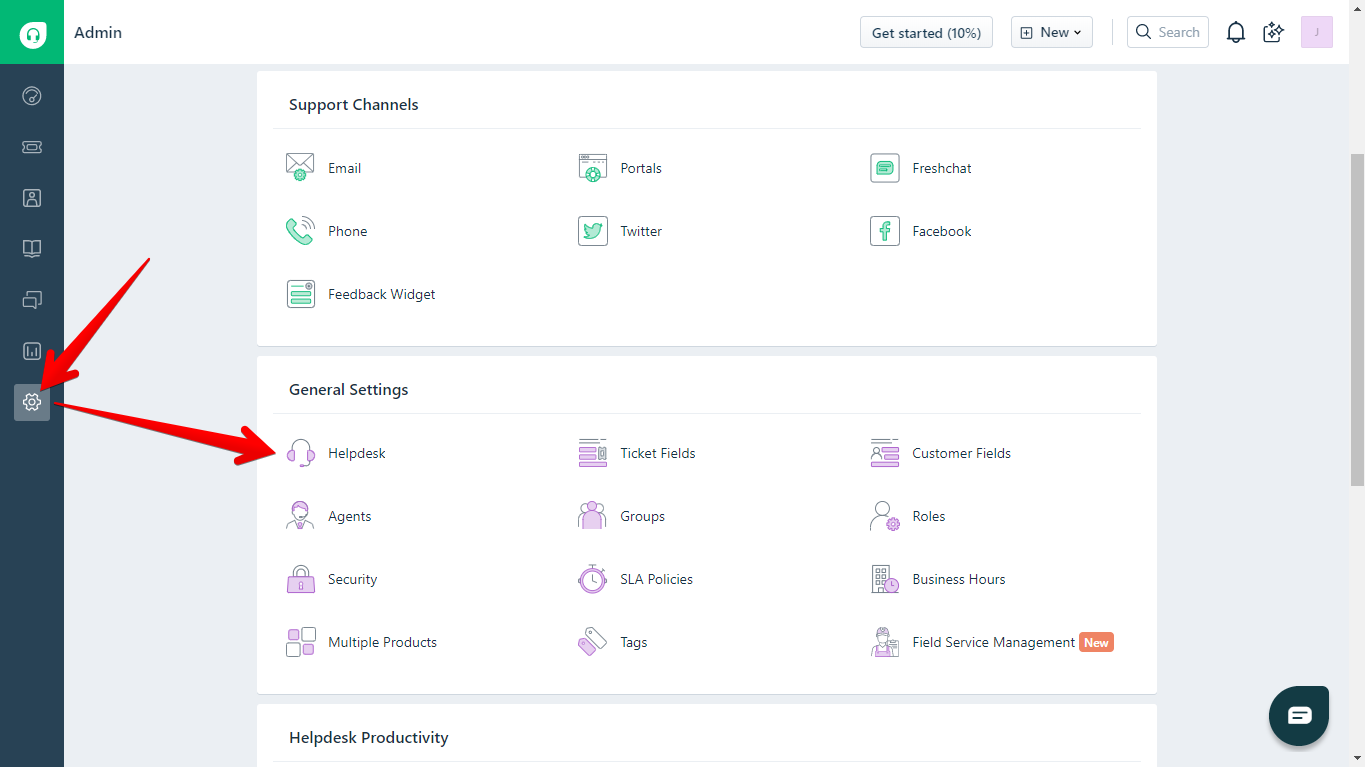
If you don't see freshdesk.com in your URL, it means you have a custom domain. To find your original Freshdesk domain, go to Admin > Helpdesk inside Freshdesk.
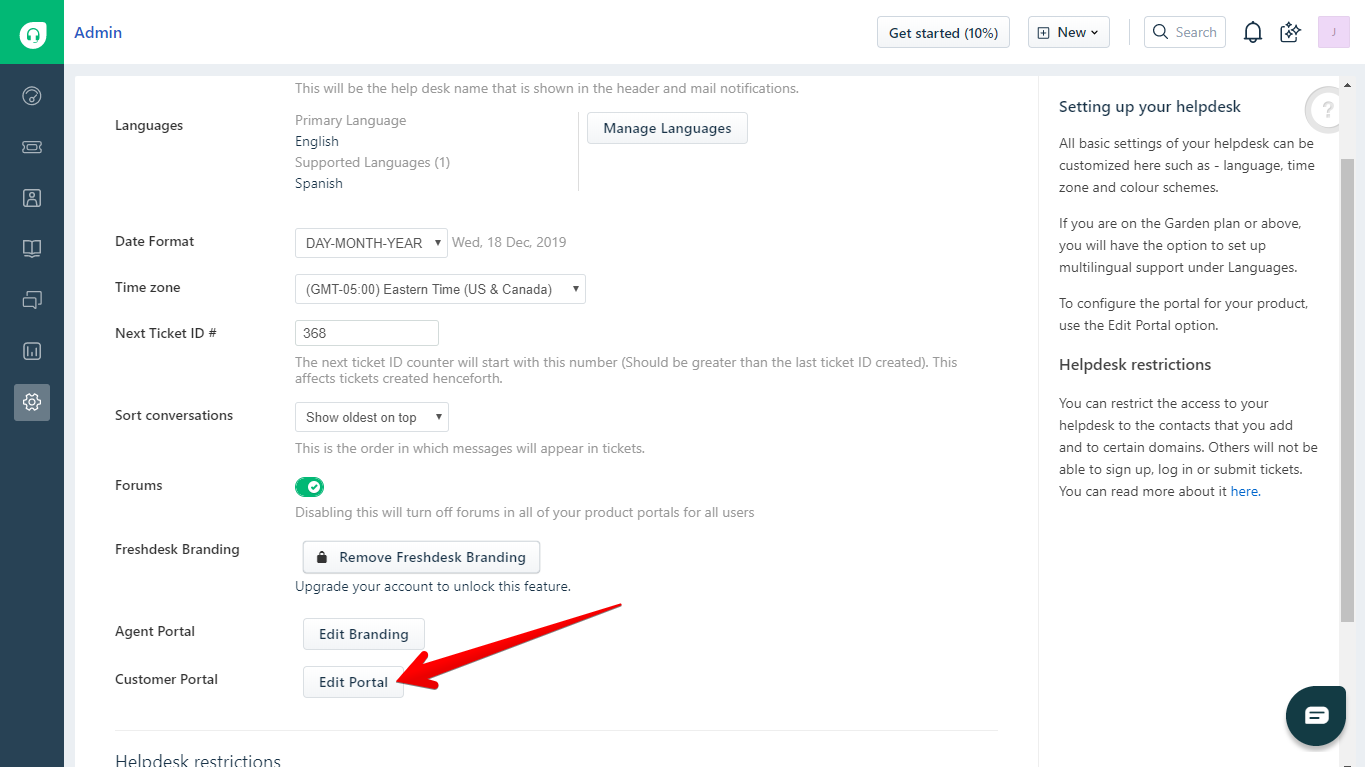
Click "Edit Portal" near the bottom of the screen.
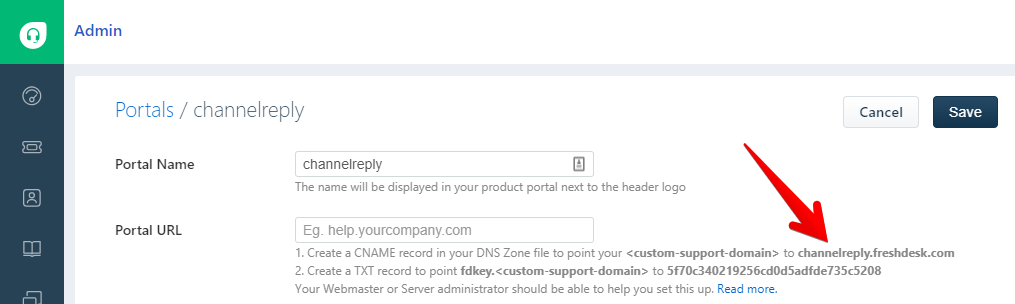
In the Portal URL section, you'll see instructions for pointing a custom domain to your freshdesk.com domain. Copy the freshdesk.com domain. In the example below, we'd copy channelreply.freshdesk.com
Return to ChannelReply and enter the domain in the Freshdesk Domain field. Everything except your unique domain will be automatically removed.
API Key
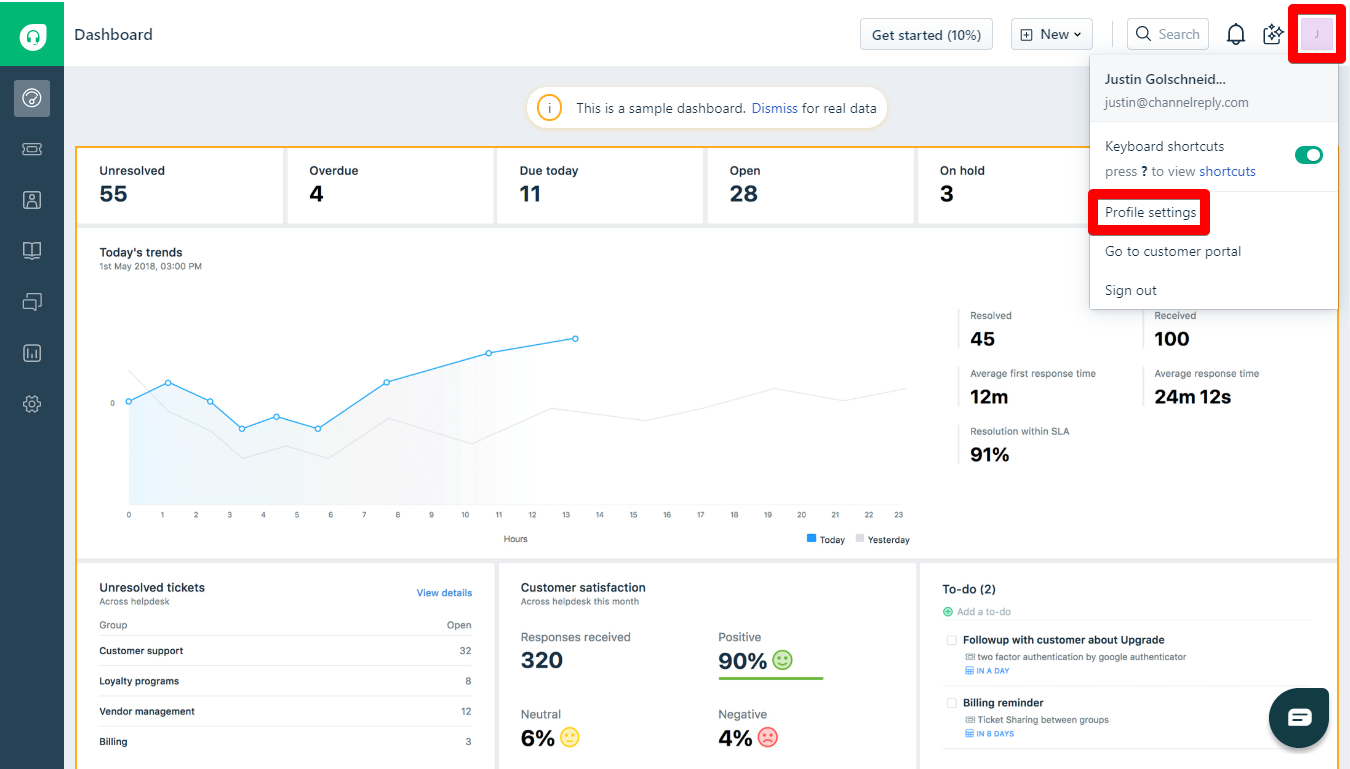
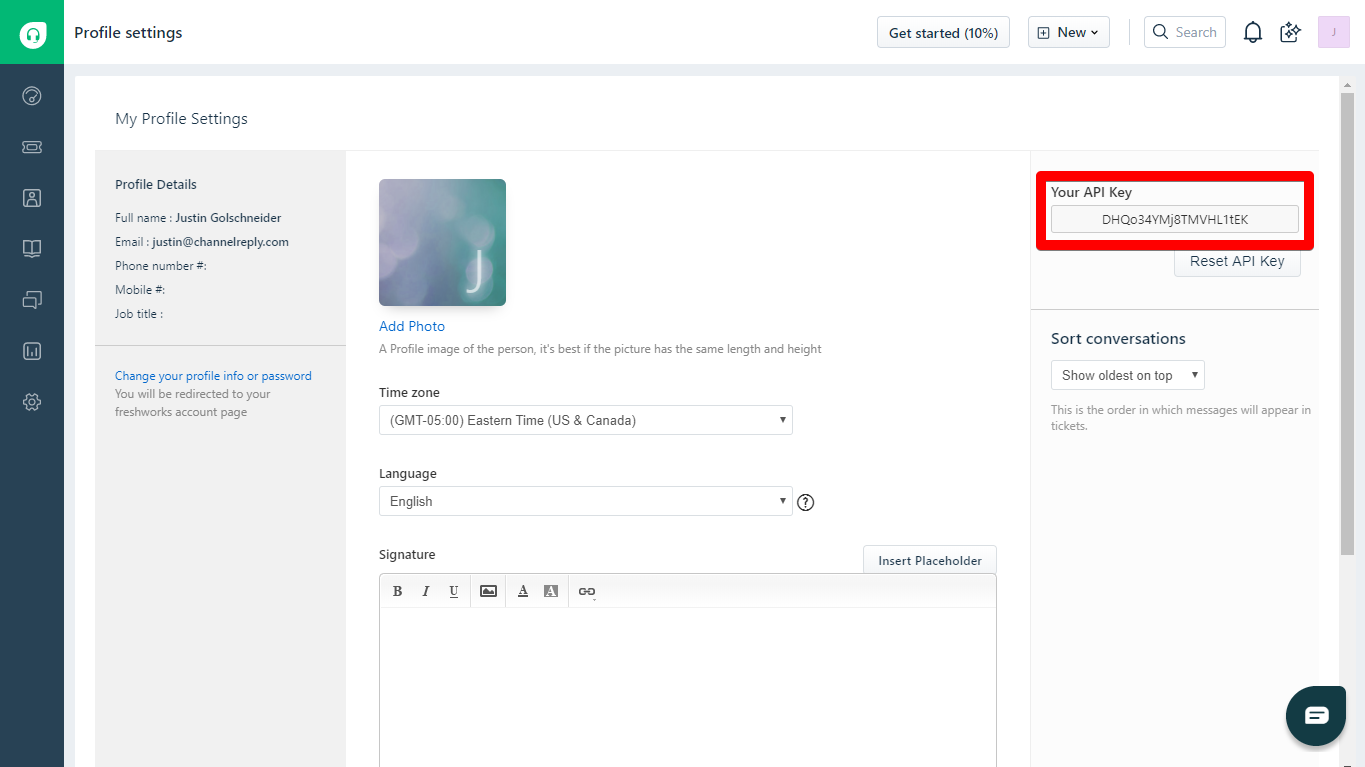
Next up is entering your Freshdesk API key. From your Freshdesk admin page, you can find this by clicking on your profile picture in the upper right and selecting “Profile settings” from the dropdown menu.
You will find your API key in the lower right. Copy it before returning to ChannelReply.
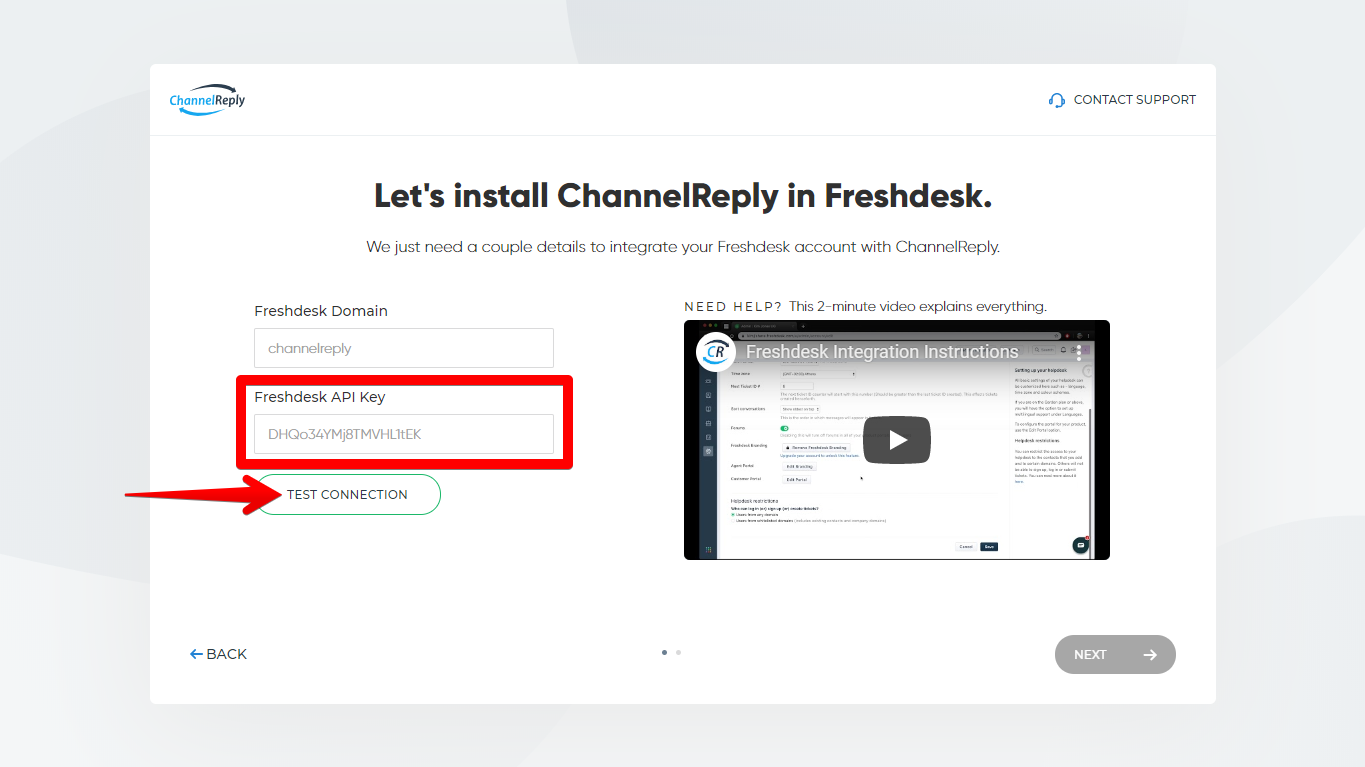
Paste the key into the “Freshdesk API key” field. Then click “Test Connection.”
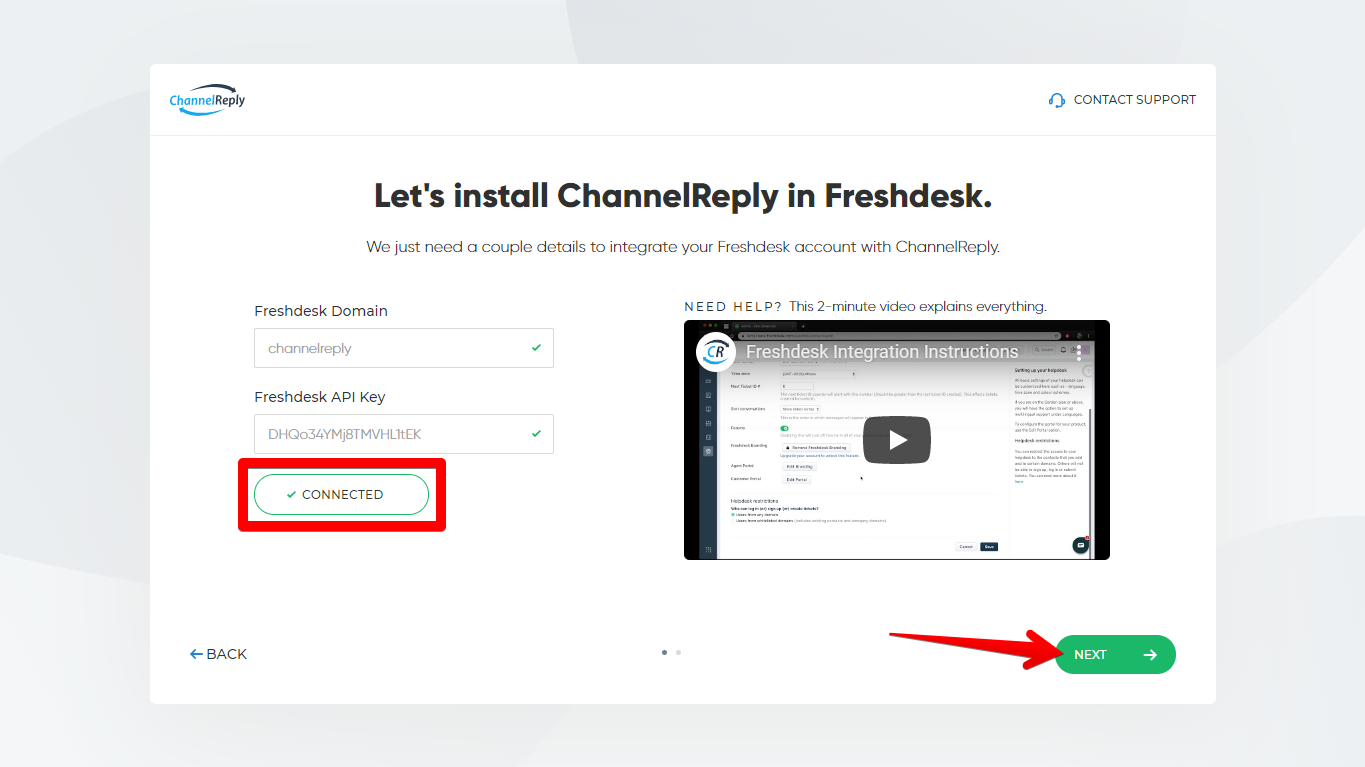
“Test Connection” should change to “Connected” and display a green checkmark. Click “Next” to continue.
4. Install the ChannelReply Application on Freshdesk
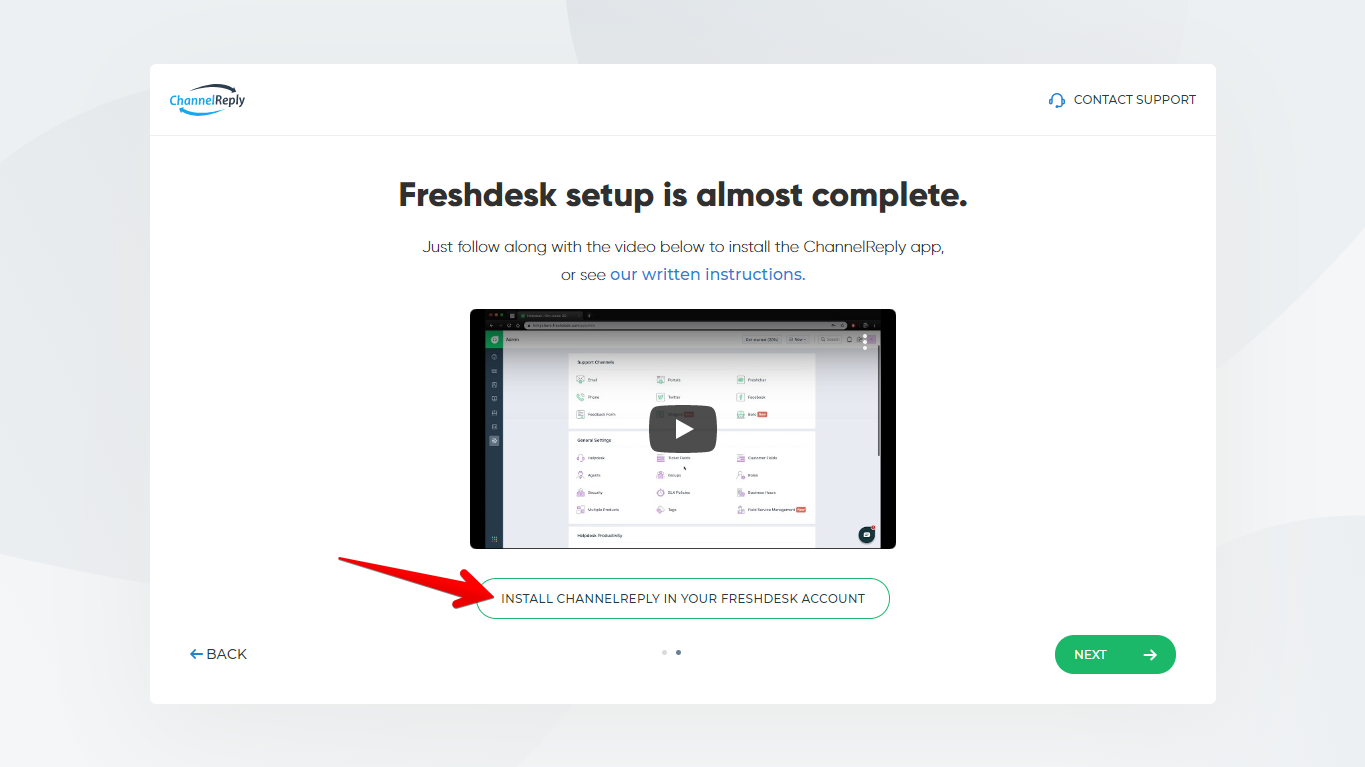
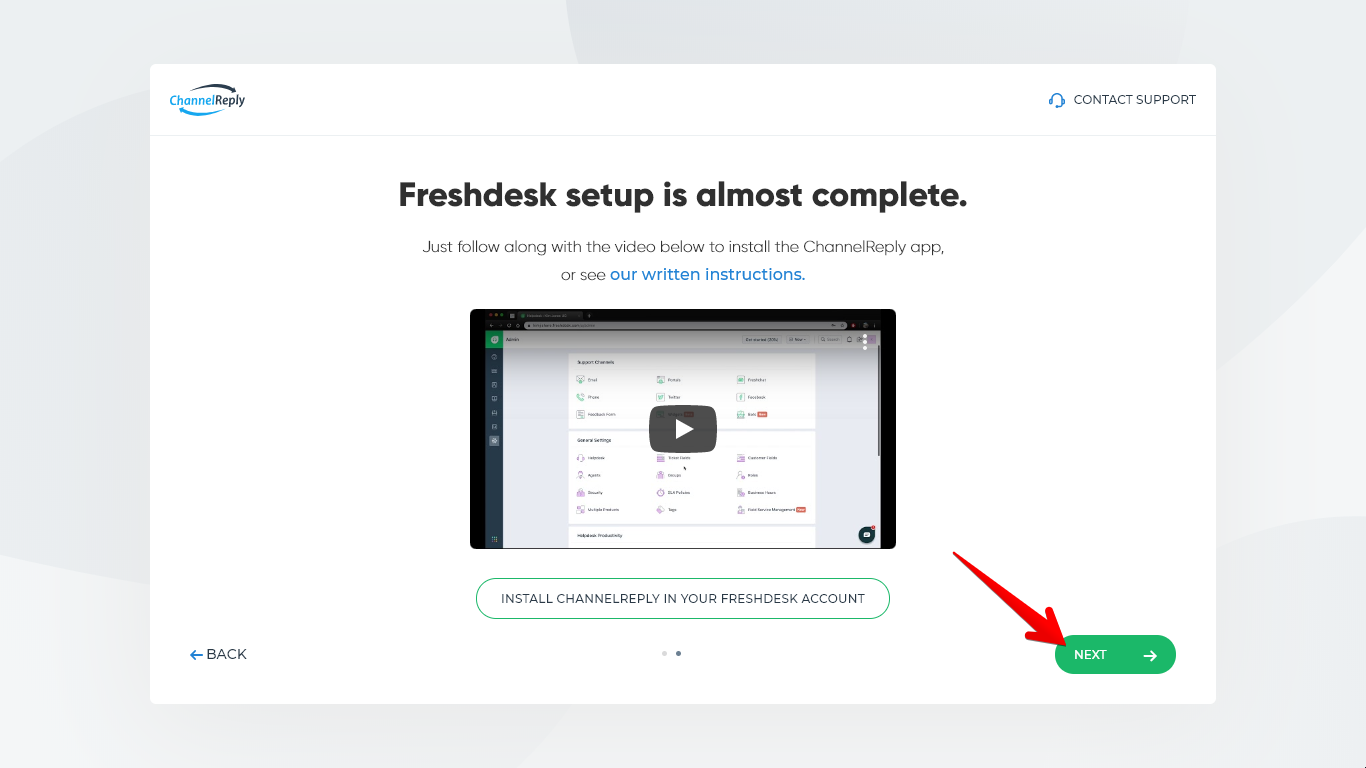
On the next screen, click “INSTALL CHANNELREPLY IN YOUR FRESHDESK ACCOUNT.” (If you already left the screen shown below, log in to your Freshdesk account and go to Admin > Apps instead.)
Next, follow along with the video or written instructions below to install the app.
Return to Freshdesk. If necessary, copy your API key again.
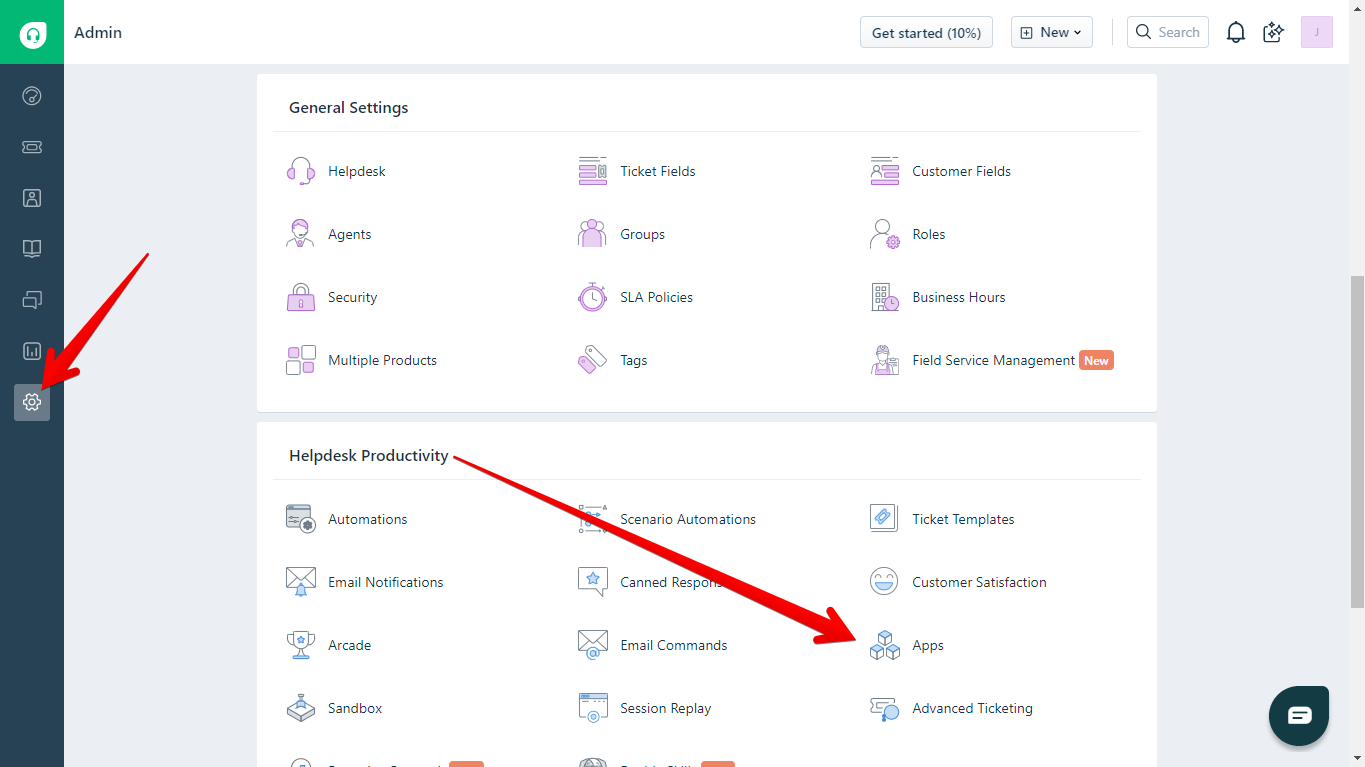
Now go to the Admin tab. Scroll down to “Helpdesk Productivity” and select “Apps.”
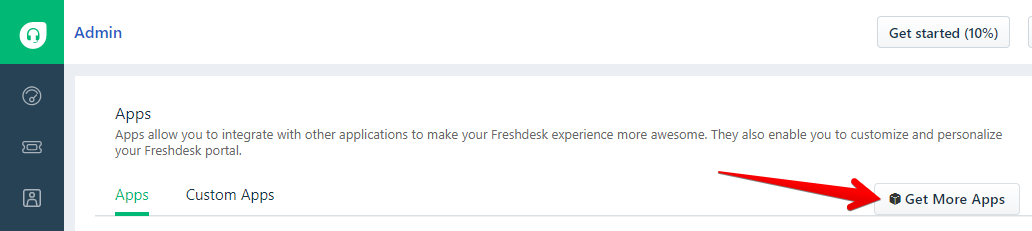
Once you arrive at the destination page, click “Get More Apps.”
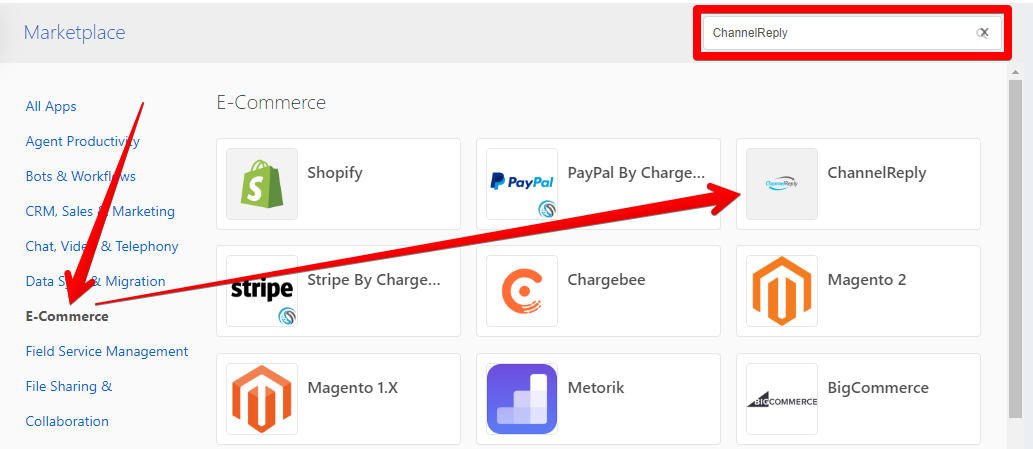
Choose ChannelReply from the E-Commerce section or use the search feature to jump straight to it.
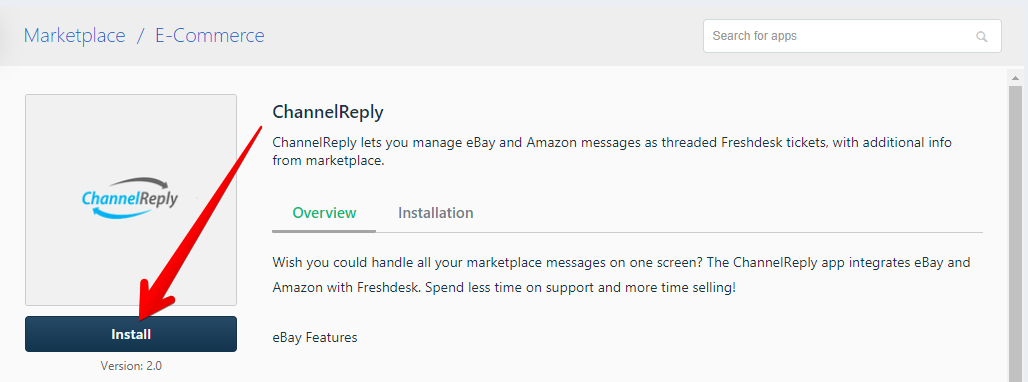
Click “Install” on the ChannelReply app page.
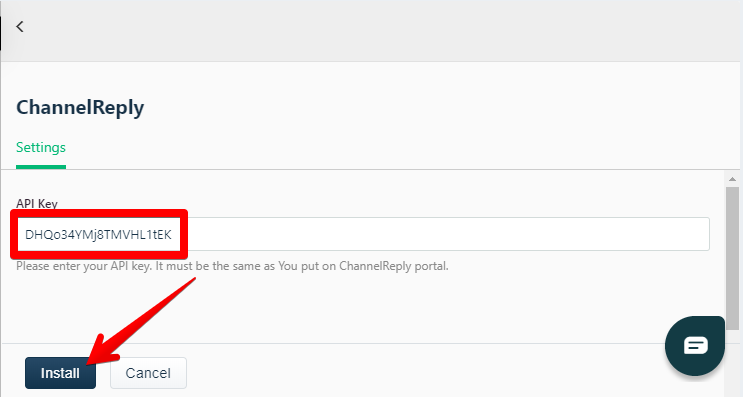
On the next page, paste in your API key and then click the new “Install” button.
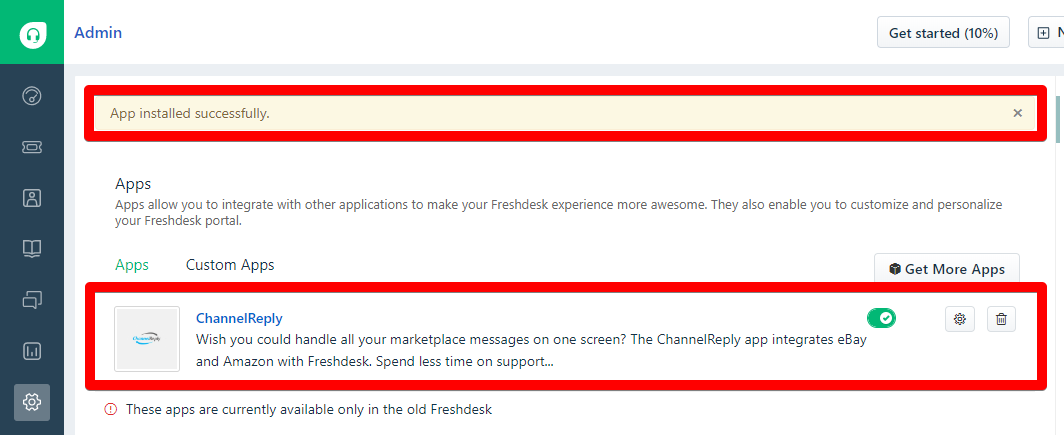
You should see ChannelReply on your list of installed apps, plus a success notification. Freshdesk integration is now complete!
Return to ChannelReply and click “Next.”
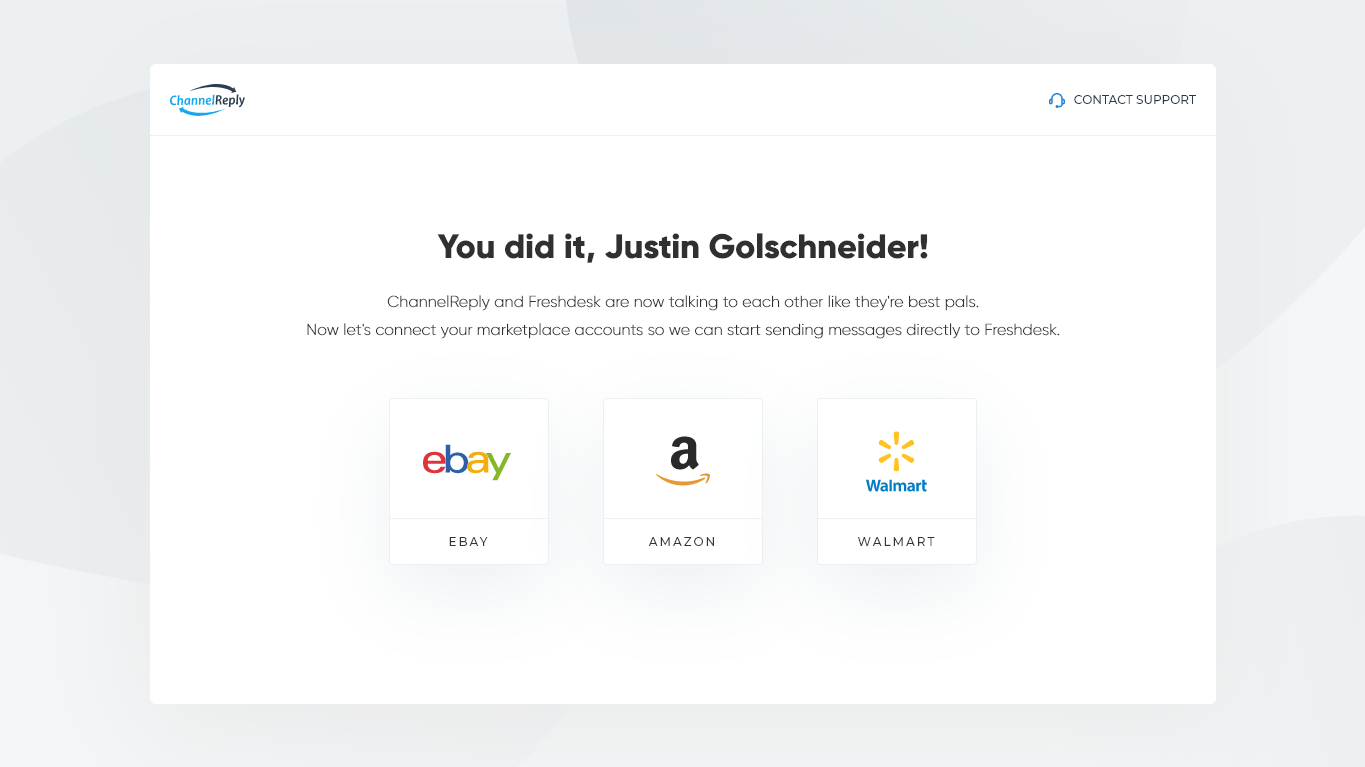
This will take you to the final step: connecting your marketplace accounts.
Choose the first marketplace you’d like to connect. Or, if you’re out of time, you can leave now and come back later. You can always add new marketplace accounts from your account dashboard.
Using the ChannelReply App in Freshdesk
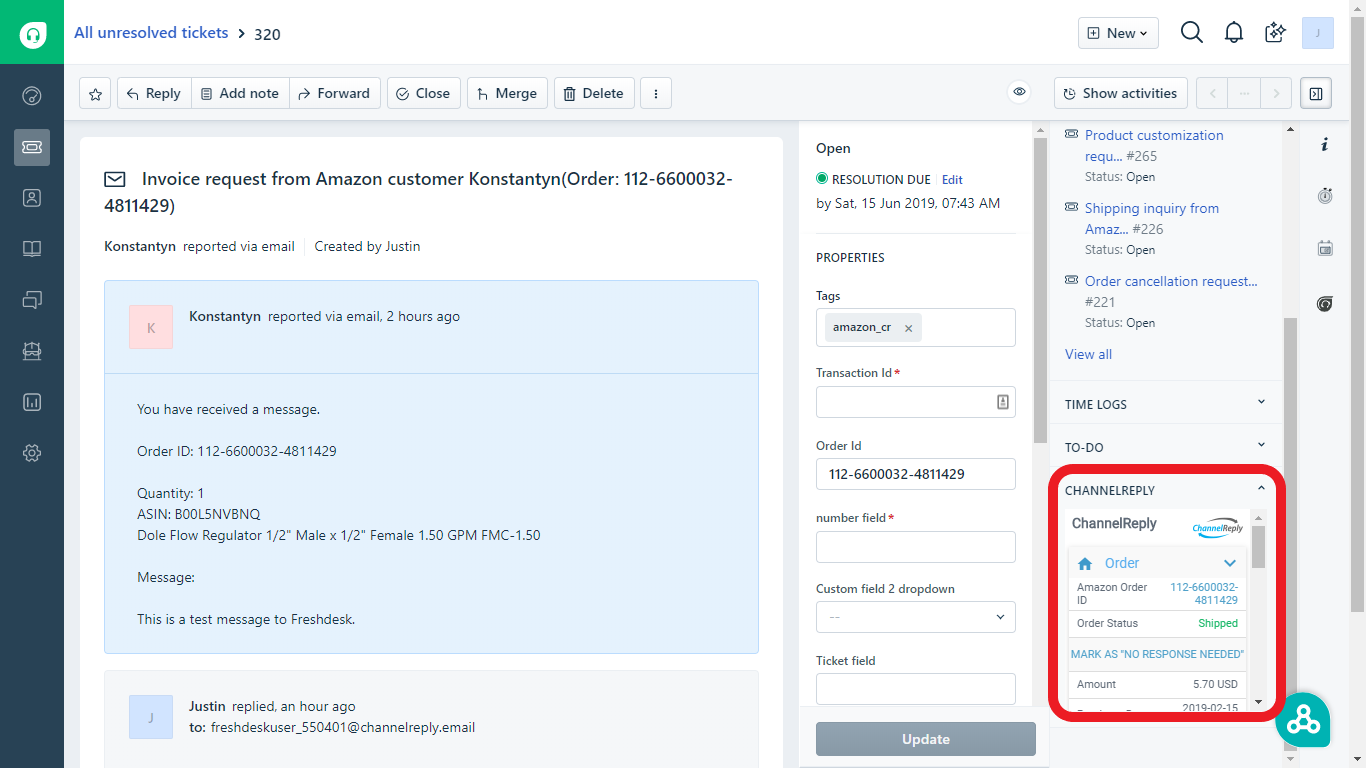
Once you connect a marketplace account, any new messages it receives will arrive in Freshdesk. Use the ChannelReply app in the right-hand sidebar to view customer and order info. It even allows you to take actions like marking Amazon messages as “no response needed” and approving eBay and Walmart refunds.
Optional Features
These advanced tools can be set up anytime. They are not required for messaging, but they will save you a lot of time on support!
Custom Fields (Placeholders)
ChannelReply's custom fields allow you to do all kinds of awesome stuff in Freshdesk. For example, you can auto-enter eBay, Amazon and Walmart data in your canned responses, and set up automations (triggers) based on order details. See "How to Use ChannelReply Data in Freshdesk Canned Responses & More" for instructions on this optional feature.
Autoresponders
It’s also important to note that normal Freshdesk automations will not work as autoresponders for most marketplaces. If you’d like to send auto-replies to marketplace customers, make sure you have connected at least one marketplace account. Then see our Freshdesk autoresponder instructions.
Need Help?
If you ever get stuck with your ChannelReply-Freshdesk integration, please contact us and we’ll happily assist you.


 Amazon
 eBay
eBay
 Shopify
 Walmart
 Back Market
 Newegg
 Etsy
Etsy
 WooCommerce
 Zendesk
 Freshdesk
 Help Scout
 Gorgias
 Re:amaze
 Zoho Desk
 Kustomer
 Onsite
 Help Center
 FAQ
FAQ
 Blog
Blog