Published on Mar. 20, 2019 | Last updated on Mar. 23, 2020
Integrating Gorgias with ChannelReply is as easy as pie—and by that, we mean eating a pie someone else baked. Follow along with the video or written instructions below and you’ll be done in minutes.
Notes: Click on any screenshot to view the full-sized image. Article last updated 3/23/2020; video last updated 10/22/2019.
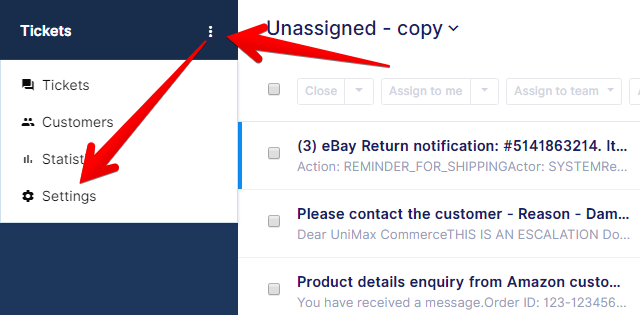
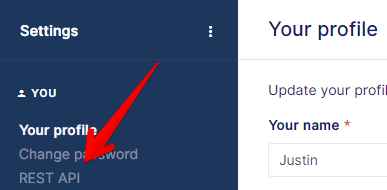
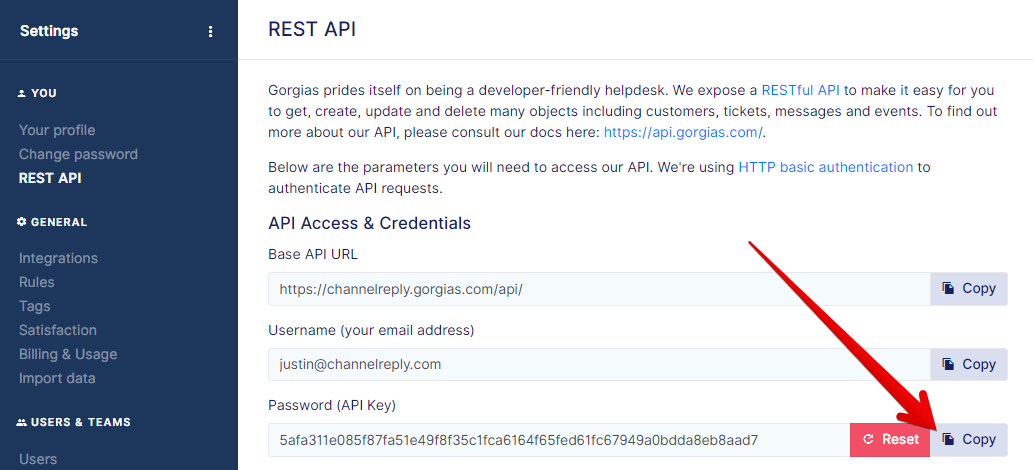
In Gorgias, click the dropdown menu in the upper left. (It will most likely be labeled “Tickets” if you’ve just logged in.) Select “Settings.”
Click “REST API.”
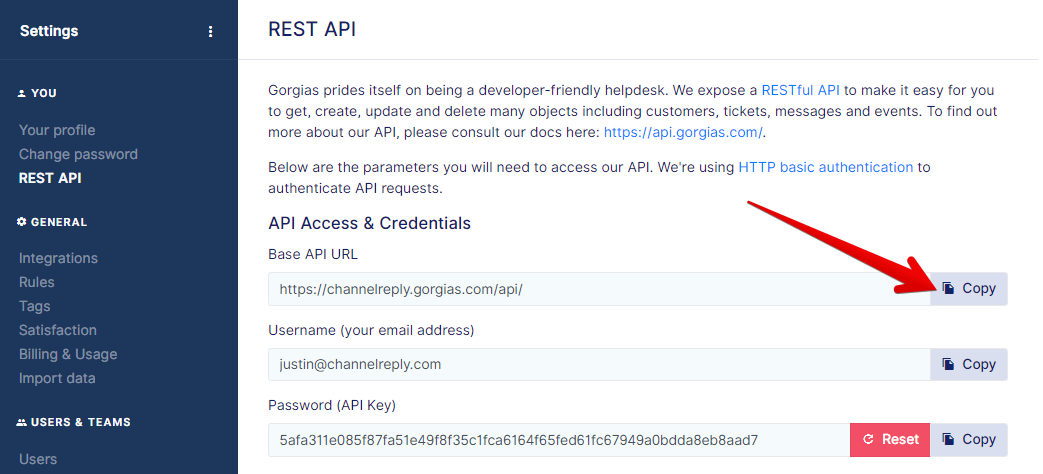
Find the “Base API URL” field. Click "Copy."
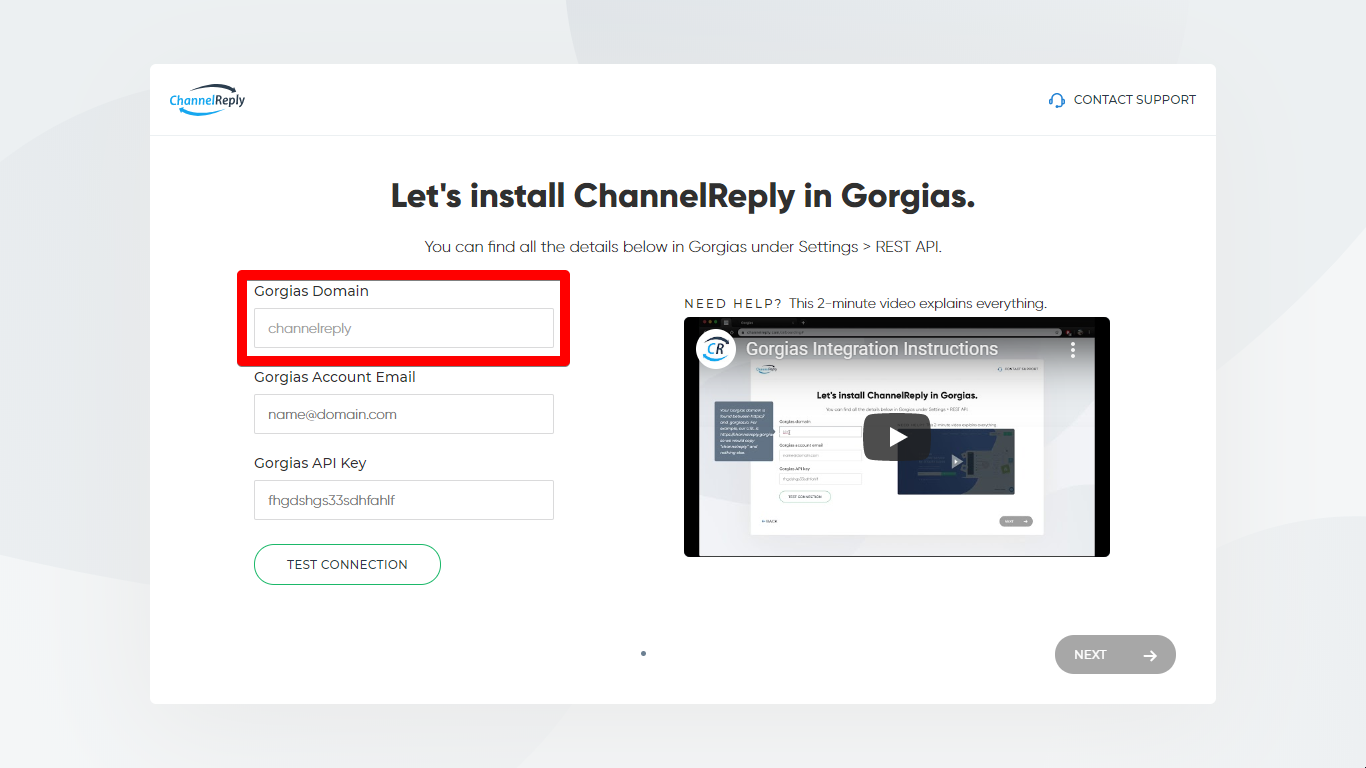
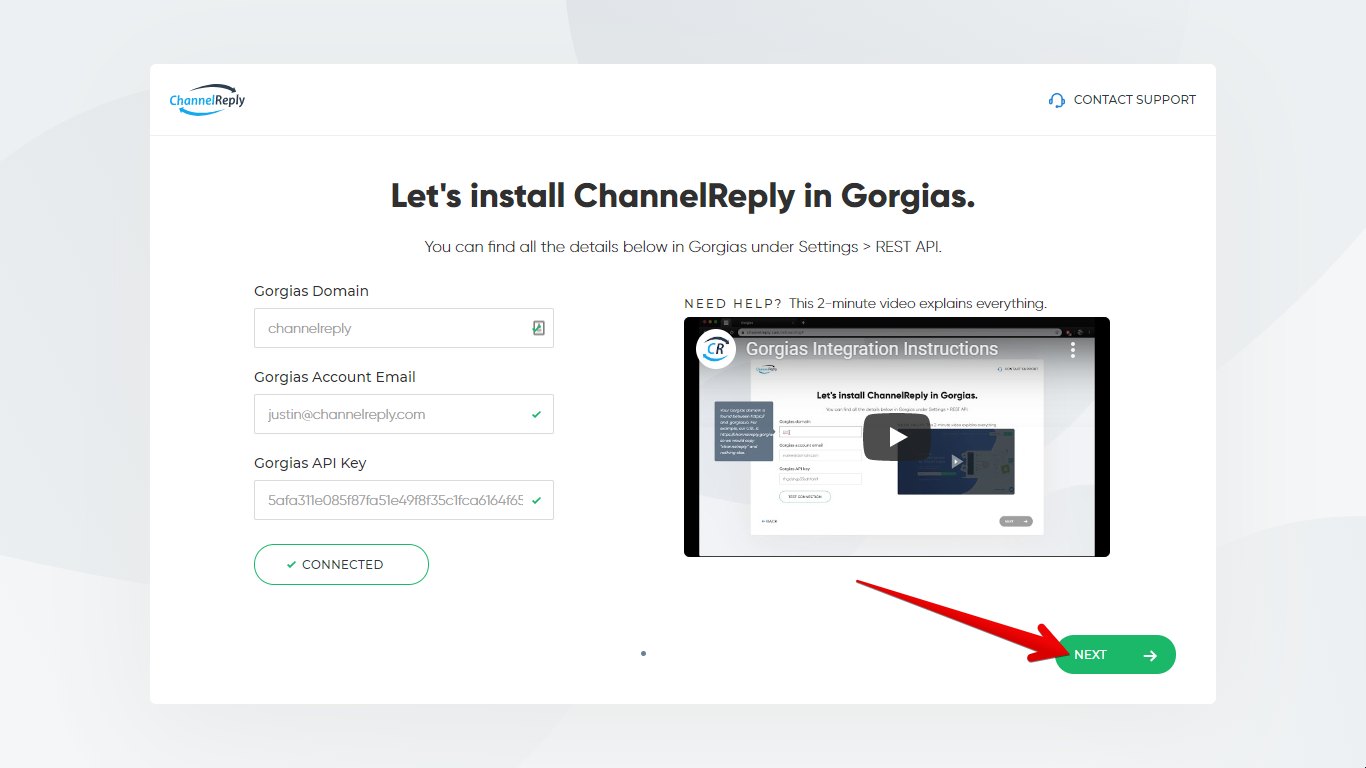
Paste this into the “Gorgias Domain” field in your ChannelReply account. Everything will be auto-removed except the part unique to your Gorgias instance. For example, our base API URL is https://channelreply.gorgias.com/api/, so everything except “channelreply” is removed.
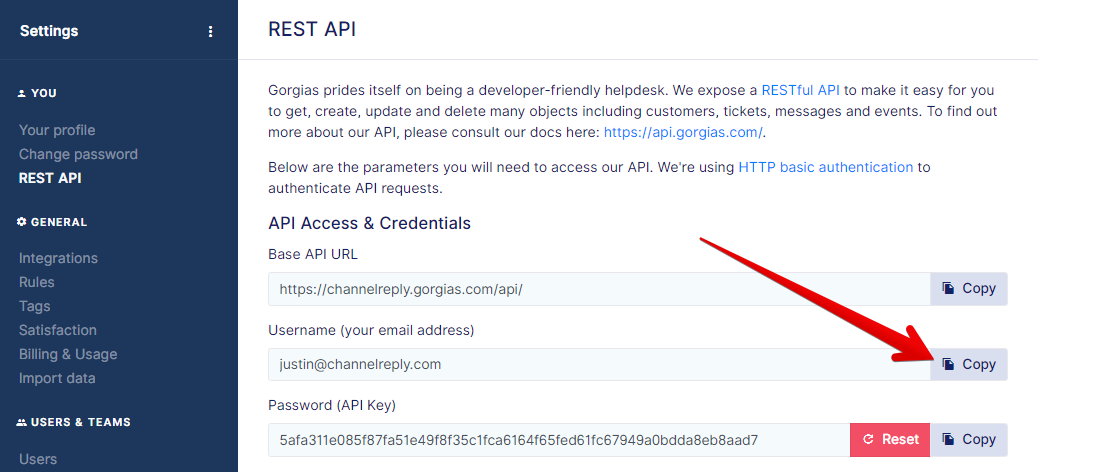
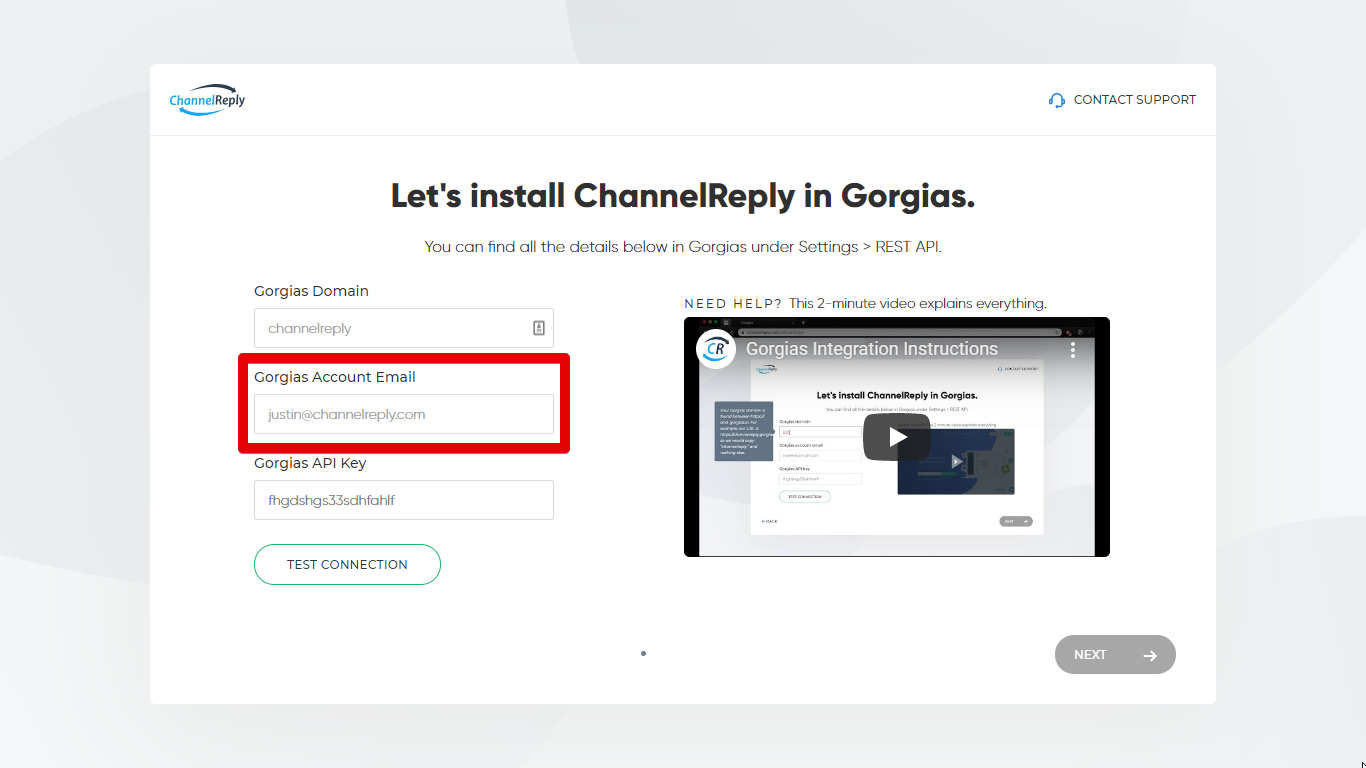
Back on your Gorgias screen, find the “Username (your email address)” field and click Copy.
Paste it into the “Gorgias account email” field in ChannelReply.
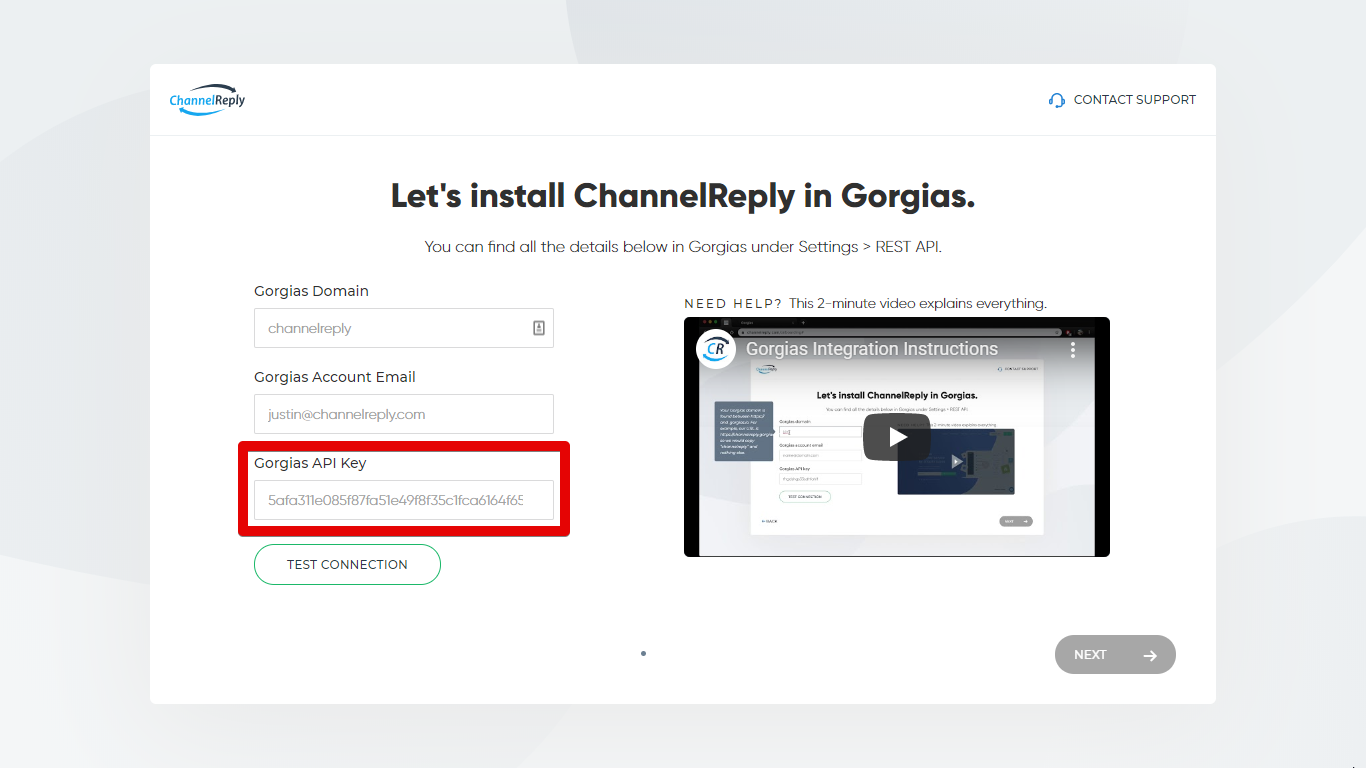
Return to Gorgias again. Find the “Password (API Key)” field and click Copy.
Finally, return to ChannelReply and paste that into the “Gorgias API key” field.
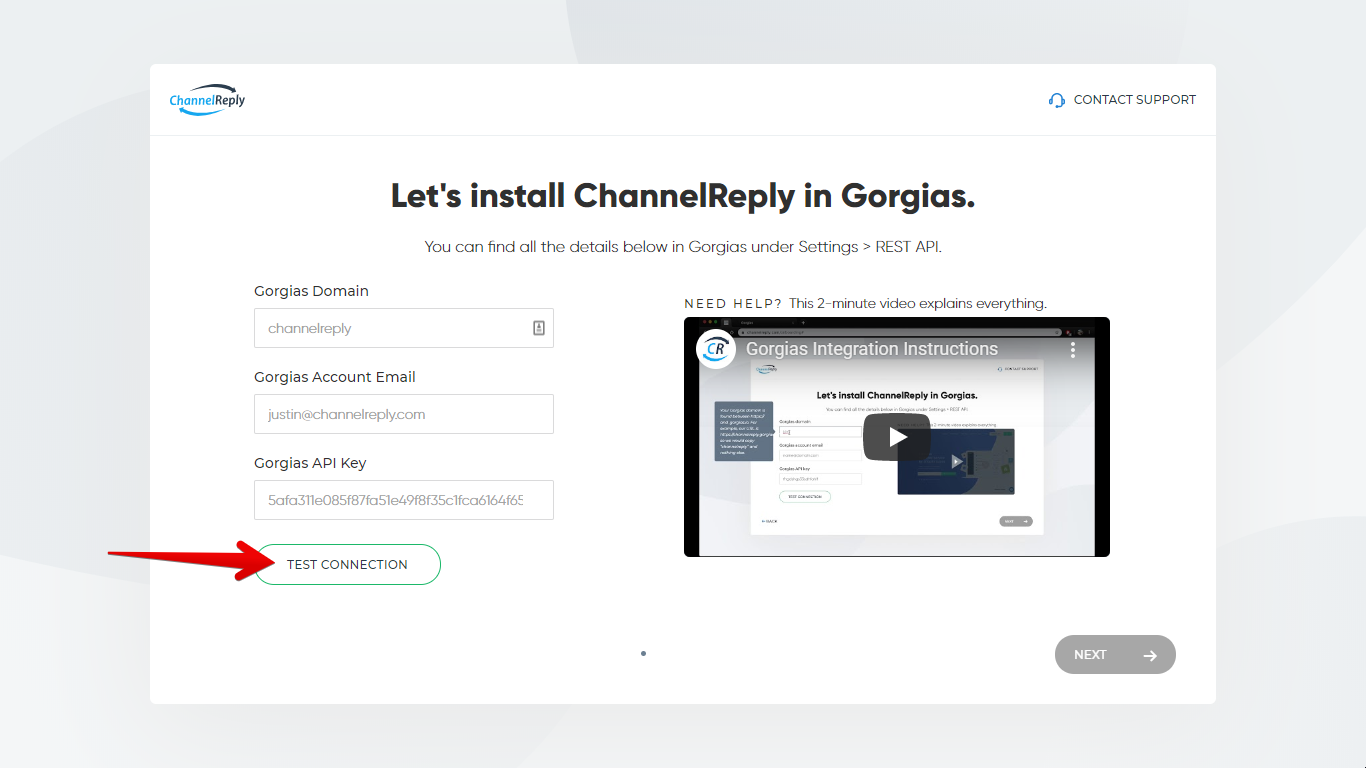
Click “TEST CONNECTION” to make sure everything is accurate.
“TEST CONNECTION” should change to “CONNECTED,” and green checkmarks should appear next to each field. Click “NEXT” to continue.
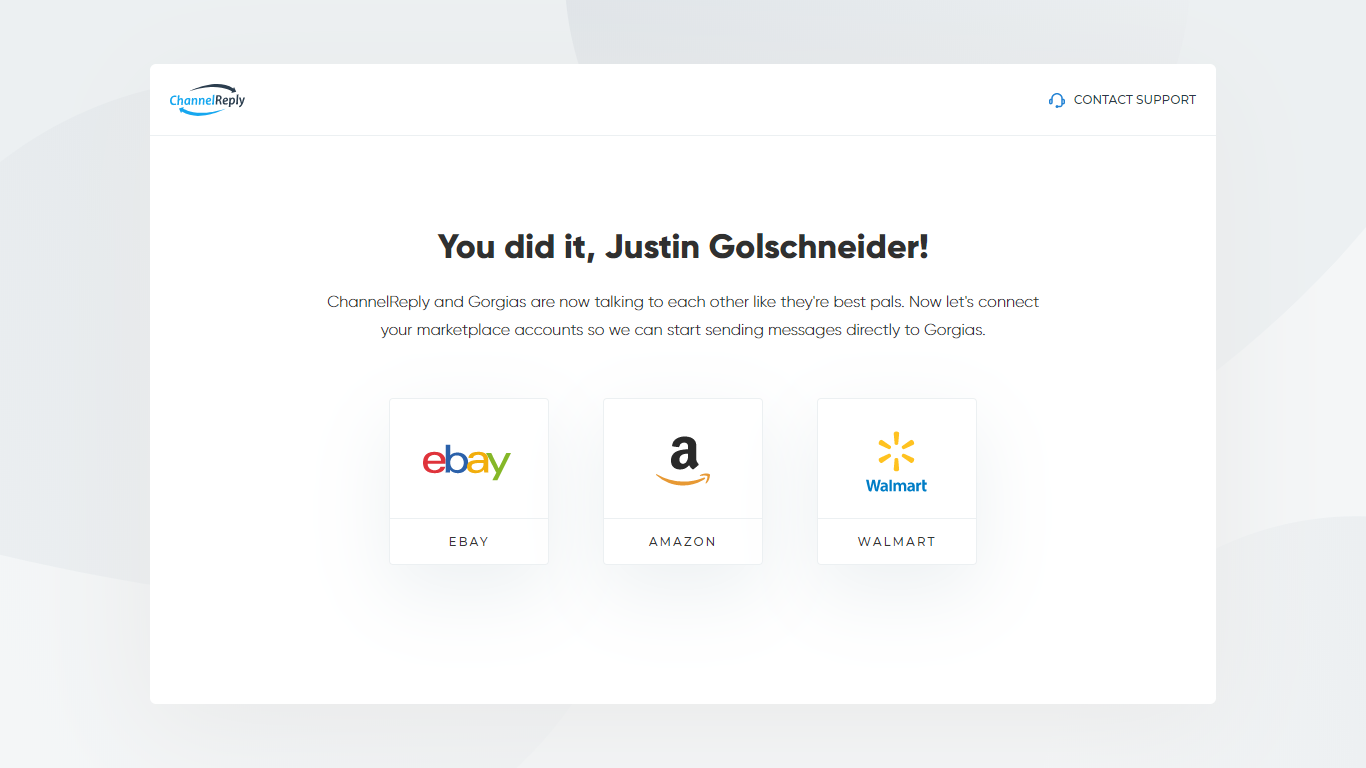
You’ll arrive on the following success screen:
Gorgias integration is now complete! You can safely leave setup now and resume later.
If you’d like to continue with setup now, click on the icon of whichever marketplace you’d like to connect first. You’ll be taken to the appropriate setup walkthrough.
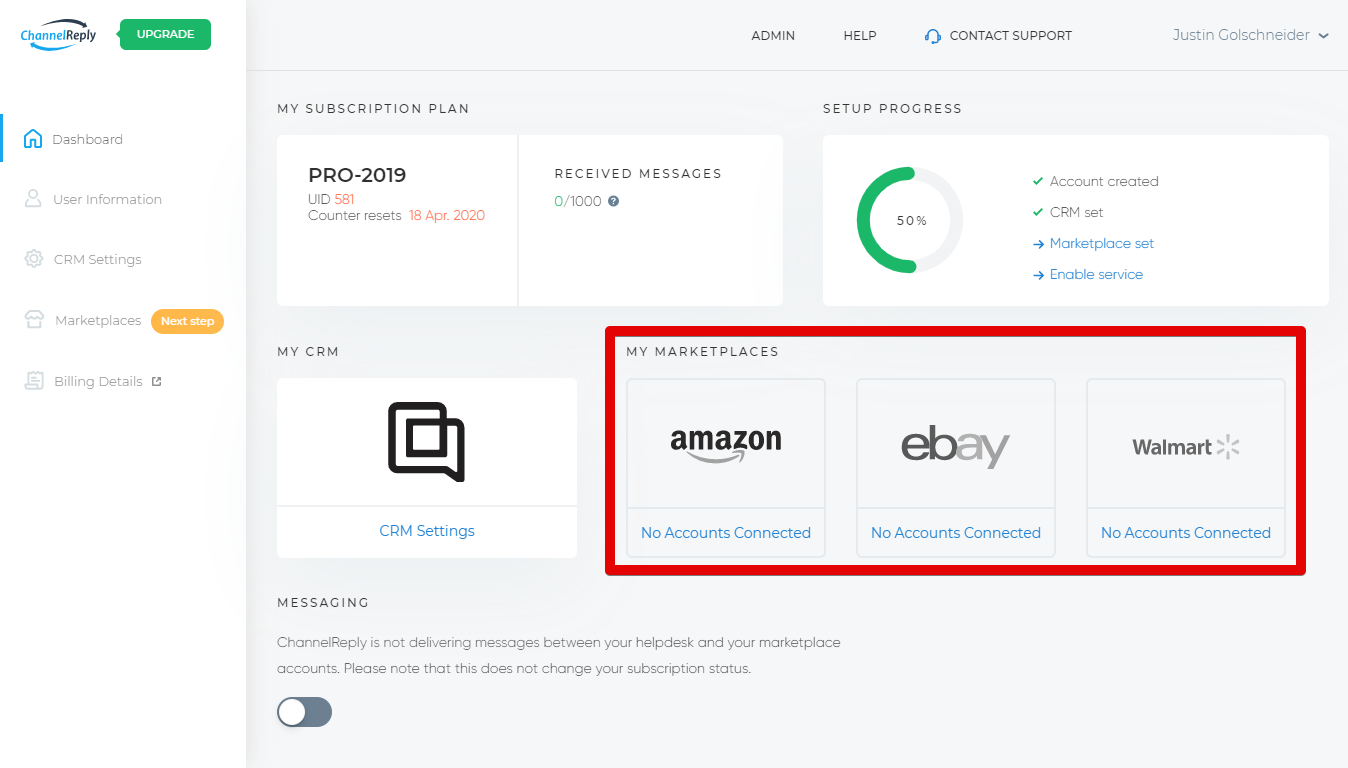
If you decide to leave now and come back later, you’ll be able to resume setup by clicking on any marketplace icon on your ChannelReply dashboard.


 Amazon
 eBay
eBay
 Shopify
 Walmart
 Back Market
 Newegg
 Etsy
Etsy
 WooCommerce
 Zendesk
 Freshdesk
 Help Scout
 Gorgias
 Re:amaze
 Zoho Desk
 Kustomer
 Onsite
 Help Center
 FAQ
FAQ
 Blog
Blog