Published on Sep. 12, 2018 | Last updated on Aug. 12, 2020
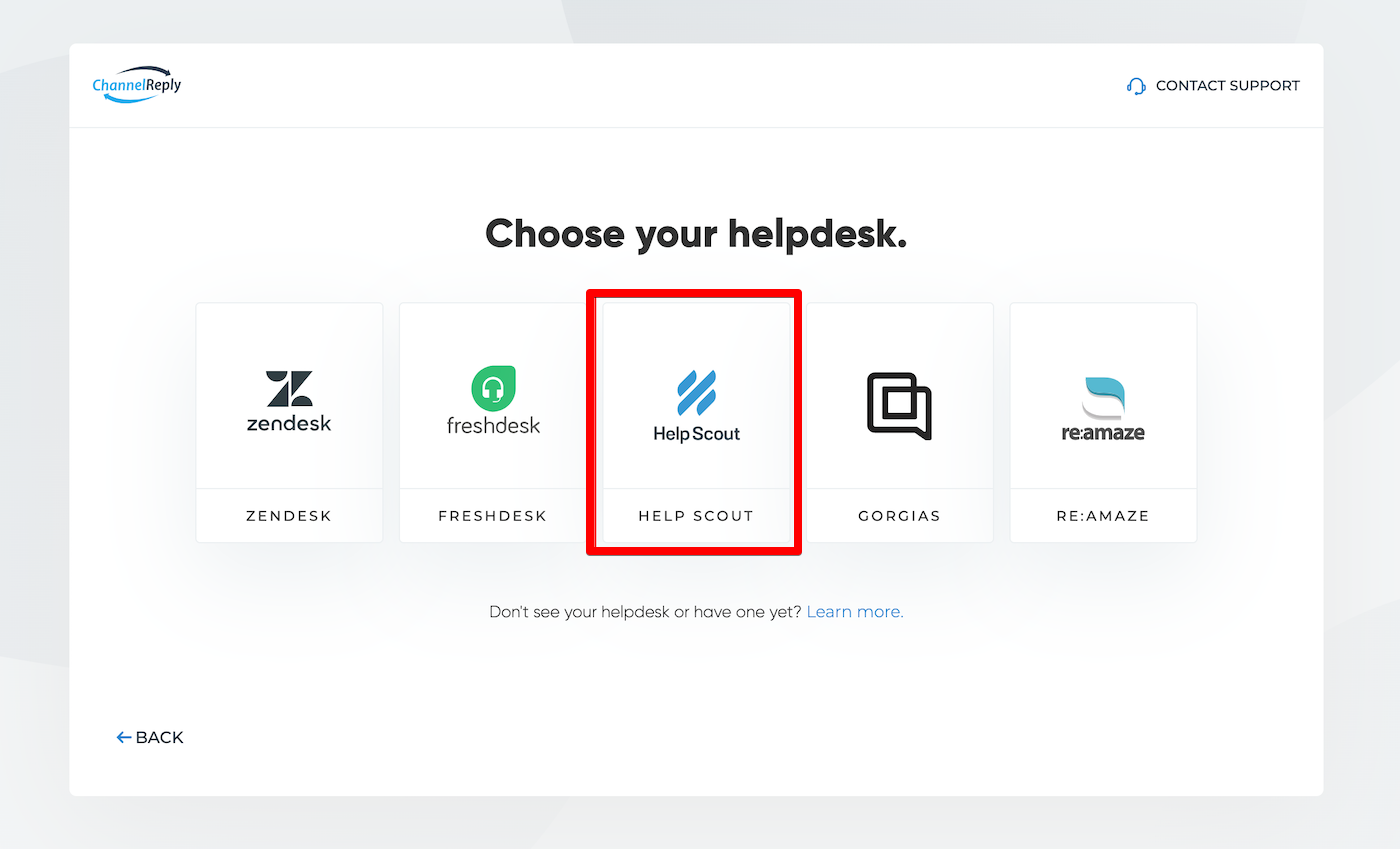
Follow the instructions below to integrate your Help Scout account with ChannelReply. If you followed the link to this article from our setup walkthrough, you can skip straight to step 3.
Notes: Click on any image to view it at full resolution. Last updated 8/12/2020.
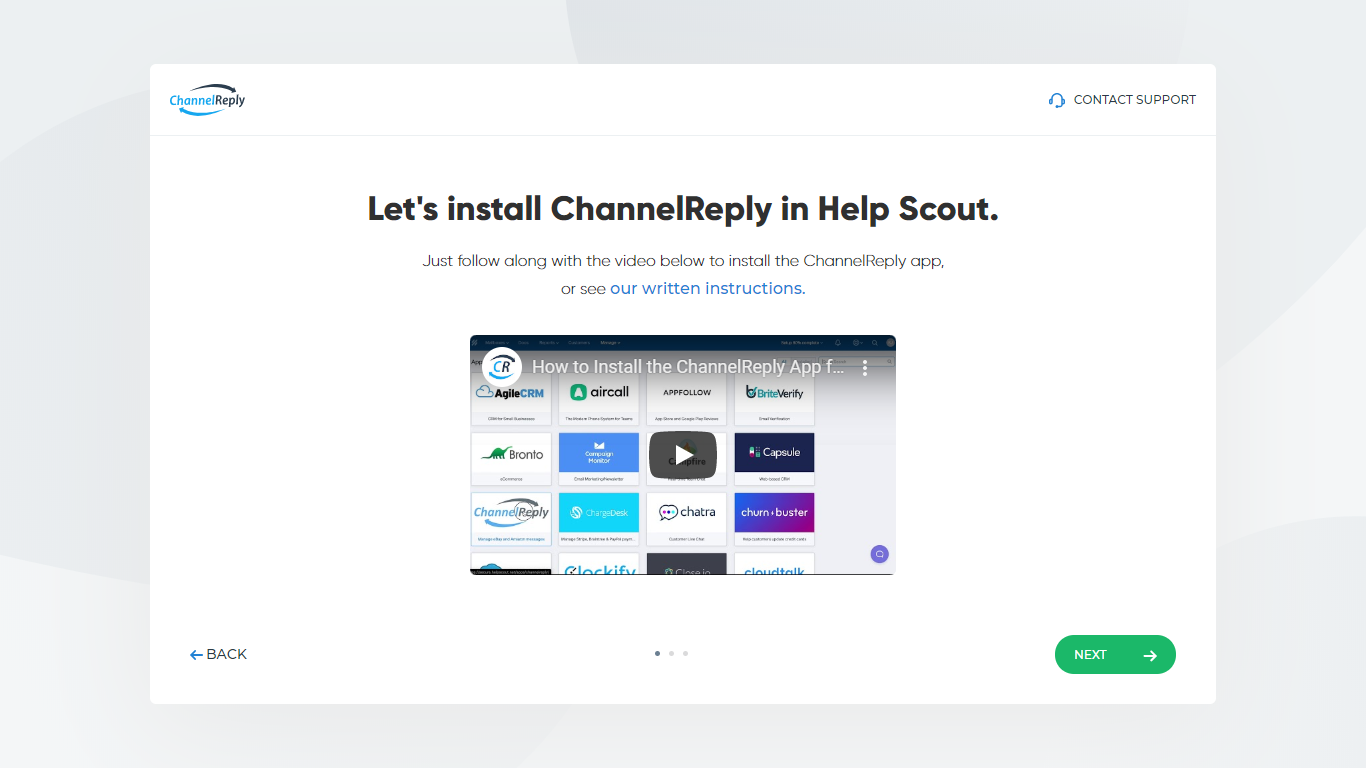
Follow along with the video below, or continue reading these instructions below the video:
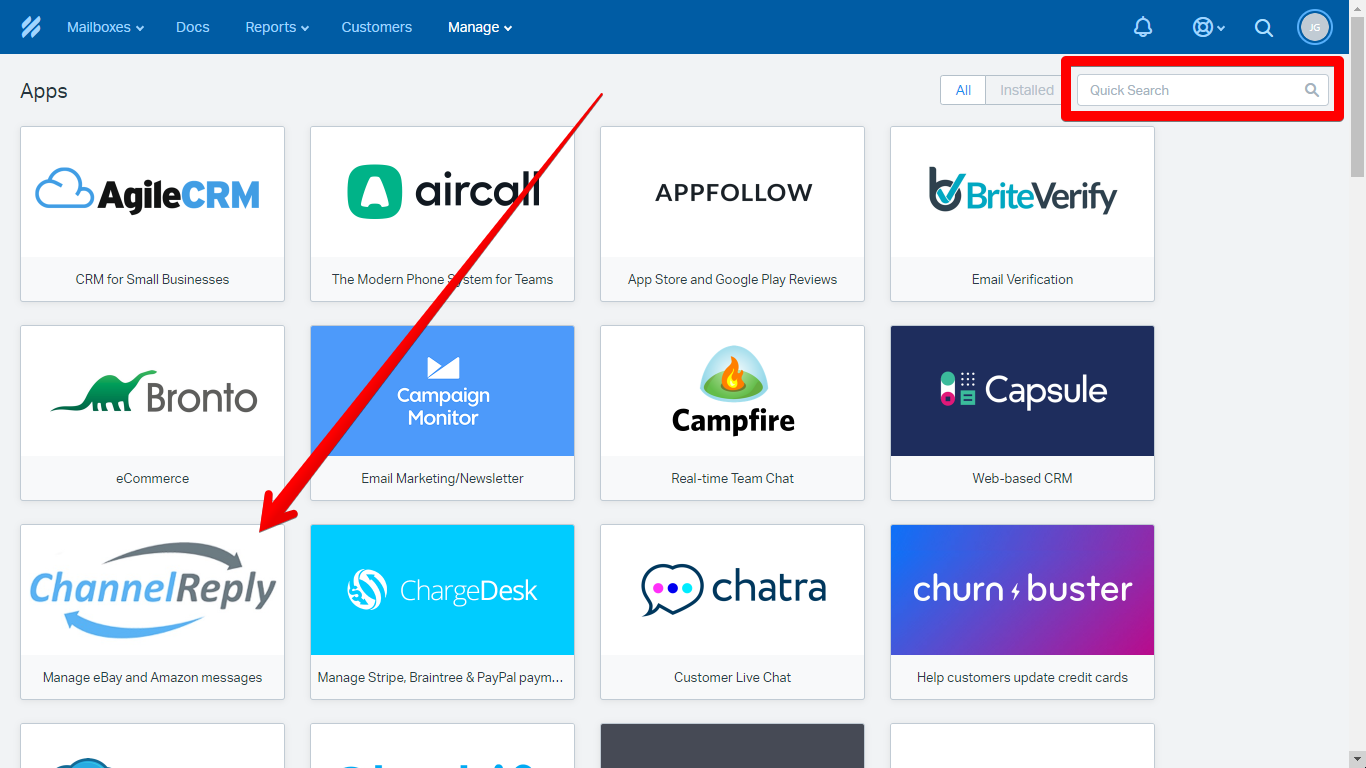
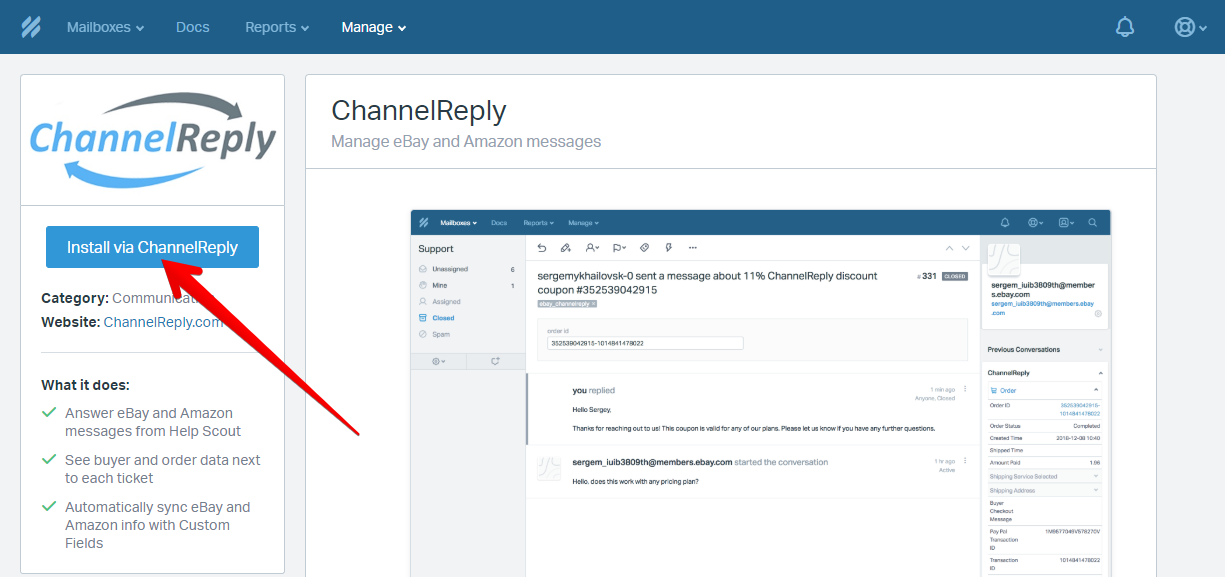
In Help Scout, click “Manage,” then choose “Apps” from the dropdown menu.
Select “ChannelReply” from the list of apps. You can use the search bar in the upper right if you don’t see it immediately.
Click “Install via ChannelReply.”
This will return you to ChannelReply. Follow along with the video below, or continue reading the instructions below the video.
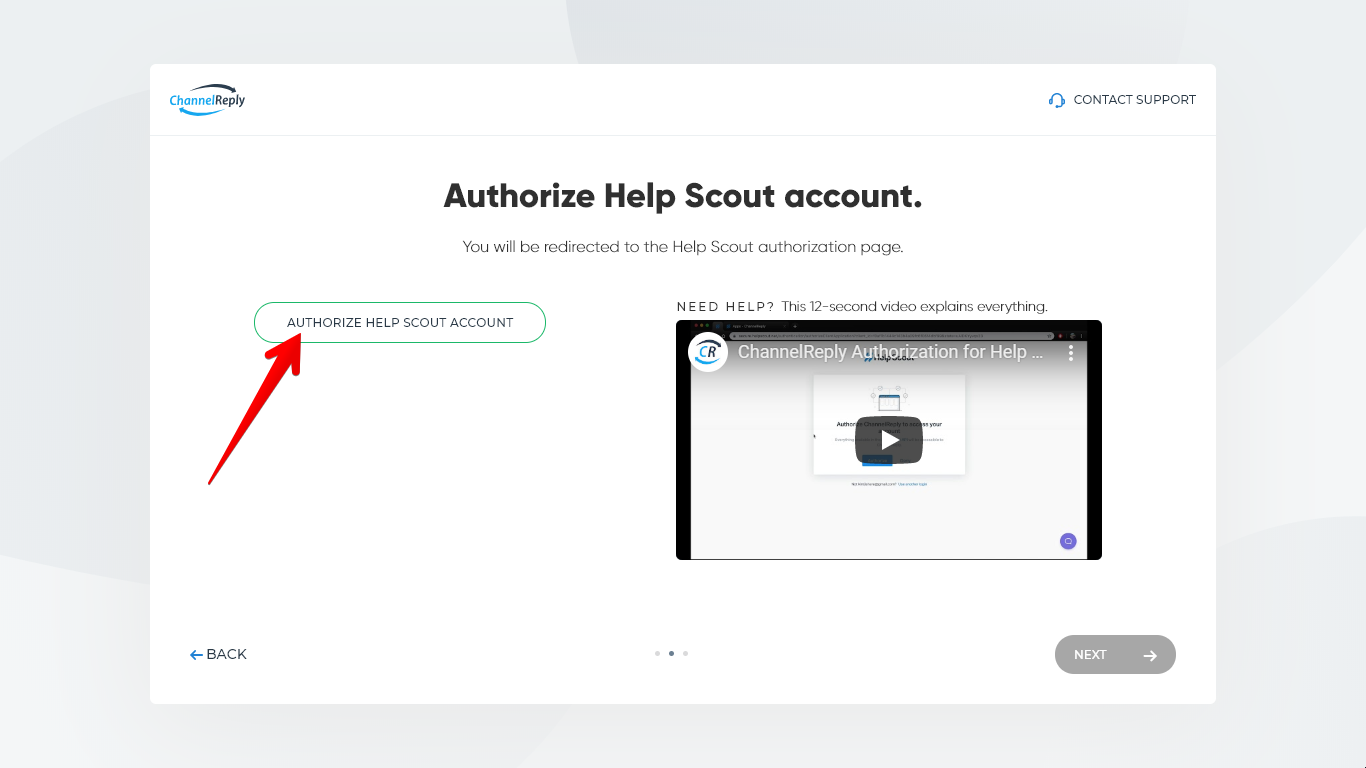
Click “Authorize Help Scout account.”
Help Scout will ask you to grant ChannelReply permission to access your account via API. Click “Authorize.”
This will once again bring you back to ChannelReply.
3. Choose a Default Mailbox
Follow along with the video below, or continue reading the instructions under the video.
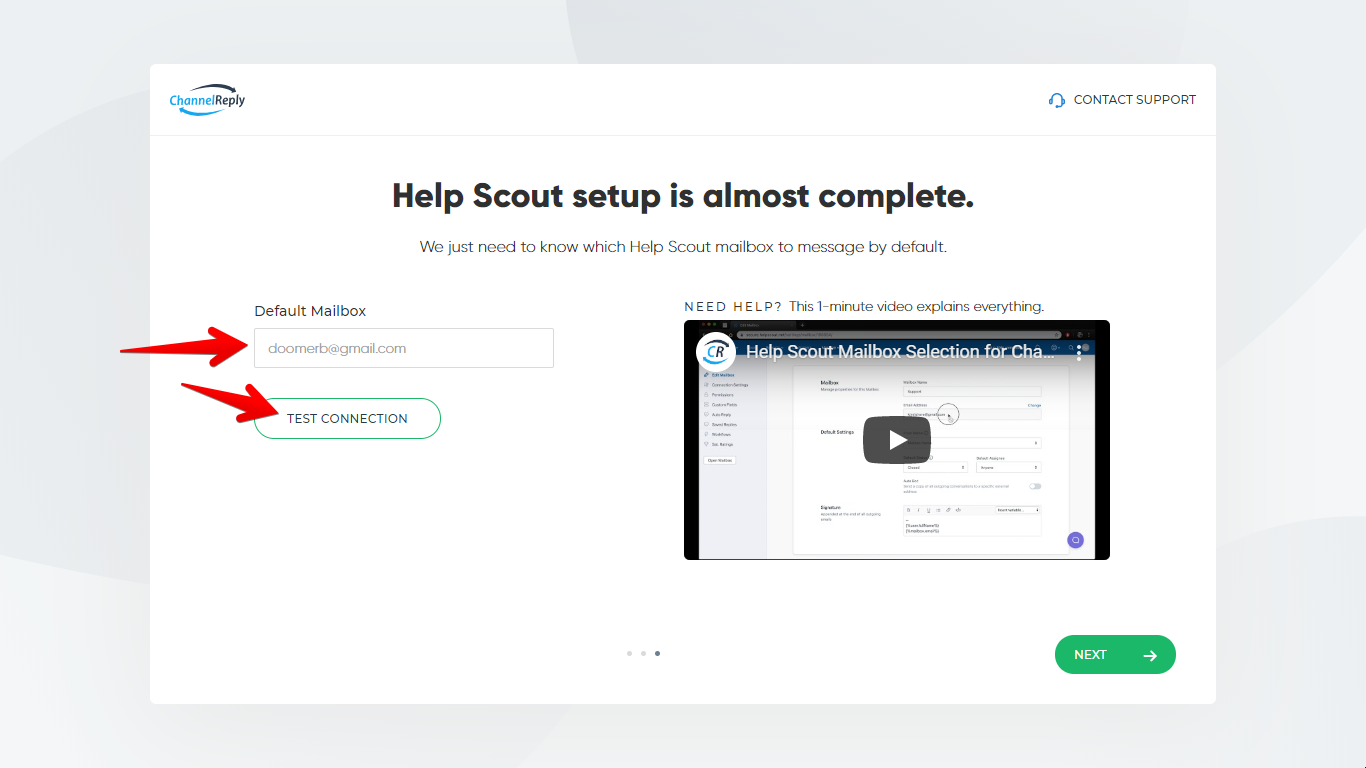
In the “Default Mailbox” field, enter the email address of one of your Help Scout mailboxes. Your eBay, Amazon and Walmart messages will be delivered to this mailbox by default. (That doesn’t mean they all have to go there—you’ll be able to choose a different mailbox for each marketplace account you connect.)
Click “TEST CONNECTION” once done.
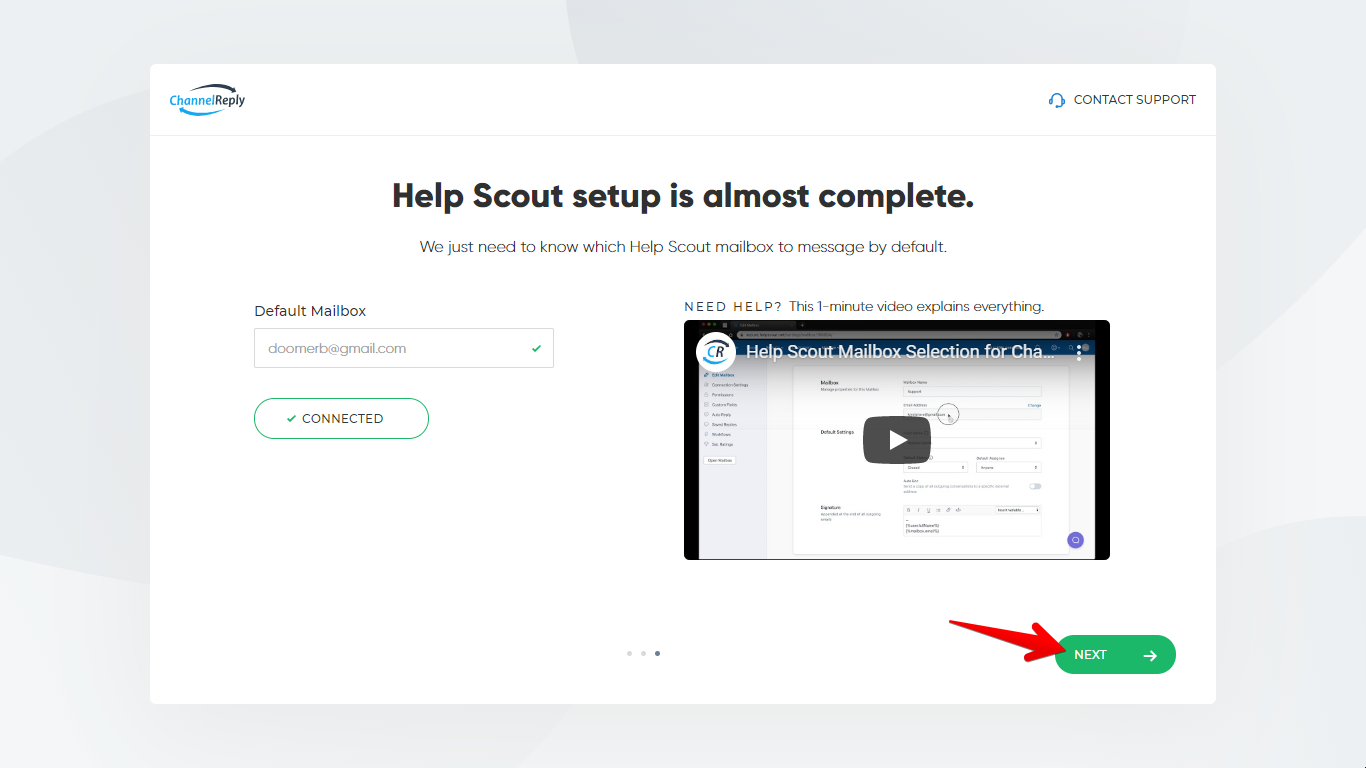
Green checkmarks should appear, with “TEST CONNECTION” changing to “CONNECTED.” Click “OK” to continue. If you see an error message instead, follow the instructions provided or contact us.
Finally, click “NEXT.”
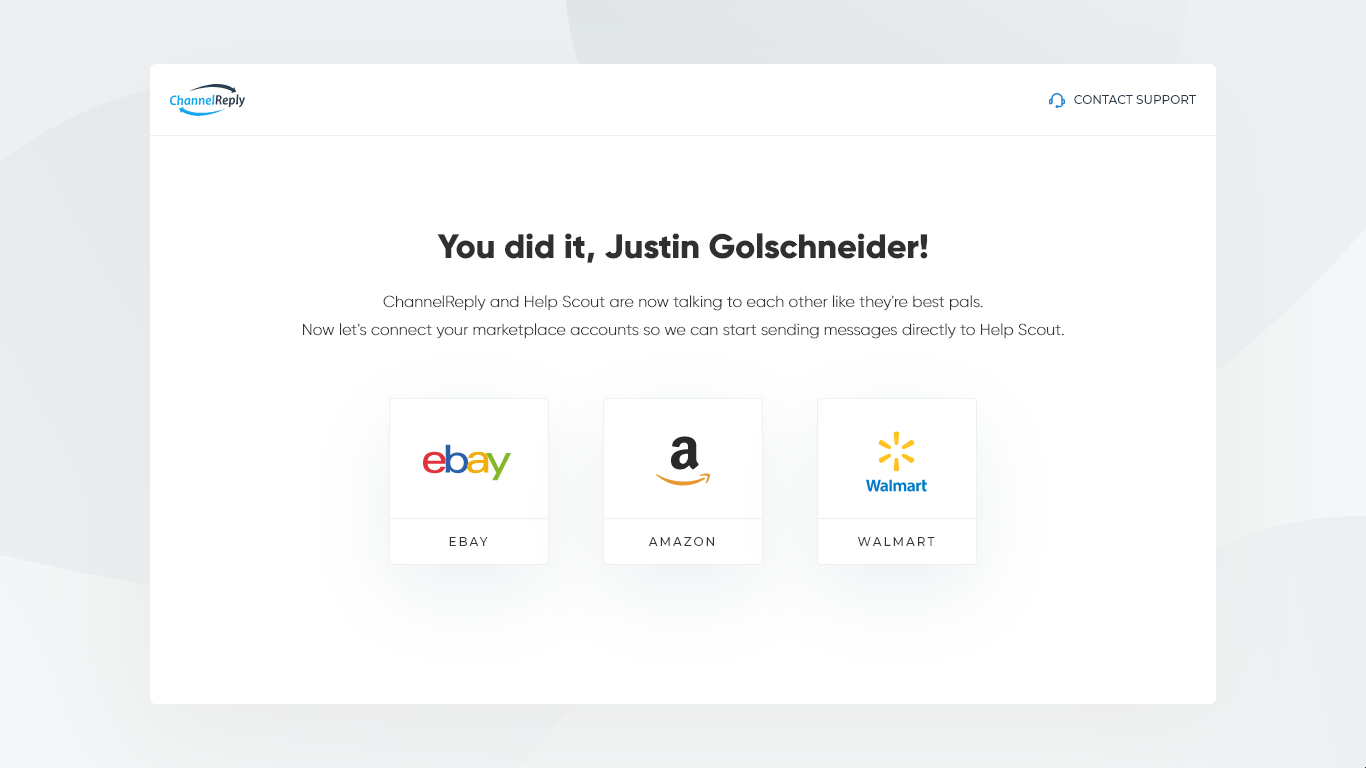
You should see the success message below. Help Scout and ChannelReply are now connected!
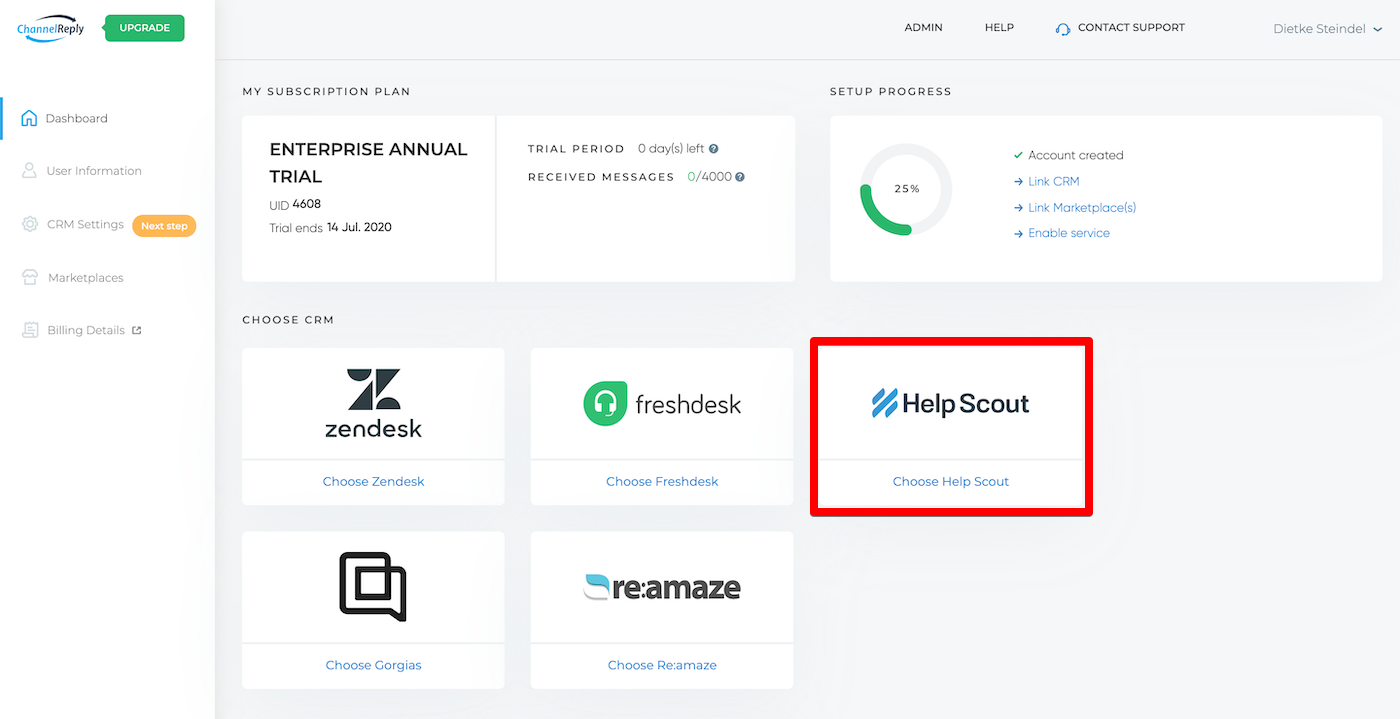
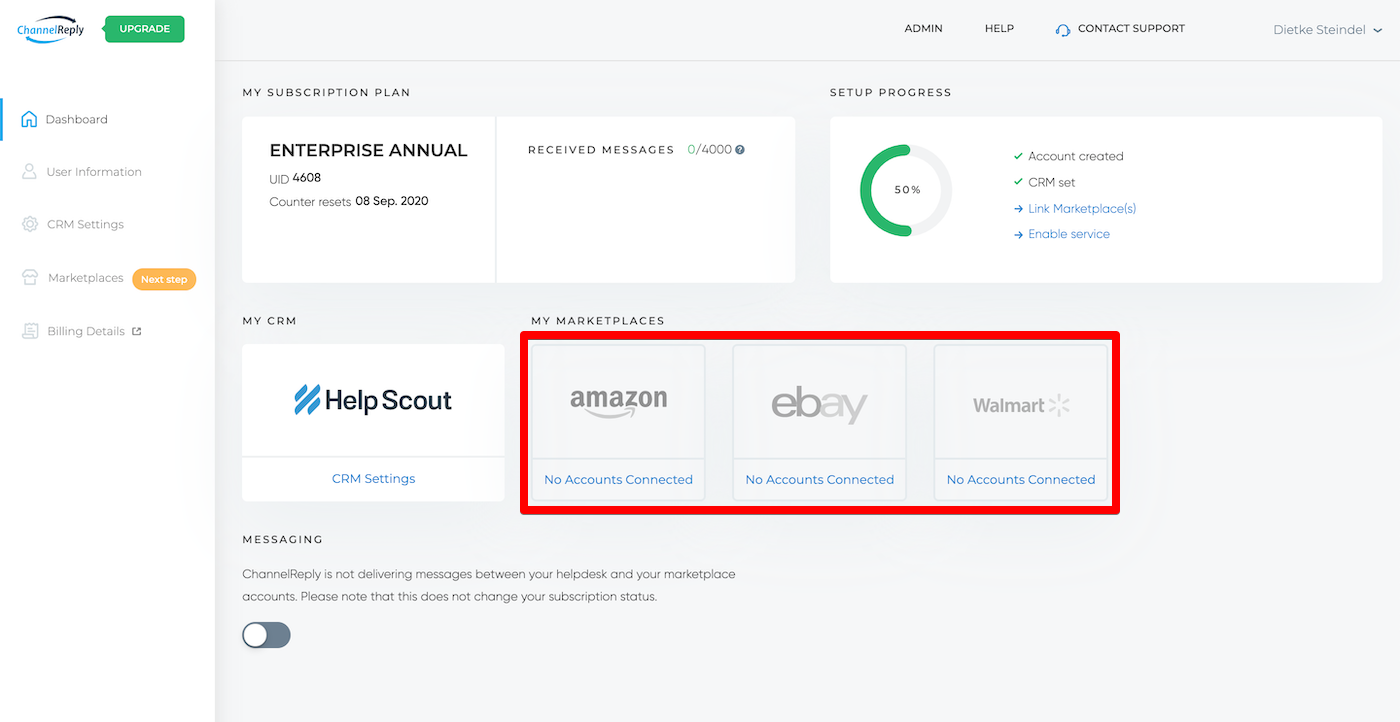
Everything is saved and you can safely exit now and come back later. If you want to continue now, just click on the next marketplace you wish to connect. Otherwise, you can log back in later and click on the marketplace you want to connect from your ChannelReply dashboard:
Then, simply follow the prompts and video instructions that appear to complete the integrations.
Need help? Have questions? Contact us and we’ll get back to you as soon as possible!


 Amazon
 eBay
eBay
 Shopify
 Walmart
 Back Market
 Newegg
 Etsy
Etsy
 WooCommerce
 Zendesk
 Freshdesk
 Help Scout
 Gorgias
 Re:amaze
 Zoho Desk
 Kustomer
 Onsite
 Help Center
 FAQ
FAQ
 Blog
Blog