To reactivate a cancelled ChannelReply account, you only need to do three things:
- Make sure you have the right plan selected.
- Upload valid payment info in "Billing Details."
- Click “ACTIVATE NOW.”
The rest of this article will show how to do this step by step, with screenshots to guide you through the entire process.
Note: Click any image to view it at full resolution.
1. Check Your Plan
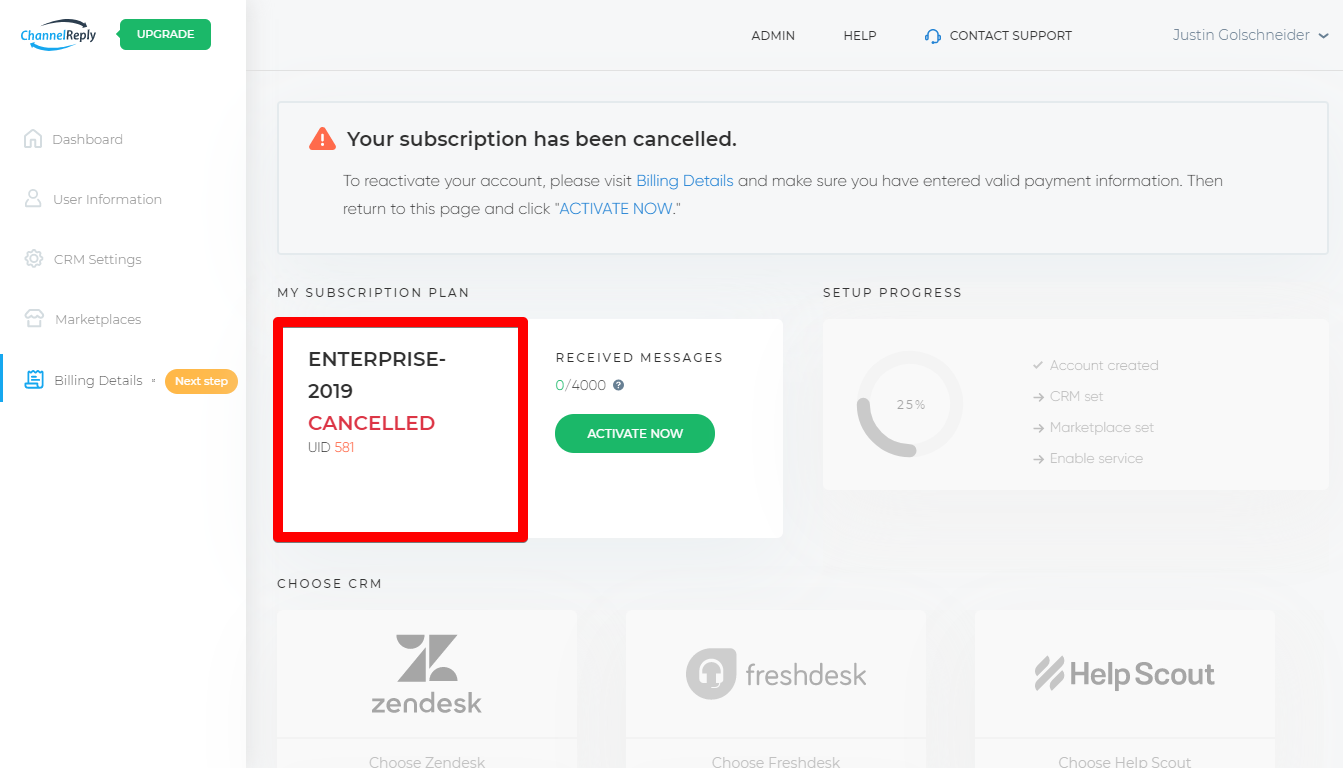
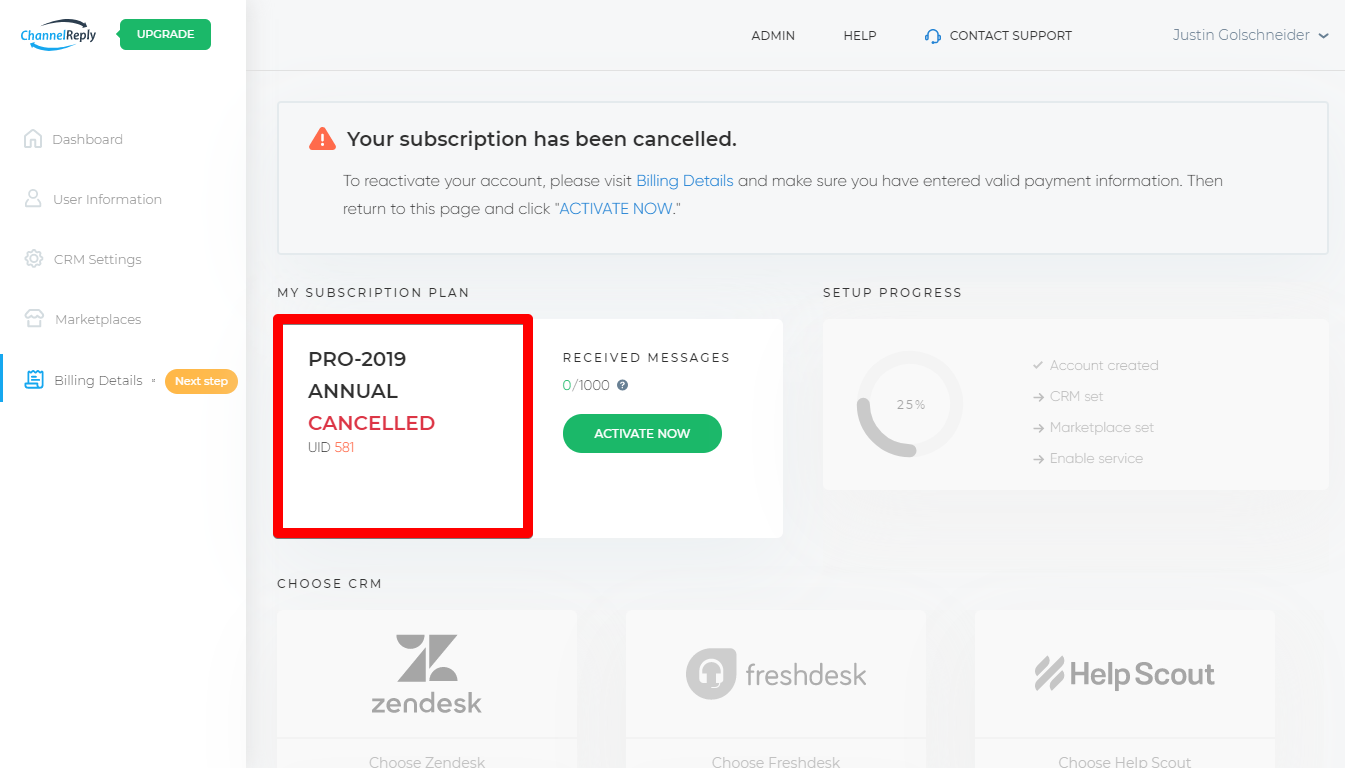
Sign in to ChannelReply. Your current plan will be displayed on your account dashboard.
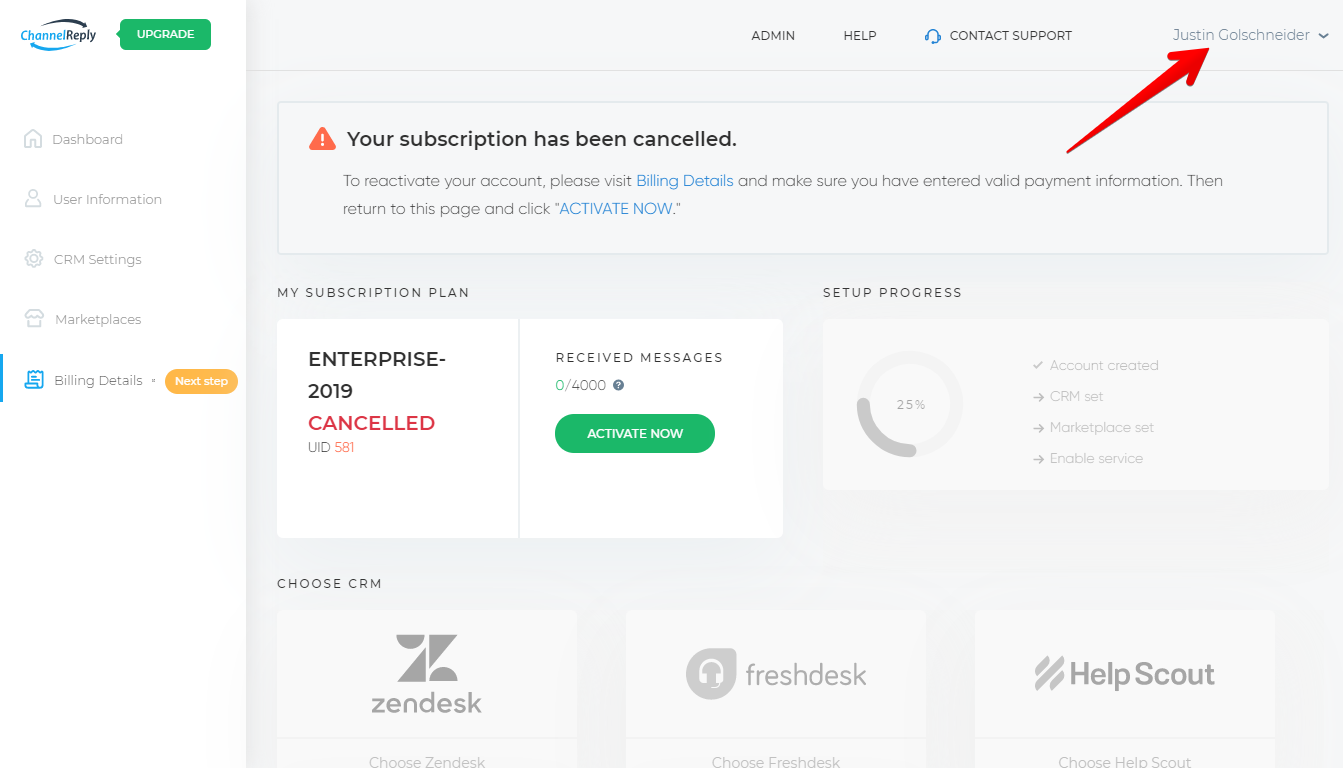
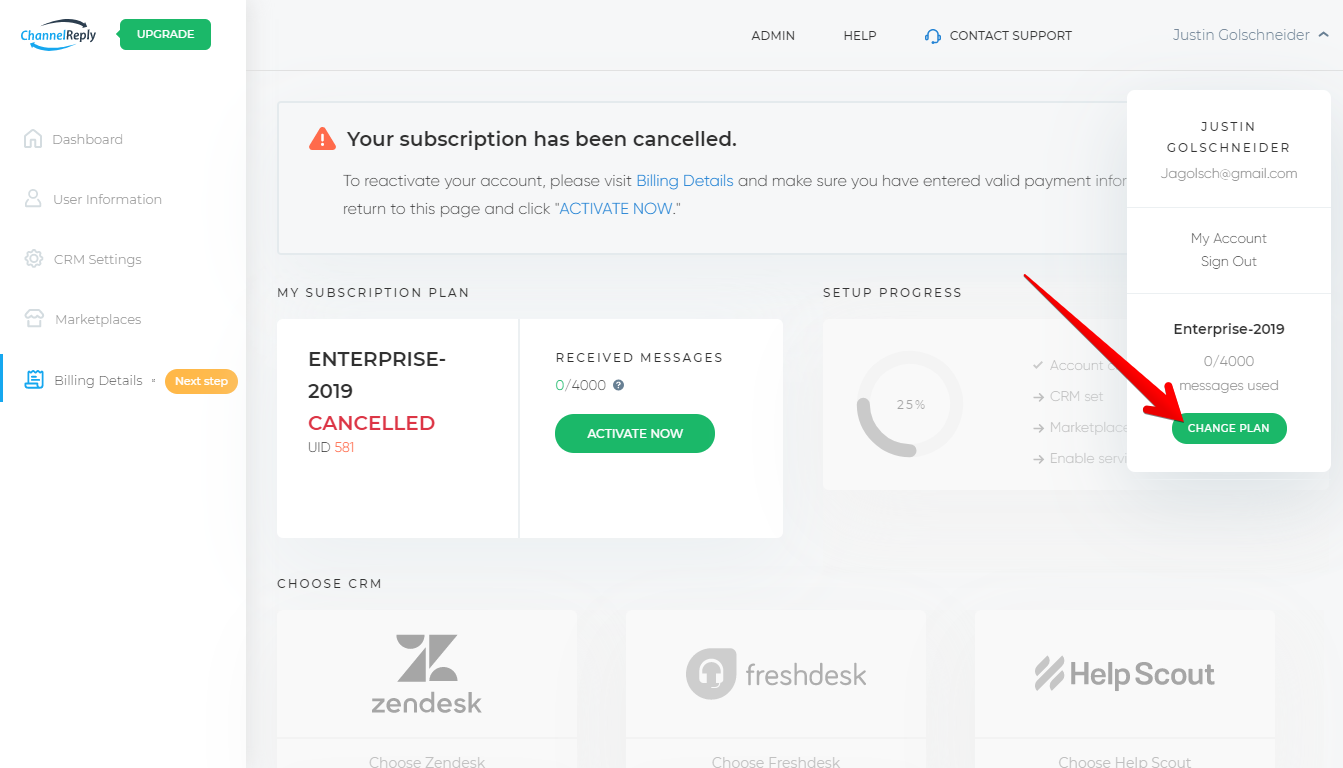
If you aren’t sure that’s the plan for you, you can review all available plans and choose a new one by clicking on your name in the upper right, then hitting “CHANGE PLAN.”
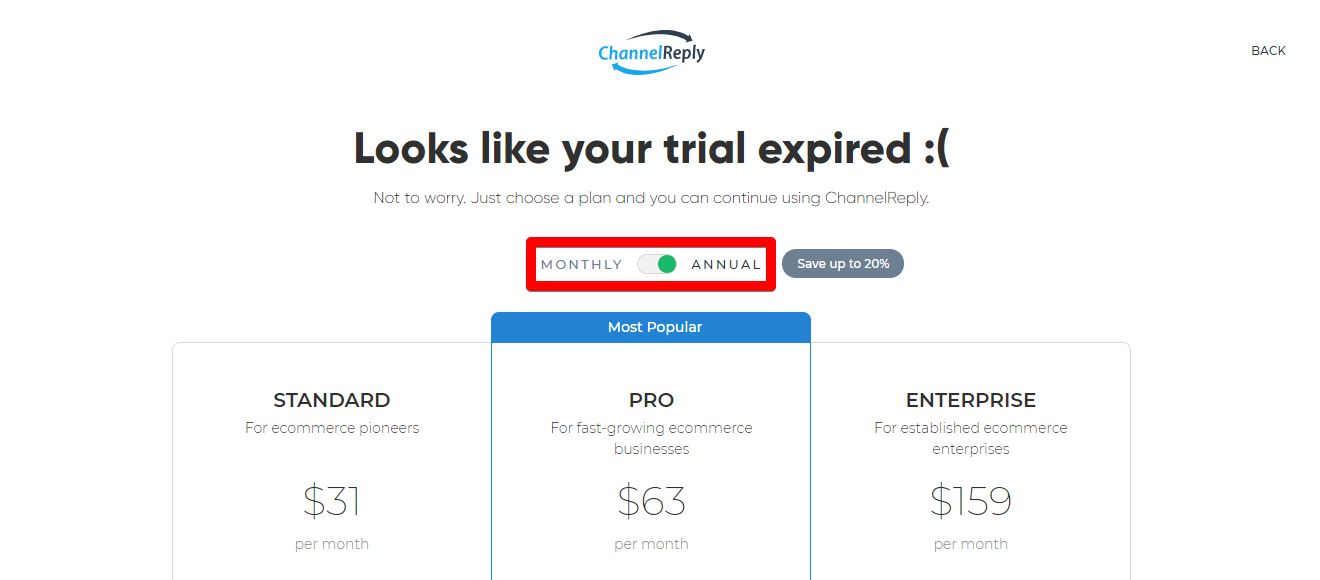
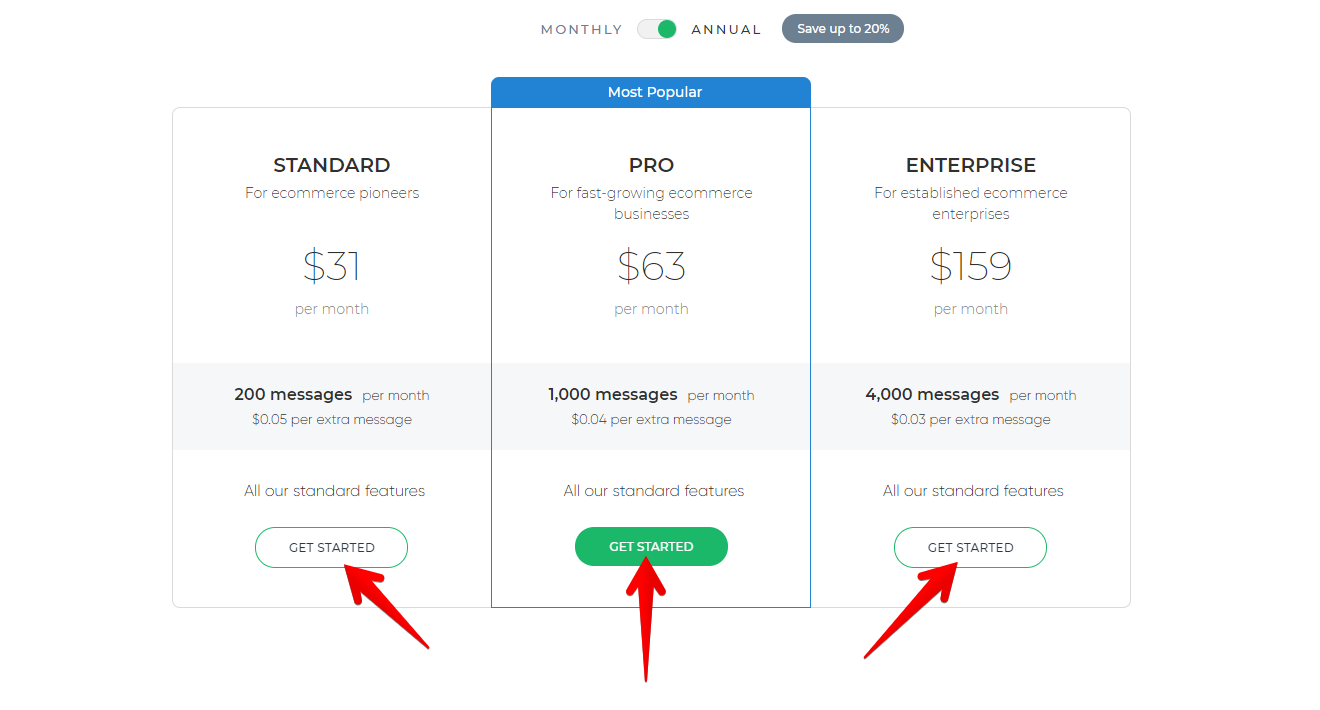
You’ll then be taken to our plan selection page. There you can switch between plans as well as monthly and annual payment options. Start by making sure the monthly/annual slider is set to your desired option.
Then click “GET STARTED” under your desired plan.
This will return you to your account management dashboard. Note that you may need to wait for a few moments and then refresh the page to see that your plan has changed.
2. Upload Payment Info
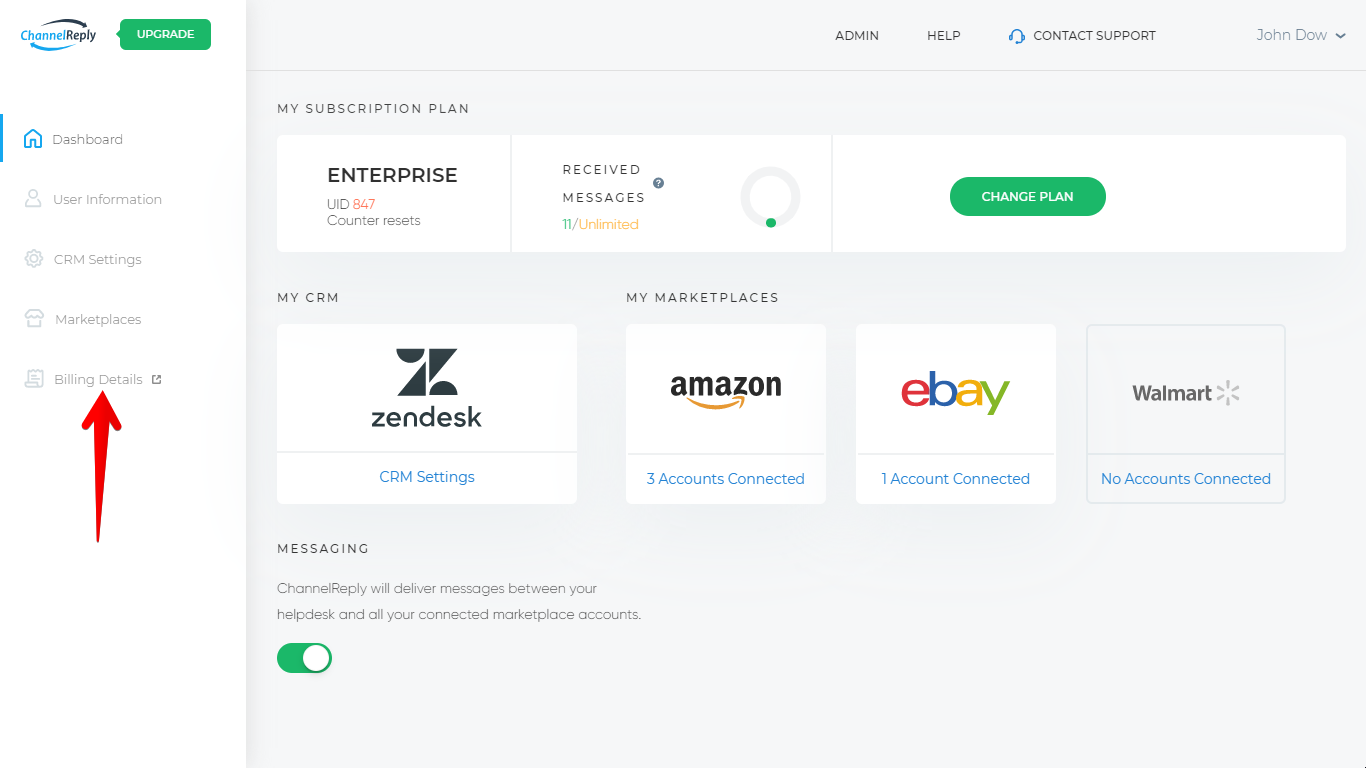
In most cases, you will need to provide valid payment info before you can reactivate. Visit “Billing Details” in the left-hand menu and enter your payment method on the next page.
Complete instructions for uploading your payment info can be found in “How to Manage Your Payment Info in ChannelReply.”
3. Reactivate Your ChannelReply Account
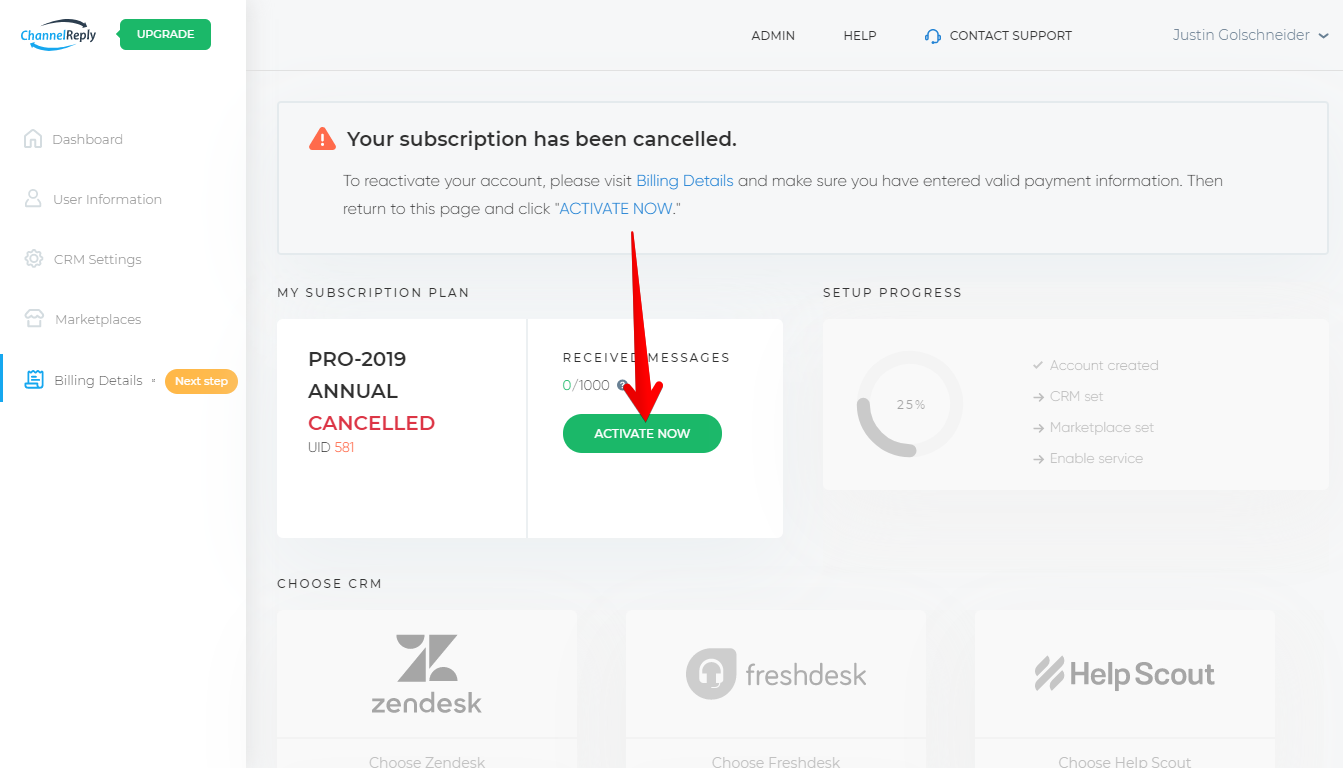
Back on your ChannelReply dashboard, click “Activate Now.”
This will trigger billing to go through for the plan and payment method you have selected. As soon as this is complete, your account will reactivate, all options will become available again, and messaging can resume.
Thank you for reactivating your account! If you need help or have any questions, please contact us and we’ll get back to you ASAP.


 Amazon
 eBay
eBay
 Shopify
 Walmart
 Back Market
 Newegg
 Etsy
Etsy
 WooCommerce
 Zendesk
 Freshdesk
 Help Scout
 Gorgias
 Re:amaze
 Zoho Desk
 Kustomer
 Onsite
 Help Center
 FAQ
FAQ
 Blog
Blog