Sending Amazon notifications to your helpdesk is easy, whether done through your ChannelReply account or simple email forwarding. Simply integrate Amazon with ChannelReply and then follow the steps below. They’ll work whether you have Zendesk, Freshdesk, Help Scout, Gorgias or Re:amaze.
Notes: Click on any image to view it at full resolution. Last updated 5/26/2020.
1. Go to Your Amazon Notification Preferences
First, log in to your Amazon Seller Central account. Then hover over "Settings" in the upper right and click "Notification Preferences."
2. Forward Amazon Order Notifications to Your Helpdesk (Optional)
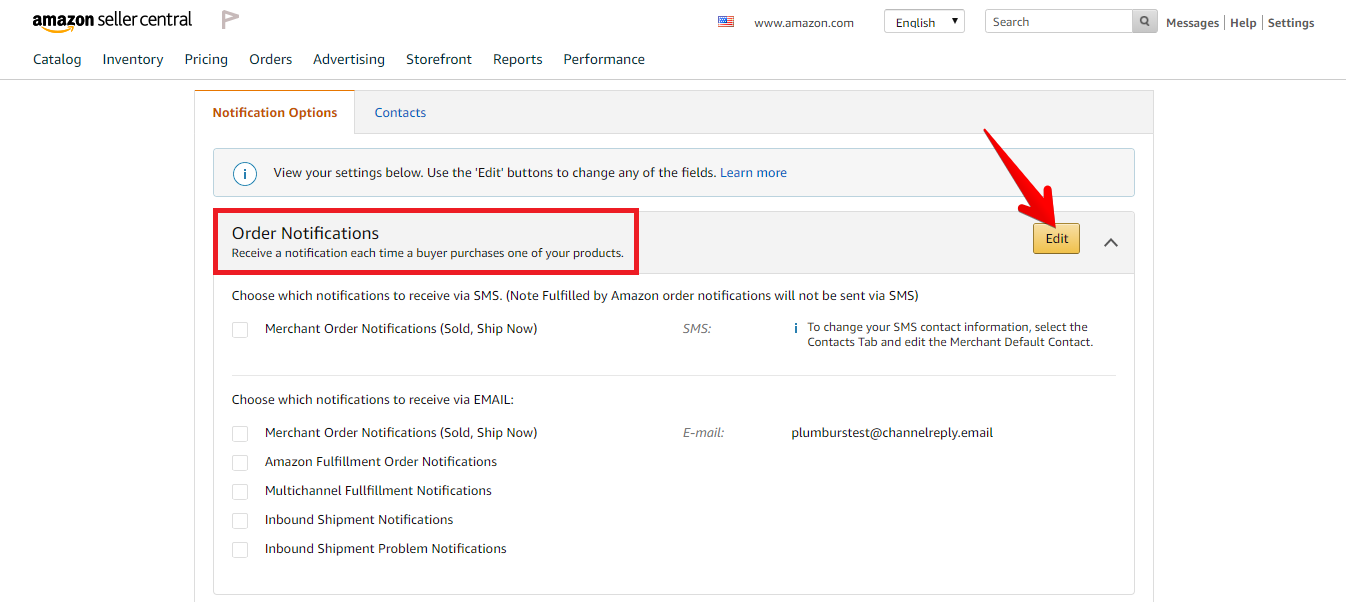
You'll see "Order Notifications" at the top. If you want to start sending order notifications to your helpdesk, click "Edit."
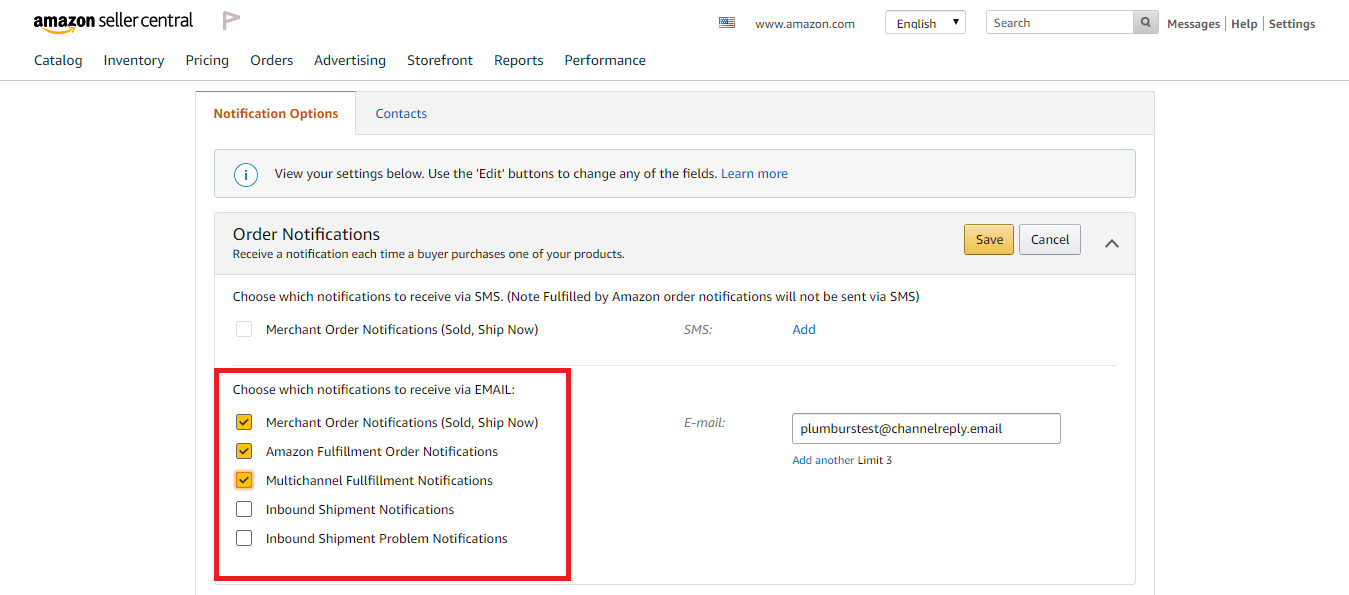
Under "Choose which notifications to receive via EMAIL," check off the boxes for all the types of notifications you want delivered to your helpdesk.
After that, choose one of the following options:
Option 1: Forward Straight to Your Helpdesk
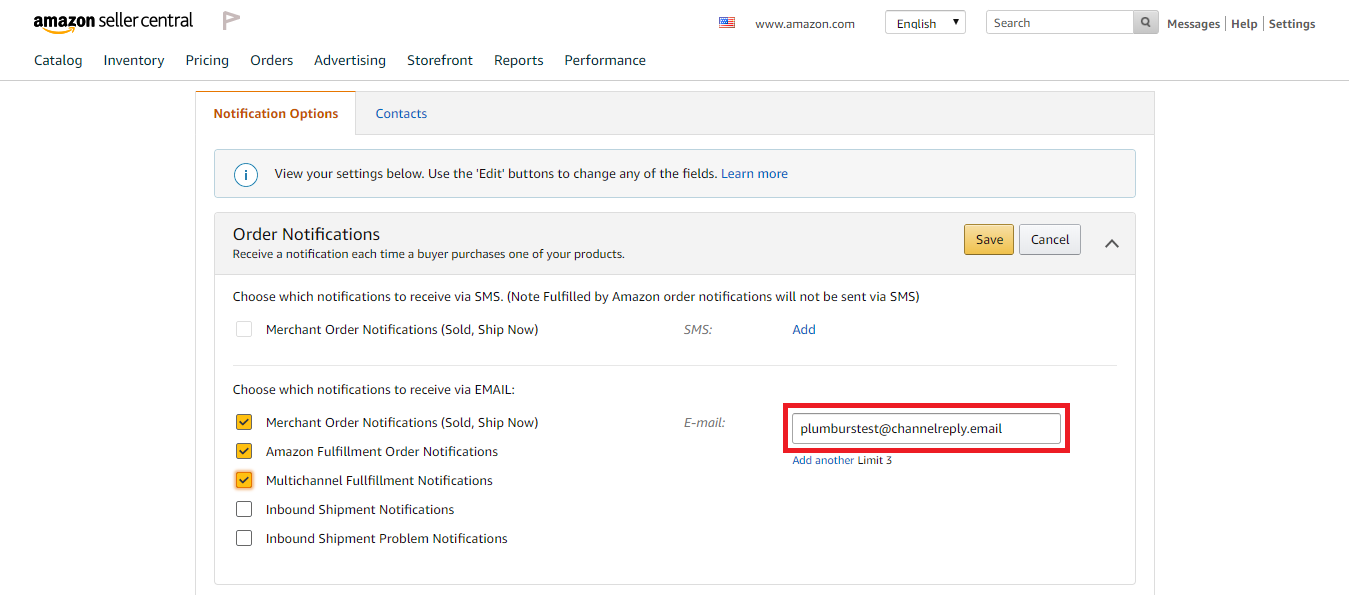
Enter your primary helpdesk email address (or preferred Help Scout mailbox). This is free, but the ChannelReply app will be blank on messages delivered this way.
Option 2: Use ChannelReply
Enter the @channelreply.email address you created when connecting this Amazon account. This will send these notifications through ChannelReply, and all associated order data will appear in the ChannelReply app in your helpdesk. Just note that all messages sent this way will count toward your monthly message limit in ChannelReply.
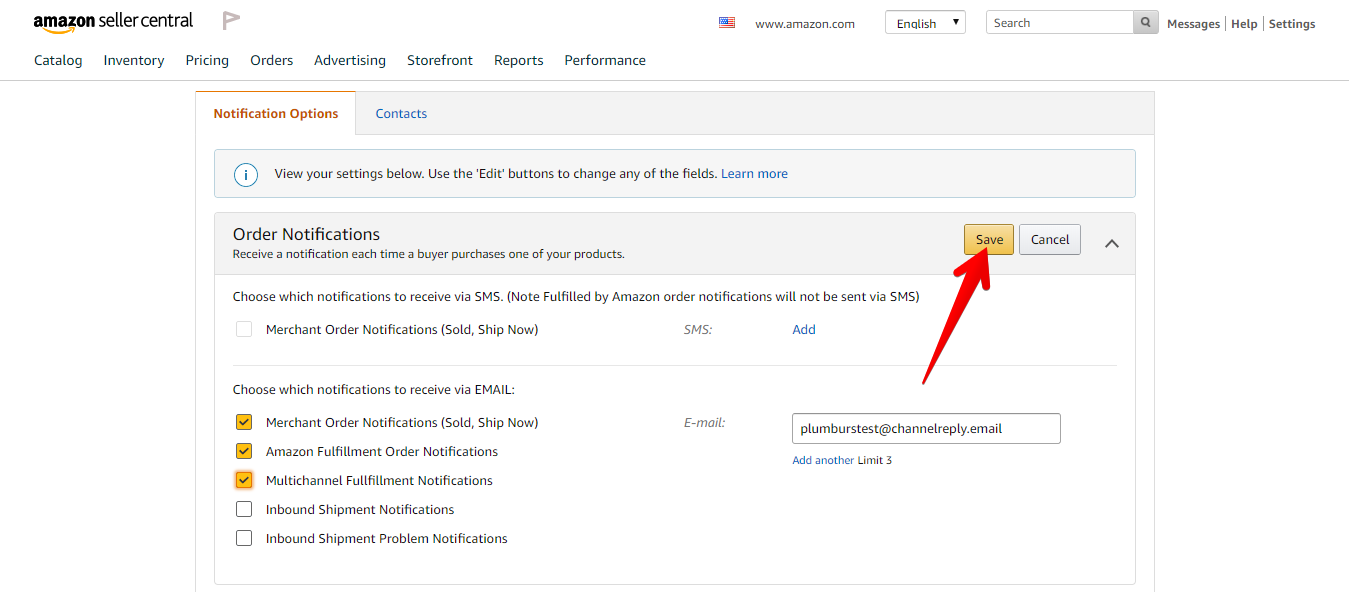
Once you've entered an email address, click "Save."
3. Forward Other Amazon Notifications to Your Helpdesk (Optional)
In addition to order notifications, you can forward the following to your helpdesk:
- Return and Claim Notifications
- Listing Notifications
- Reports
- Make an Offer Notifications
- Amazon Selling Coach Notifications
- Account Notifications
- Messaging (two-way communication through Buyer Messages is configured as part of default setup, but you can also set up forwarding for one-way notifications like Confirmation Notifications)
Just follow the same steps as above for each of these categories. You’ll have forwarding set up for all of them in no time.
Stuck? Can’t find the answer you’re looking for? Contact us and we’ll be happy to assist you.


 Amazon
 eBay
eBay
 Shopify
 Walmart
 Back Market
 Newegg
 Etsy
Etsy
 WooCommerce
 Zendesk
 Freshdesk
 Help Scout
 Gorgias
 Re:amaze
 Zoho Desk
 Kustomer
 Onsite
 Help Center
 FAQ
FAQ
 Blog
Blog