Need to support Amazon customer service for more than one country, or for multiple Amazon accounts? You can do it all in one place with ChannelReply. Here’s how:
Important: This article uses the classic ChannelReply interface. You can access the classic interface here.
Note: Click on any image to view it at full resolution. Last updated 2/4/2020.
1. Connect Your First Amazon Account and Marketplace
If you haven’t already done so, follow our Amazon integration instructions for Zendesk, Freshdesk, or Gorgias or for Help Scout to connect one Amazon account for one marketplace.*
*An Amazon marketplace is Amazon for a specific country. For example, Amazon.com is the Amazon US marketplace, Amazon.es is the Amazon Spain marketplace, etc.
2. Add More Marketplaces (Countries) for the Same Amazon Account and Region
Currently, ChannelReply supports three regions:
- North America (Canada, the US, Mexico, and Brazil).
- Europe (the UK, the Netherlands, France, Germany, Spain, Italy, Turkey, the UAE, India, Egypt, and Saudi Arabia).
- Far East (Australia, Japan, and Singapore).
If you’ve connected one marketplace and sell on others in the same region (for example, you’ve connected the US and also sell in Canada), adding the others is easy:
A. Copy Your ChannelReply Email Address
You’ll need the @channelreply.email address that you created while connecting your first marketplace for this region. To find it:
- Click “Manage.”
- Click “(3) Marketplaces.”
- Click “Amazon” on the left.
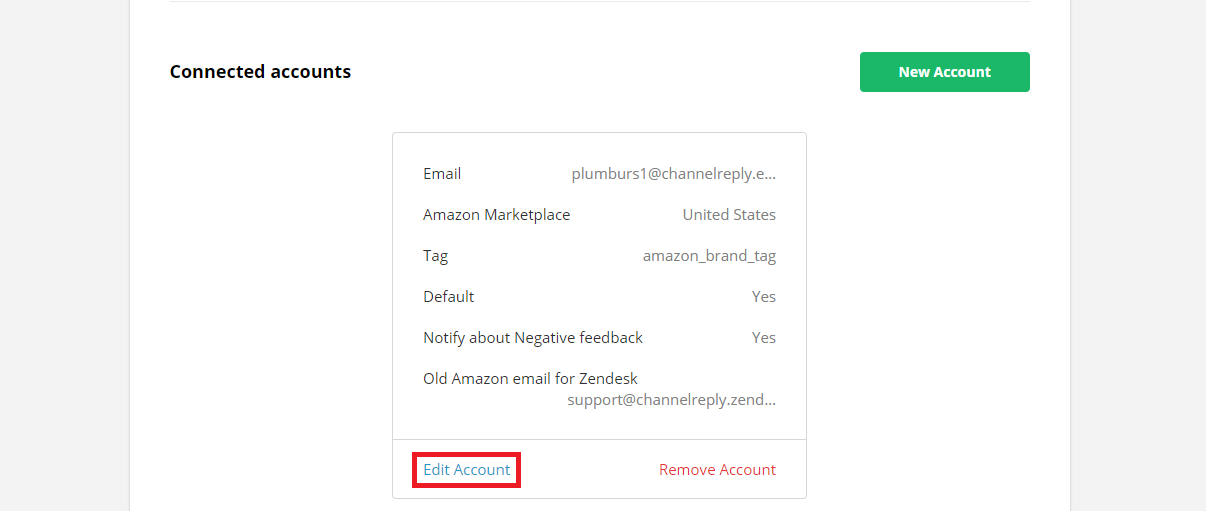
- Scroll down to “Connected accounts” and find the account you connected earlier. You’ll see your @channelreply.email address at the top, in the “Email” field. This is the email address you want your Amazon messages to go to.
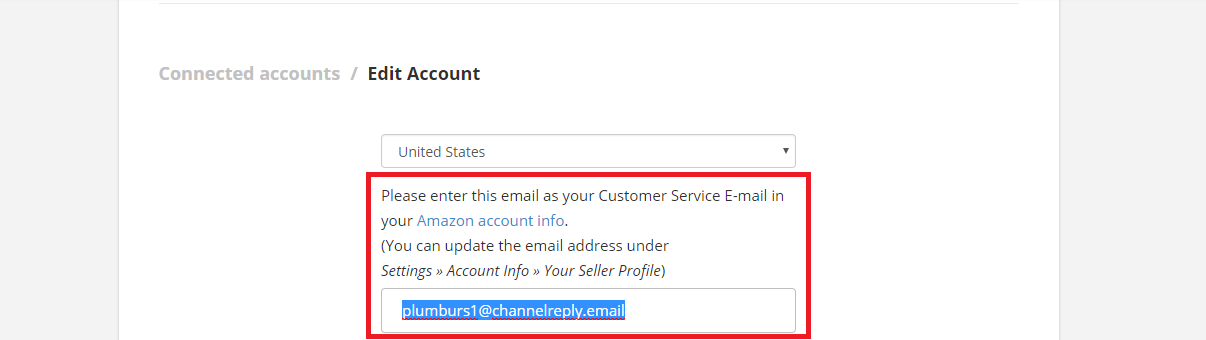
- Copy your @channelreply.email address to your clipboard now. (Note that you may have to click “Edit Account” to view the full address.)
Note: Make sure you use your own ChannelReply email address, not the one shown in the screenshots.
B. Paste It In
Log in to Amazon Seller Central for the country you wish to integrate. If you have multiple marketplaces connected to your Seller Central account, you'll see a dropdown menu that allows you to switch between marketplaces. Select the marketplace you want to connect or make sure it is already displayed at the top of the screen.
Next:
- Mouse over “Settings.”
- Click “Notification Preferences.”
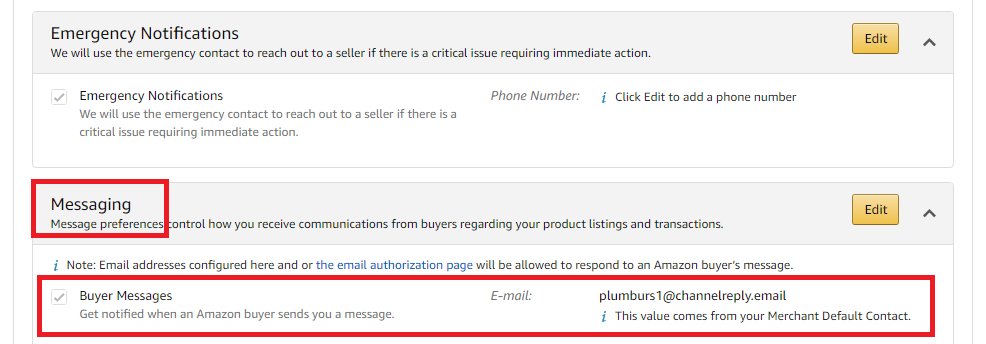
- Scroll down to “Messaging.”
- Make sure the box next to "Buyer Messages" is checked.
- Make sure your @channelreply.email address is entered in the Buyer Messages E-mail field.
If you need to make any changes to Buyer Messages, click the orange "Edit" button to enable editing. Be sure to save your changes.
That's all there is to it! Repeat Part B for any other countries you need to connect in the same region.
3. Add Marketplaces for the Same Account in Different Regions
ChannelReply counts different regions as different Amazon accounts. The different regions we currently support are:
- North America (Canada, the US, Mexico, and Brazil).
- Europe (the UK, the Netherlands, France, Germany, Spain, Italy, Turkey, the UAE, India, Egypt, and Saudi Arabia).
- Far East (Australia, Japan, and Singapore).
If you want to connect a marketplace in a new region (for example, you want to add Italy from the Europe region when you’ve only connected marketplaces in the Americas), then you will need to integrate it as a separate Amazon account. Follow our Amazon integration instructions for Zendesk, Freshdesk or Gorgias or for Help Scout from the beginning to connect your first marketplace in the new region.
You will create a new @channelreply.email address during setup. Once you have connected one marketplace in the region, you can connect any others in that region by following Step 2 again. Just use your new @channelreply.email address rather than the one you used for the first region.
Confused? Here’s a breakdown:
Example
Red Widget Company sells in Australia, the US, Canada, the UK, and France. The first marketplace they decide to integrate is Amazon Australia. During setup, they create the ChannelReply email address redwidgetcompany_au@channelreply.email and enter it in their Amazon Australia settings.
Next, they decide to add Amazon US. Since the US is in a different region, North America, they go back through the full Amazon integration process, creating the new address redwidgetcompany_na@channelreply.email and entering it in their Amazon US settings.
Amazon Canada comes next. Since Canada is also in the North America region, they follow Step 2 and simply enter redwidgetcompany_na@channelreply.email in their Amazon Canada settings.
The UK and France are both part of the Europe region, so the Red Widget team goes through the Amazon integration process one last time for the UK, creating the email address redwidgetcompany_eu@channelreply.email and entering it in their Amazon UK settings.
Finally, they repeat step 2 for France, doing nothing but entering redwidgetcompany_eu@channelreply.email in their Amazon France settings.
4. Support Multiple Amazon Accounts
If you want to add an Amazon account for a totally different company, simply go through the Amazon integration instructions for Zendesk, Freshdesk or Gorgias or for Help Scout again. You can then add additional marketplaces and regions as described above. Just be careful not to mix up the @channelreply.email addresses that are unique to each account.
Worried about getting in trouble for linking multiple Amazon accounts? We don’t think you have anything to fear. For more info (plus ways to play it safe), see “Can Amazon Tell if I Have Multiple Amazon Accounts on ChannelReply?”
Confused? Stuck? Contact us and we’ll be happy to help!


 Amazon
 eBay
eBay
 Shopify
 Walmart
 Back Market
 Newegg
 Etsy
Etsy
 WooCommerce
 Zendesk
 Freshdesk
 Help Scout
 Gorgias
 Re:amaze
 Zoho Desk
 Kustomer
 Onsite
 Help Center
 FAQ
FAQ
 Blog
Blog