You’ve finished setting up ChannelReply and now have all your eBay and Amazon messages in Zendesk. That’s awesome—but now they’re just lumped in with all your other messages! What if you need to sort them out?
No worries. It’s easy to sort tickets using Zendesk views.
Important: This article uses the classic ChannelReply interface. You can access the classic interface here.
Note: Click on any image to view it at full resolution.
1. Find Your Tag
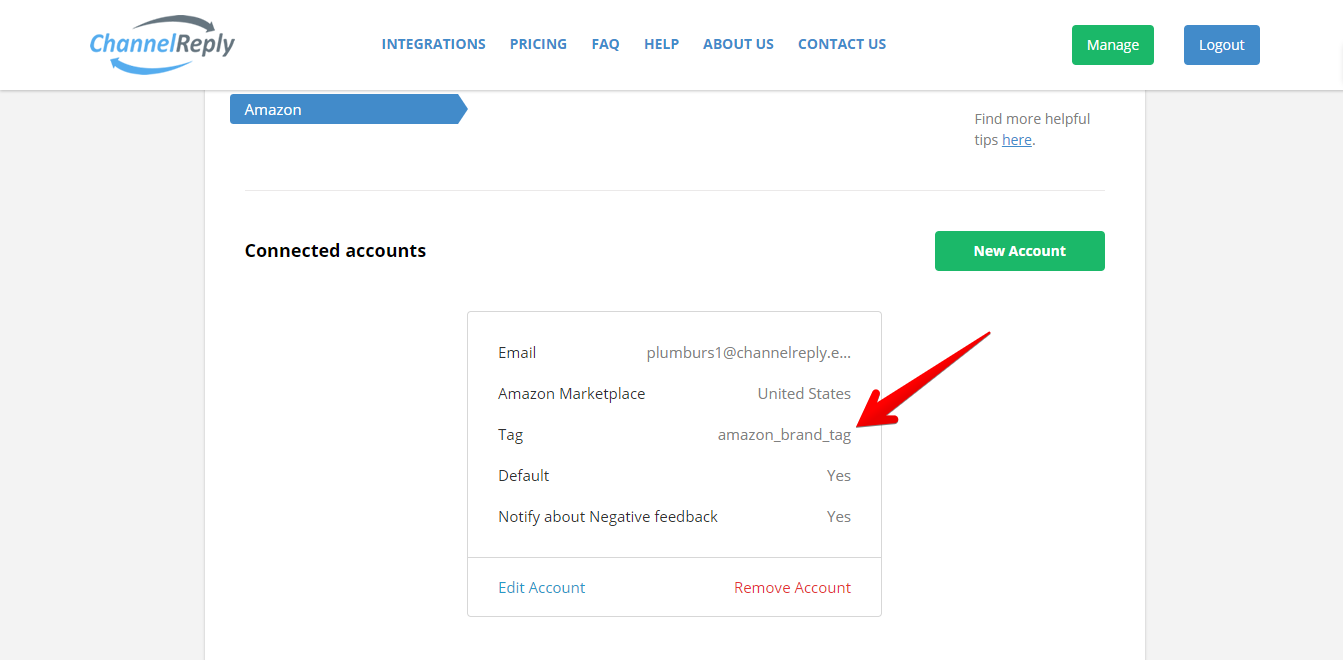
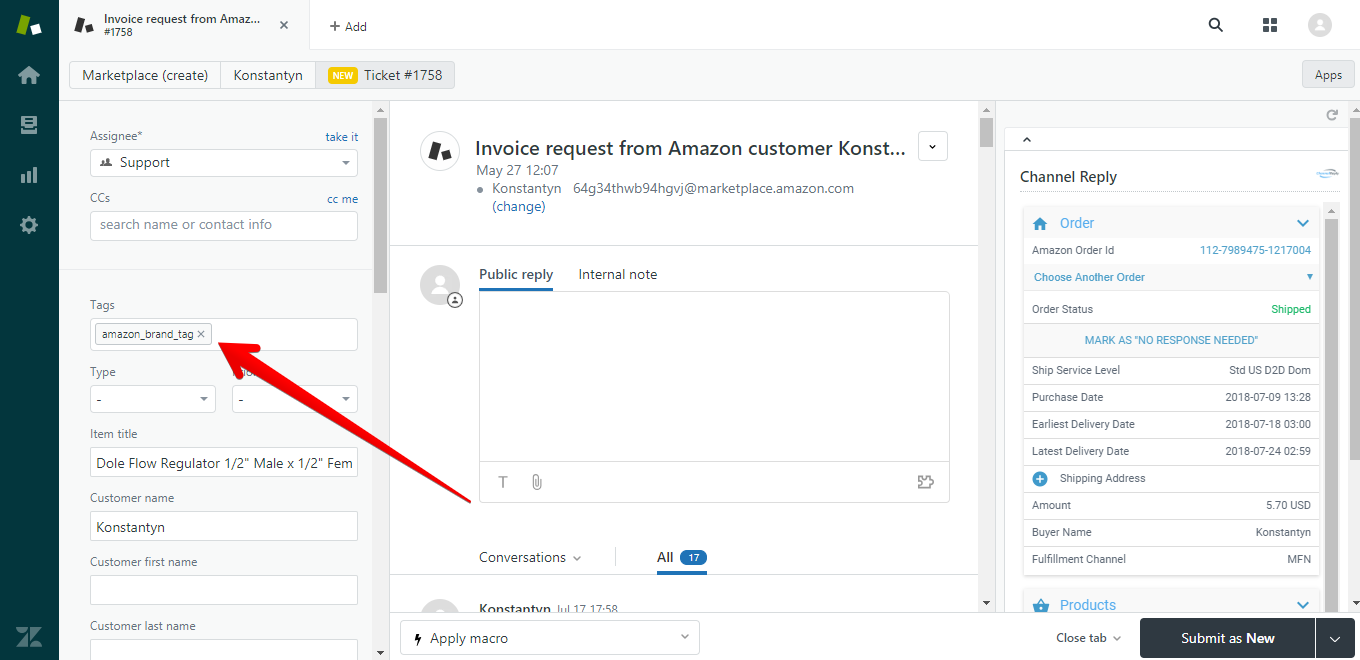
Whenever you connect an account to ChannelReply, you have the option to add a tag. All messages from that account will then show up with that tag in Zendesk.
For instructions on finding and editing these tags, see “Where Are My eBay and Amazon Tags in ChannelReply?”
2. Create a View
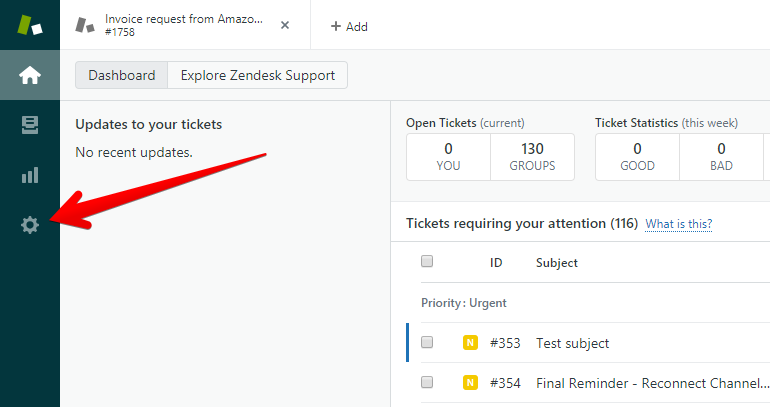
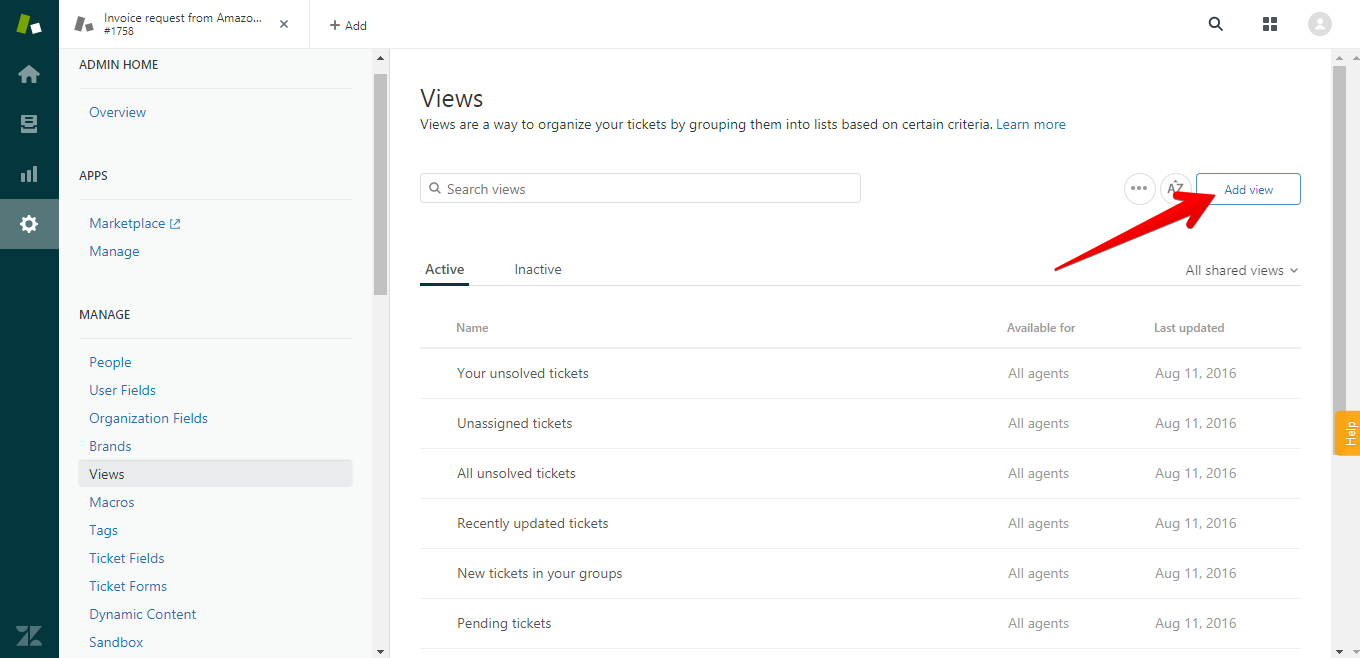
After logging in to Zendesk, go to Admin (the gear icon on the left).
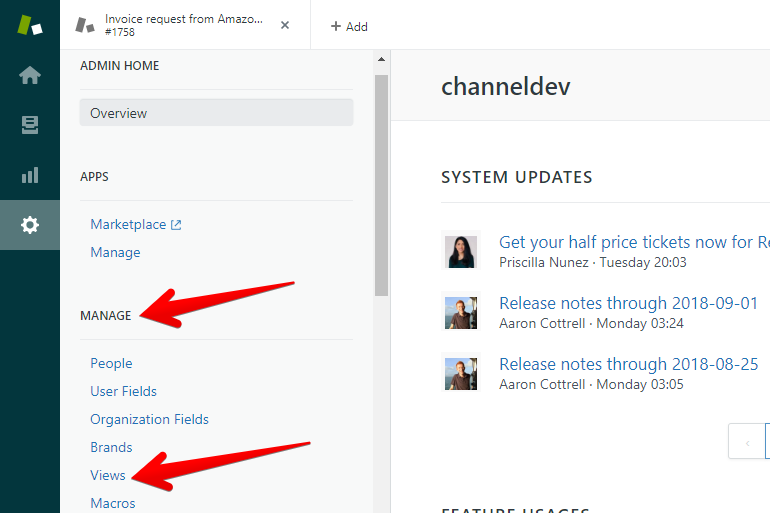
Next, find “MANAGE,” then click "Views" below it.
Click “Add View.”
You can then create all kinds of views to suit your needs.
How to Create a Zendesk View for Unsolved eBay Tickets
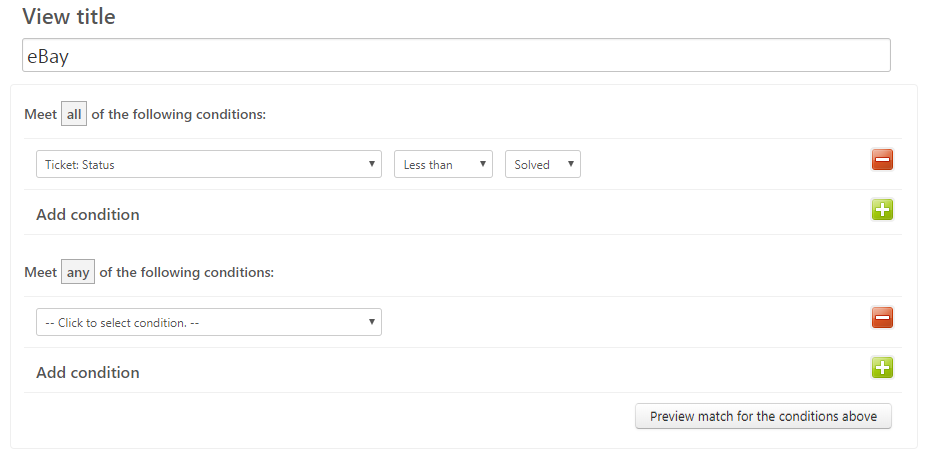
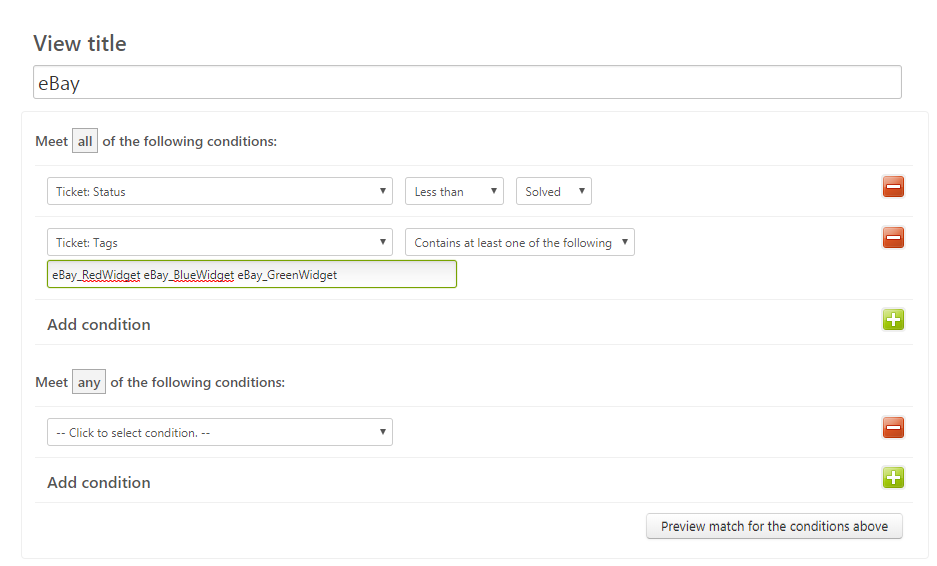
First, give your view a name. We’ll call this view “eBay” for our example.
Create the following all condition: Ticket: Status | Less than | Solved
This will make sure the view only contains New, Open and Pending tickets.
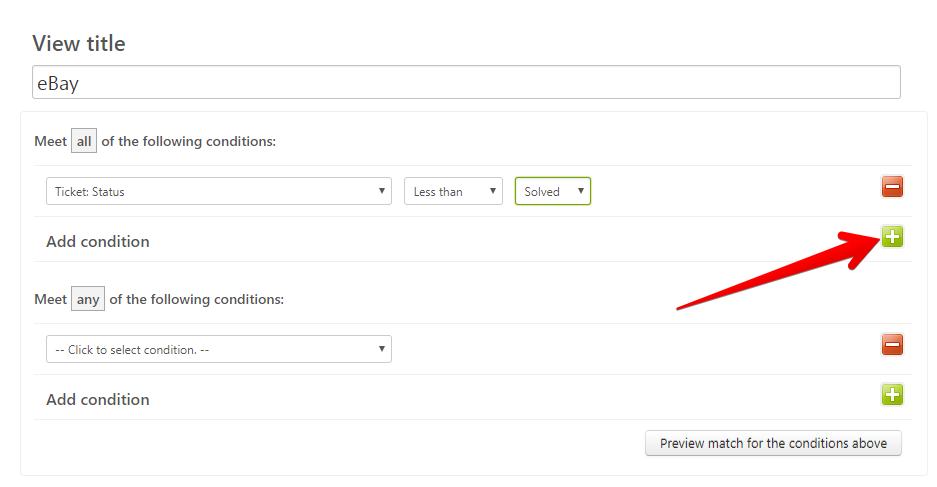
Click the green plus sign to add another all condition.
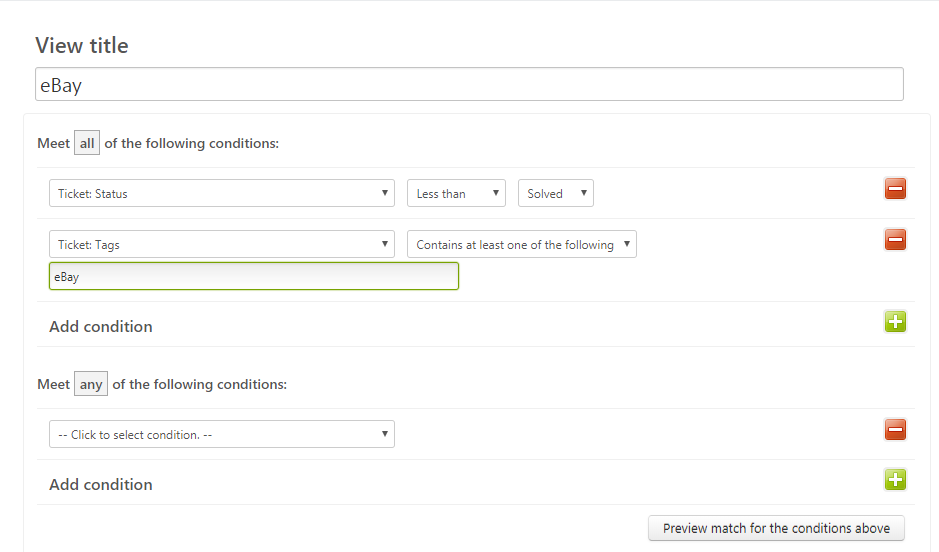
Then enter the following: Ticket: Tags | Contains at least one of the following | [Your ChannelReply eBay tag(s)]
What if you have multiple eBay accounts and want all of them to appear in this view? Easy! Just enter all their tags right alongside the first, separated by spaces.
How to Create a Zendesk View for Unsolved Amazon Tickets
Creating a view for your Amazon tickets works exactly like creating a view for eBay tickets. Follow the steps above, but this time, enter your Amazon tags instead of your eBay tags.
How to Create Different Zendesk Views for Each Connected Account
Creating a different view for every individual eBay or Amazon account is also easy. Once again, follow the same steps from above, but only enter the tag for one of your accounts. Then repeat the process with a new view for each of your remaining accounts.
3. (Optional) Add Notifications
Following the steps above will create views for your buyer messages, but not necessarily for one-way notifications from eBay or Amazon. Keep reading if you want to organize those notifications as well.
How to Include eBay Notifications in Views
ChannelReply only delivers buyer messages for eBay. If you import system notifications from eBay, they’ll be delivered via standard email. That means ChannelReply never gets a chance to add a tag.
Luckily, there is a workaround. You can unite eBay system notifications under a Zendesk organization.
How to Create an Organization for eBay Notifications
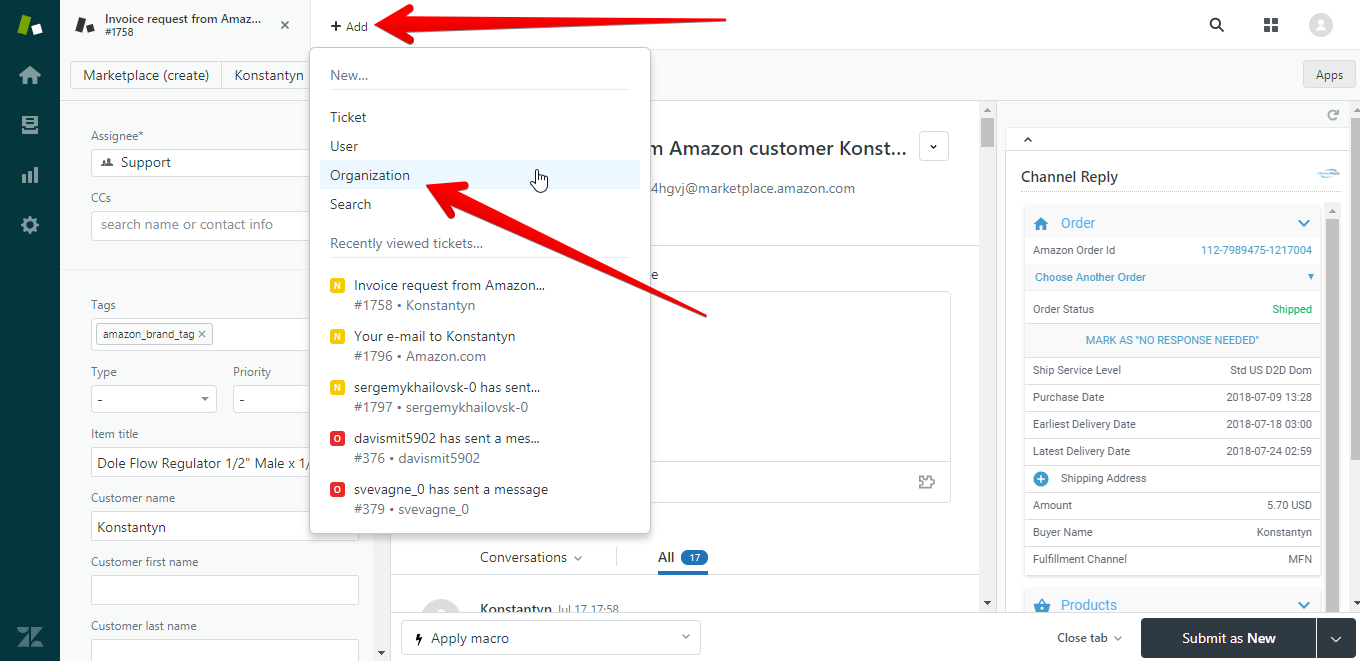
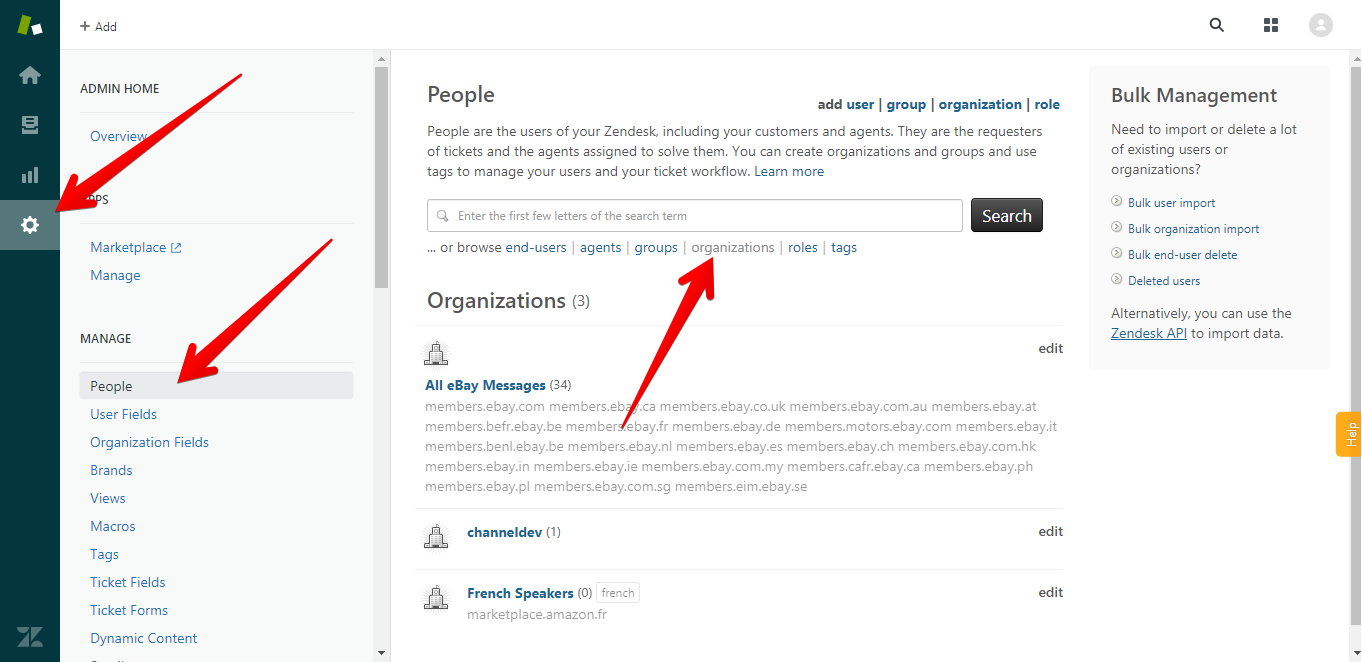
To create an organization, mouse over "+ Add" in the upper left of your Zendesk screen. Then select "Organization."
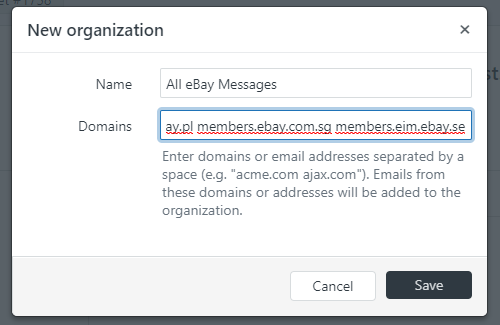
This will pop up a very simple interface asking for the organization’s name and domains. Name this one “All eBay Messages.”
Enter all domains eBay uses for messaging. Here’s the full list already separated by spaces, so you can just copy it and paste it in:
members.ebay.com members.ebay.ca members.ebay.co.uk members.ebay.com.au members.ebay.at members.befr.ebay.be members.ebay.fr members.ebay.de members.motors.ebay.com members.ebay.it members.benl.ebay.be members.ebay.nl members.ebay.es members.ebay.ch members.ebay.com.hk members.ebay.in members.ebay.ie members.ebay.com.my members.cafr.ebay.ca members.ebay.ph members.ebay.pl members.ebay.com.sg members.eim.ebay.se
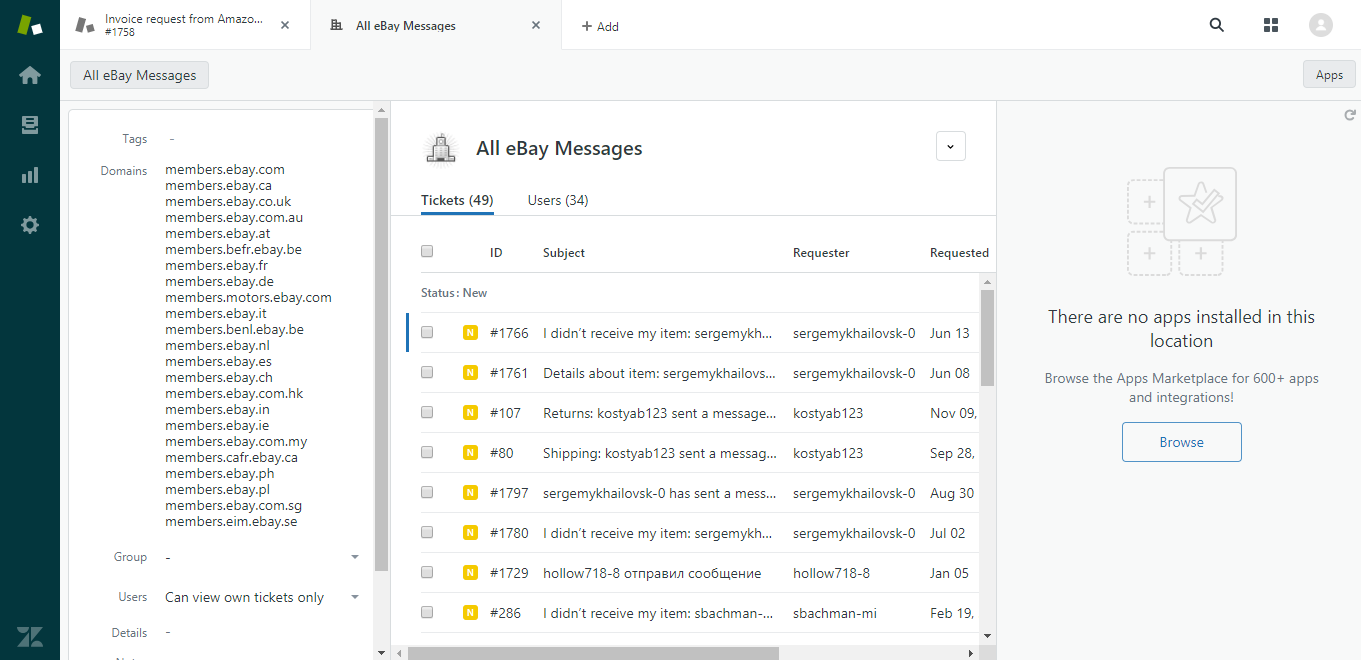
Click Save once you’re done. All eBay messages will be assigned to this organization. (It may take a few minutes for Zendesk to finish matching existing tickets and users, so don’t worry if you see zeroes at first.)
If you want to edit this organization in the future, you can find it by going to Admin > People > Organizations.
We’re almost done! There are two options now:
A. Create a view that shows both notifications and buyer messages, or
B. Create a separate view just for notifications.
A. How to Create a View for All eBay Notifications AND Buyer Messages
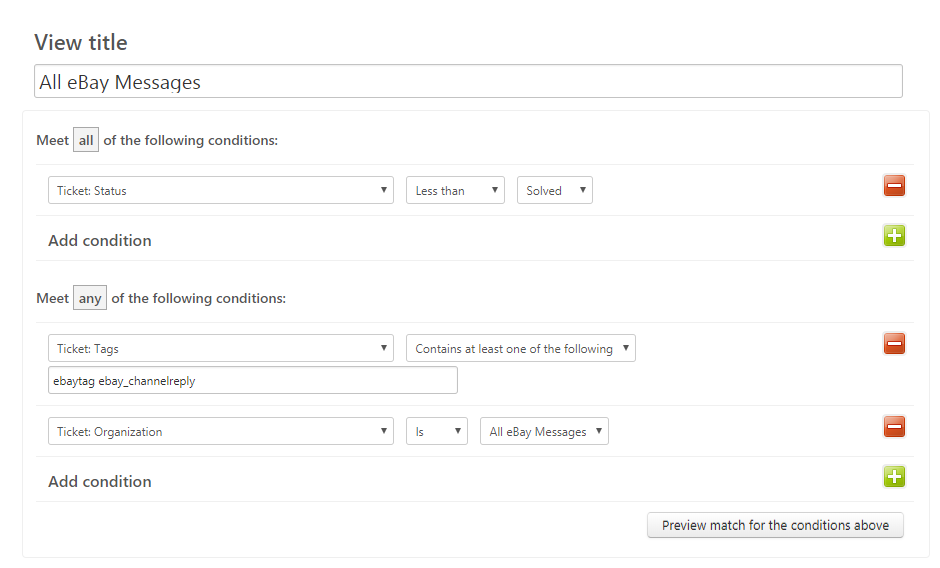
Go to Admin > Views again. You can create a new view or edit one you’ve already made. Use the following parameters:
ALL:
Ticket: Status | Less than | Solved
ANY:
Ticket: Tags | Contains at least one of the following | [Your eBay tags]
Ticket: Organization | Is | All eBay Messages
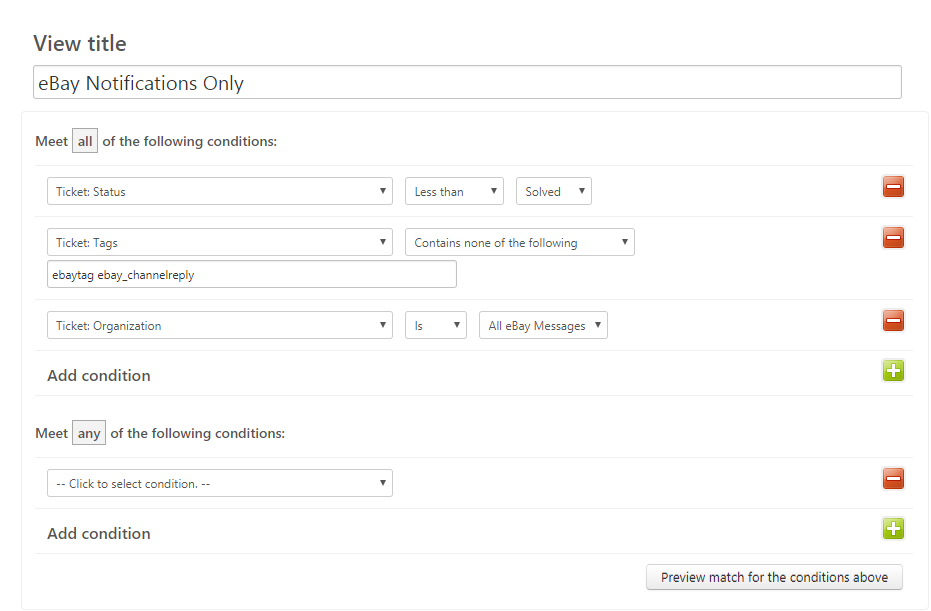
B. How to Create a View for eBay Notifications but NOT Buyer Messages
Use these parameters:
ALL:
Ticket: Status | Less than | Solved
Ticket: Tags | Contains none of the following | [Your eBay tags]
Ticket: Organization | Is | All eBay Messages
How to Include Amazon Notifications in Views
You can create views for Amazon by following the same steps from “How to Include eBay Notifications in Views” above. Just do two things differently:
- Give the organization a different name, like Amazon Notifications.
- Use Amazon domains instead of eBay domains when creating the organization.
Here’s a full list of Amazon domains currently supported by ChannelReply:
amazon.ca amazon.com amazon.com.mx amazon.com.br amazon.co.uk amazon.fr amazon.de amazon.es amazon.it amazon.com.au
Faster Amazon Setup
You can send your Amazon notifications through ChannelReply. To do so, follow these instructions, choosing option 2 when it comes up.
This will give your Amazon notifications the same tag as your buyer messages. That means they’ll show up in the same views with no further setup.
ChannelReply will also display buyer and order data on many notifications, like it does on buyer messages.
Using this method means that notifications will count toward your monthly message limit in ChannelReply.
More Info on Zendesk Views
To learn more about creating and using views in Zendesk, see their article “Using views to manage ticket workflow.”
Stuck? Confused? We’re Here to Help!
Our team is happy to answer all your questions on supporting eBay and Amazon from Zendesk. Contact us for assistance.


 Amazon
 eBay
 Shopify
 Walmart
 Back Market
 Newegg
 Etsy
 WooCommerce
 Zendesk
 Freshdesk
 Help Scout
 Gorgias
 Re:amaze
 Zoho Desk
 Kustomer
 Onsite
 Help Center
 FAQ
 Blog