Need help finding your way around ChannelReply? This article shows how to navigate your account and update your settings, and explains what everything does.
Notes: Click on any screenshot to see the full-sized image. Last updated 6/11/2020.
The ChannelReply Dashboard
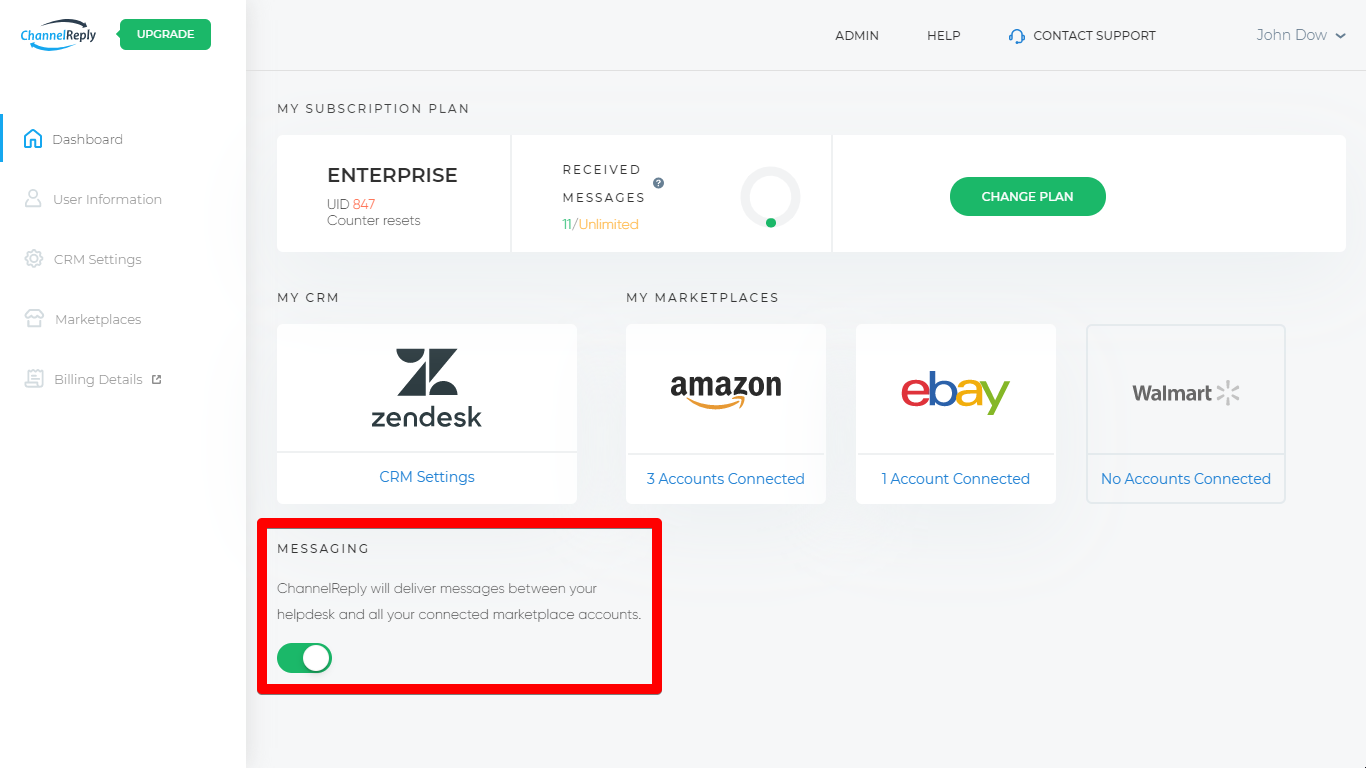
The dashboard is the first screen that appears when you sign in. You can also access it by clicking “Dashboard,” “My Account,” or “Account.”
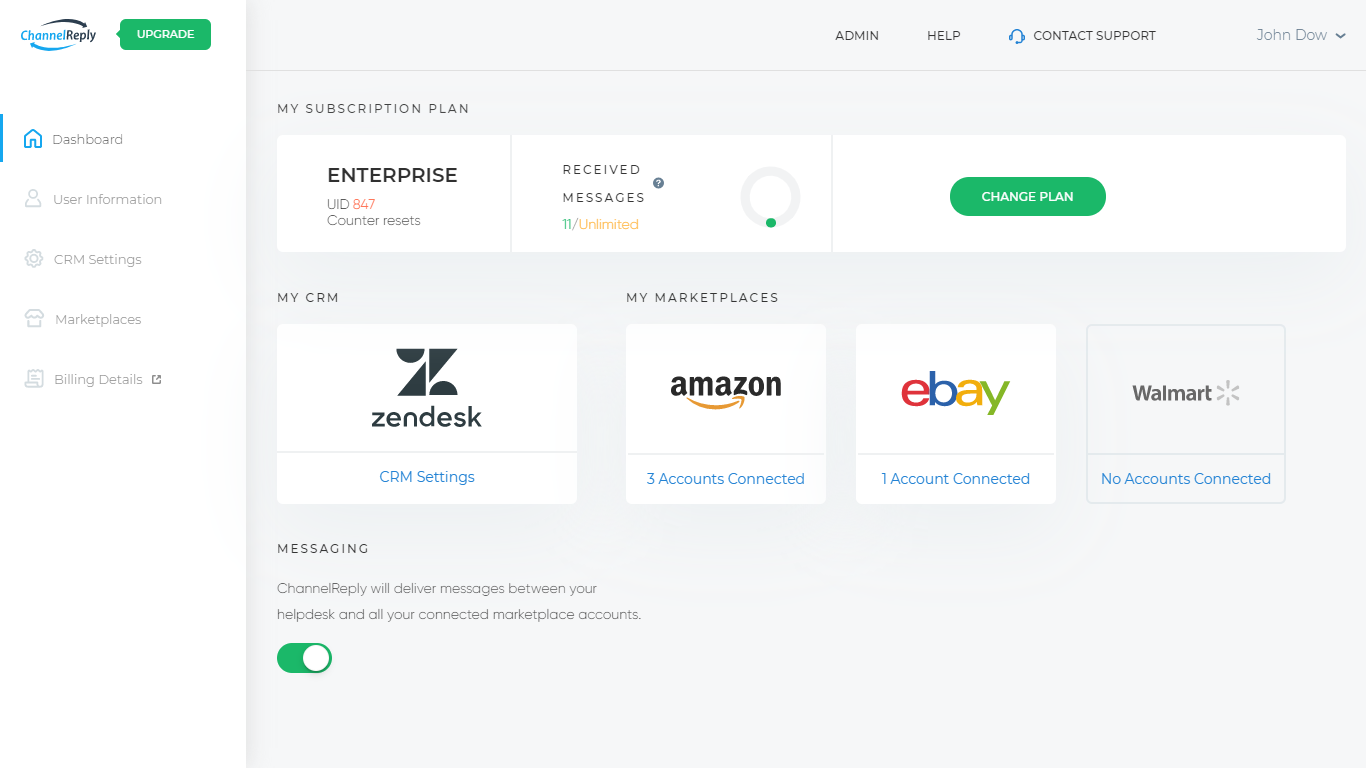
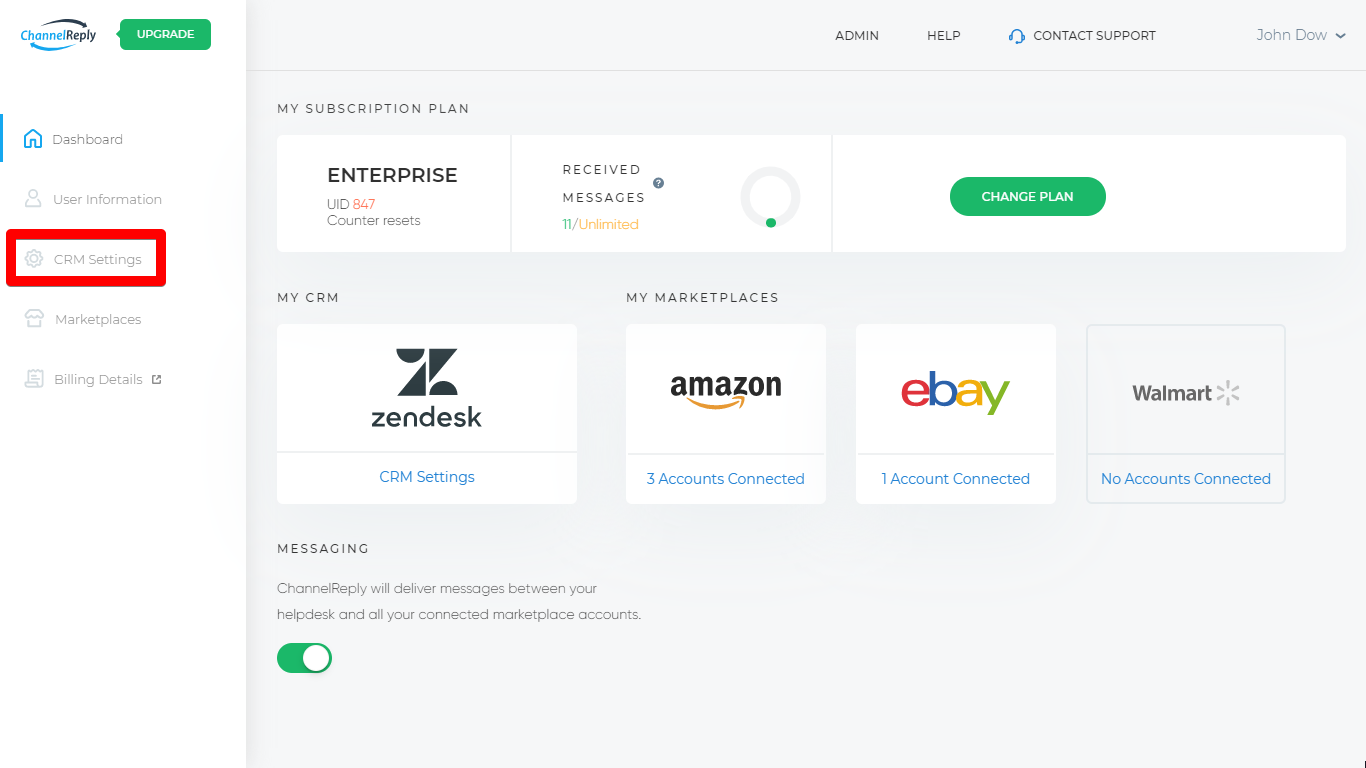
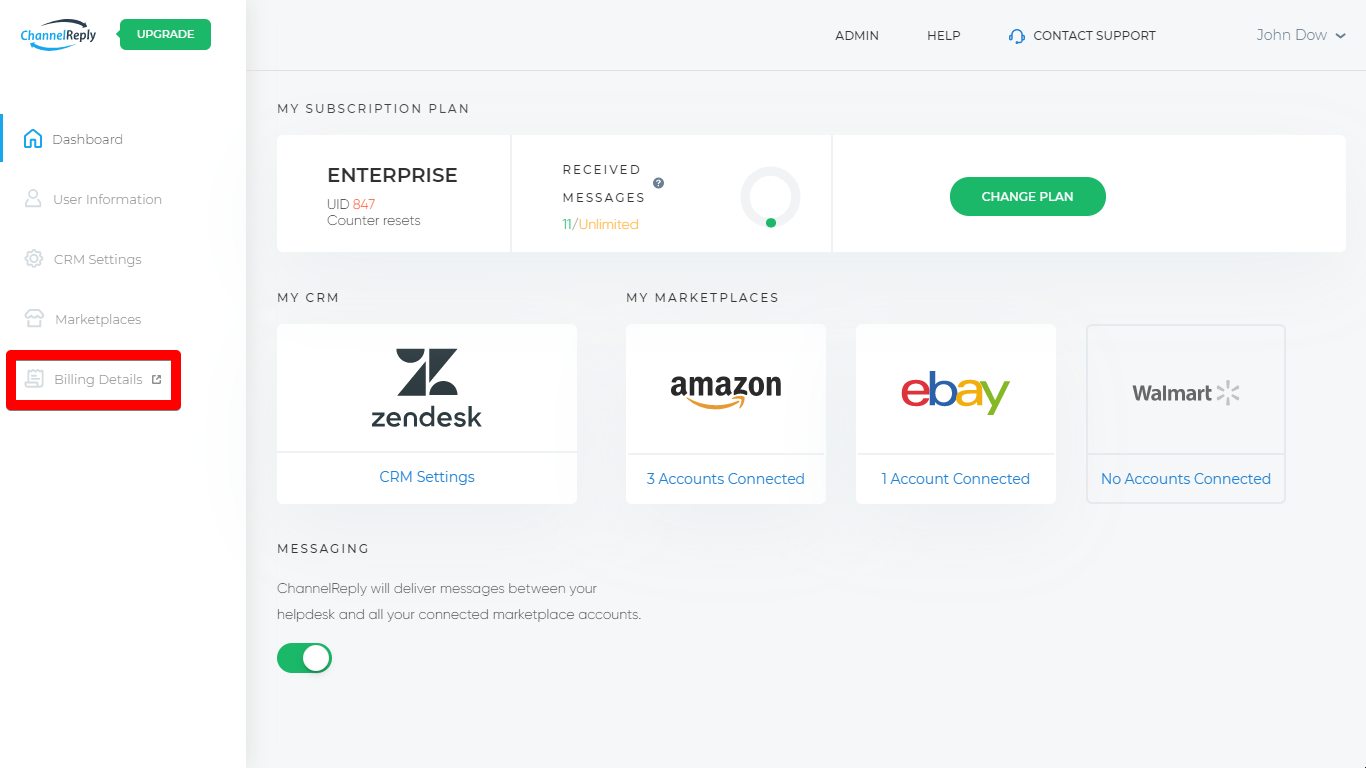
The ChannelReply dashboard shows the following information:
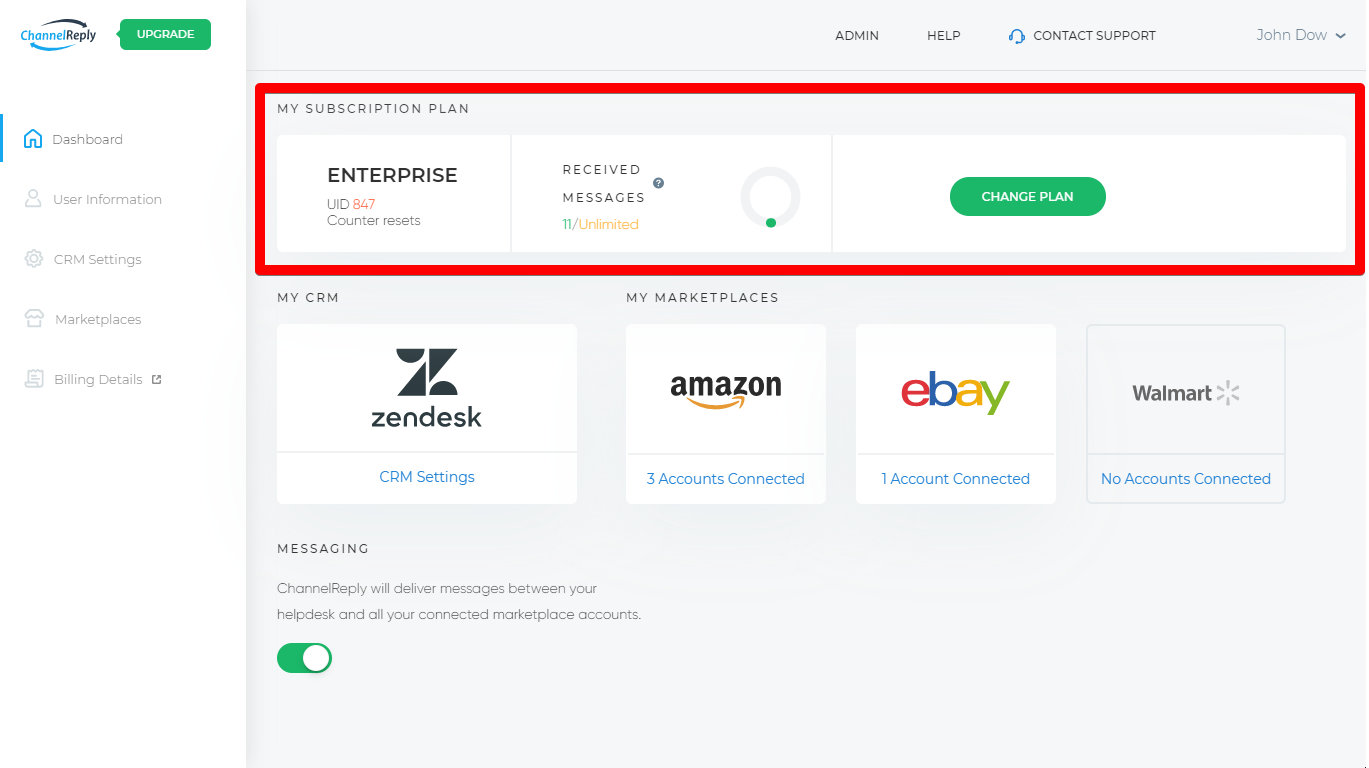
1. MY SUBSCRIPTION PLAN
This block shows the following information:
- Your current ChannelReply plan.
- UID: Your user ID, a number used by ChannelReply support staff to identify your account.
- Counter resets: The start date of your next billing month, shown in DD Mon. YYYY format (e.g. 11 Mar. 2020). Any monthly charges on your account will be billed on this date, and your message counter will be reset once payments are confirmed.
- TRIAL PERIOD: Visible only during the free trial. Shows the number of days remaining until your free trial ends.
- RECEIVED MESSAGES: The number of messages you’ve received / the number of messages included in your current plan. It will turn red if you reach or exceed your monthly message limit.
- ADDITIONAL MESSAGES: If you exceed your monthly message limit, each additional message will cost the amount shown here. (Note that there are no charges during the free trial, even if you pass your monthly limit.) This is not displayed on accounts using our classic pricing structure.
- CHANGE PLAN: Hitting this button will take you to our “Choose a Plan” page, where you can upgrade or downgrade your account at any time.
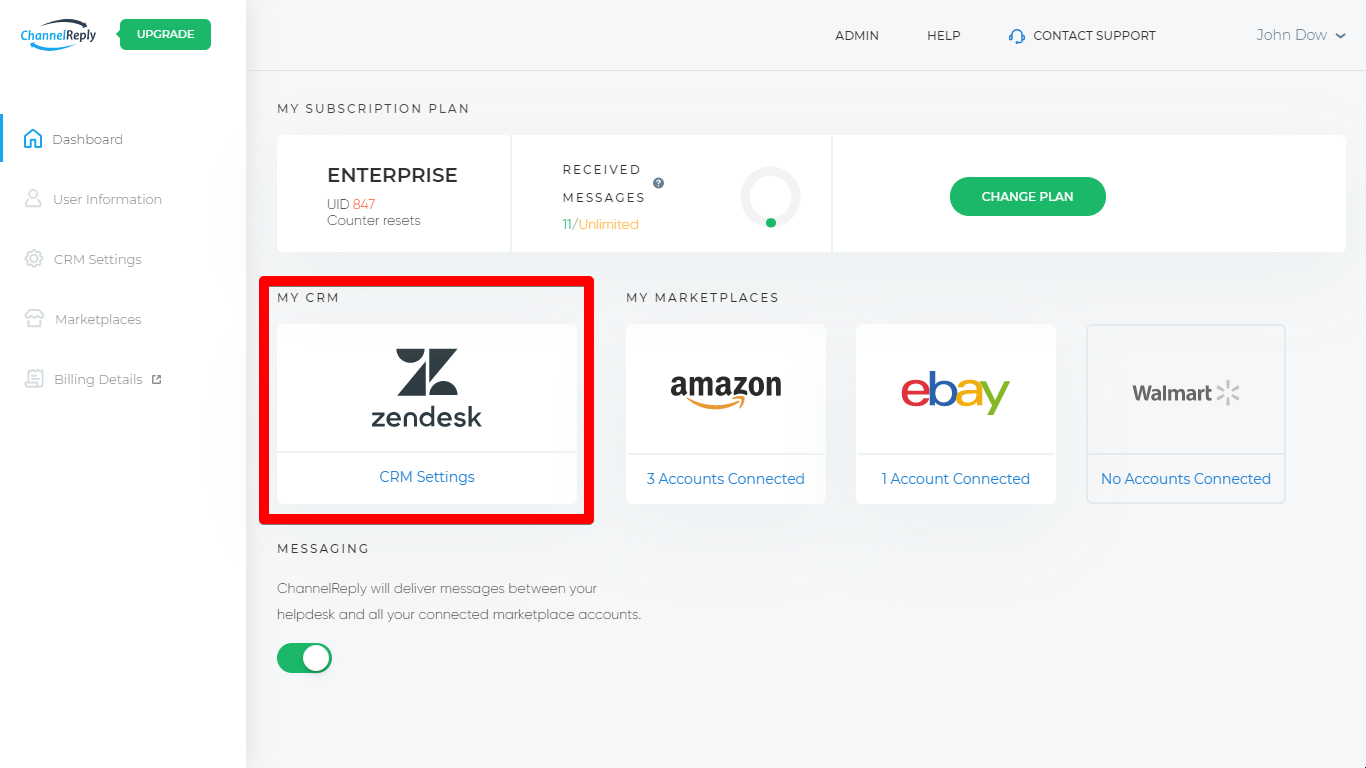
2. MY CRM or CHOOSE CRM
“MY CRM” will show you the helpdesk you’ve chosen. Clicking on it will take you to CRM Settings to manage your helpdesk’s options.
If you haven’t chosen a helpdesk yet, or if you’ve just disconnected your helpdesk, “CHOOSE CRM” will show you the list of available helpdesks. Clicking on one will take you to the setup guide for that helpdesk.
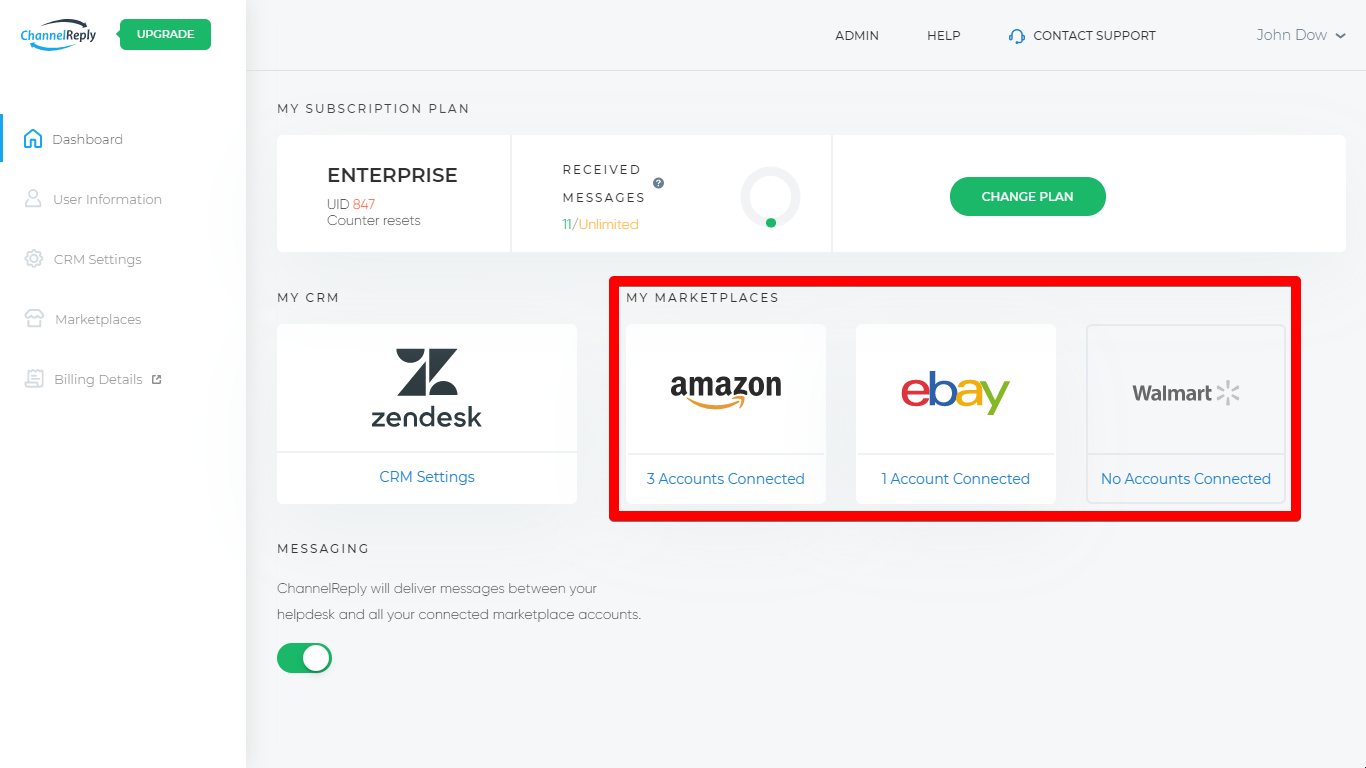
3. MY MARKETPLACES
If you haven’t connected any marketplace accounts, you will see all available marketplaces in grey. Clicking on a grey logo will take you to the setup guide for connecting that marketplace.
Once you’ve connected a marketplace account, that marketplace’s logo will be colored in and the number of connected accounts will be shown. Clicking on it will take you to that marketplace’s management page, where you can edit connected accounts or connect new accounts.
4. MESSAGING
If the slider shown here is green, it means your account is active and messages are being delivered. If it is grey, ChannelReply is not delivering messages. You must connect a helpdesk and at least one marketplace account to activate messaging.
Note that deactivating messaging does not cancel your subscription. Your subscription is managed from the “Billing Details” tab.
User Information
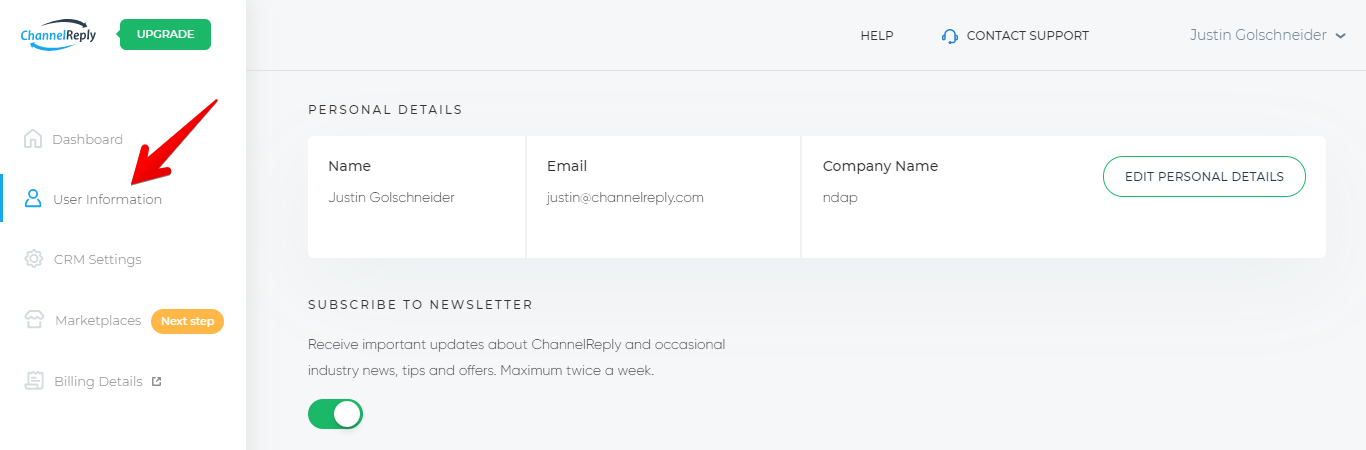
From inside your account, you can access User Information by clicking “User Information” on the left.
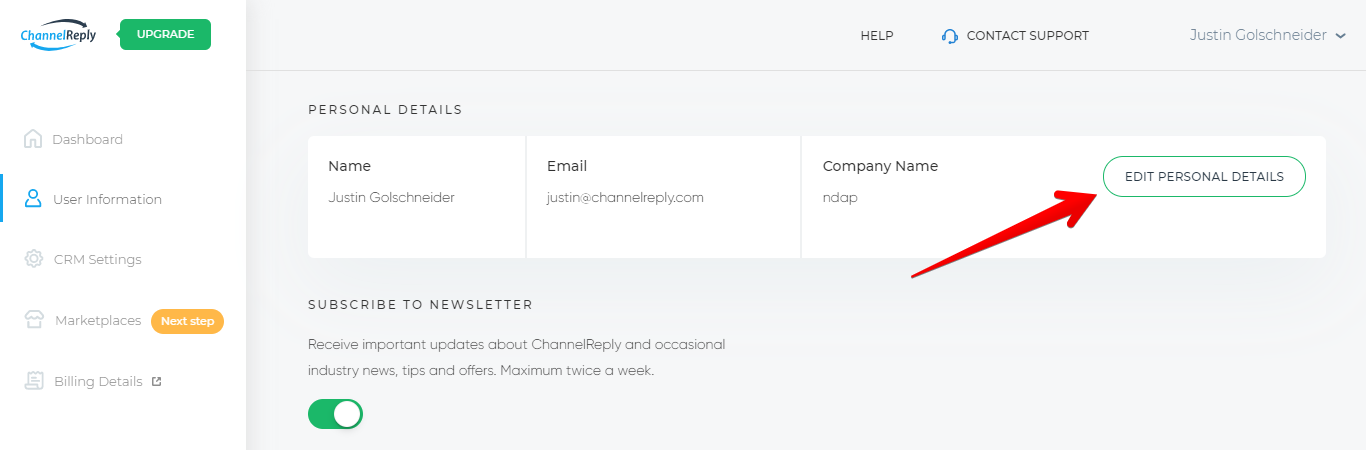
This page allows you to change your personal details: your name, email address, and company. You can make changes by clicking “EDIT PERSONAL DETAILS” on the right.
The email address listed here is the login email for your account. If you change your email address, you will need to use the new one to sign in to ChannelReply in the future. Your password will stay the same.
Note that your new address will also receive your account notifications, such as message limit warnings. Invoices and other billing notifications will continue going to your old email address. You must contact us to change your billing email address.
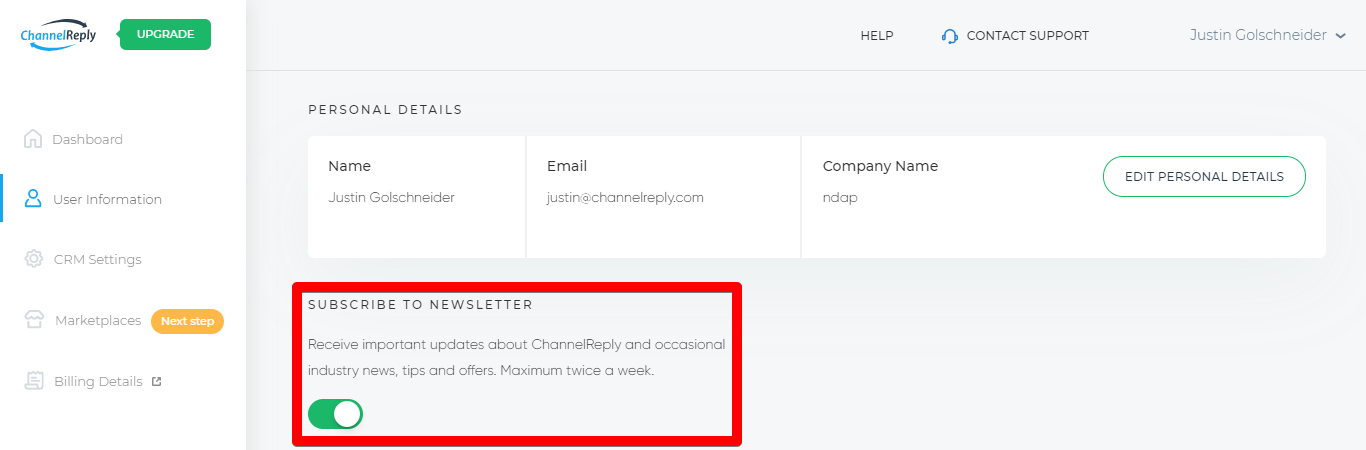
This page also allows you to subscribe to or unsubscribe from the ChannelReply newsletter. We’re constantly adding new features, so be sure to subscribe to keep up with the latest improvements!
CRM Settings
The CRM Settings tab can be accessed in the left-hand menu when you are logged in to your account.
If you have not yet selected a helpdesk, you will be shown the menu of available options: Zendesk, Freshdesk, Help Scout, Gorgias and Re:amaze. You will need to select one to continue with setup. If you aren’t sure which helpdesk would be best for you, you can find our advice in “Which Helpdesk Should I Use with ChannelReply?”
Once you select a helpdesk, you’ll be taken to our setup walkthrough.
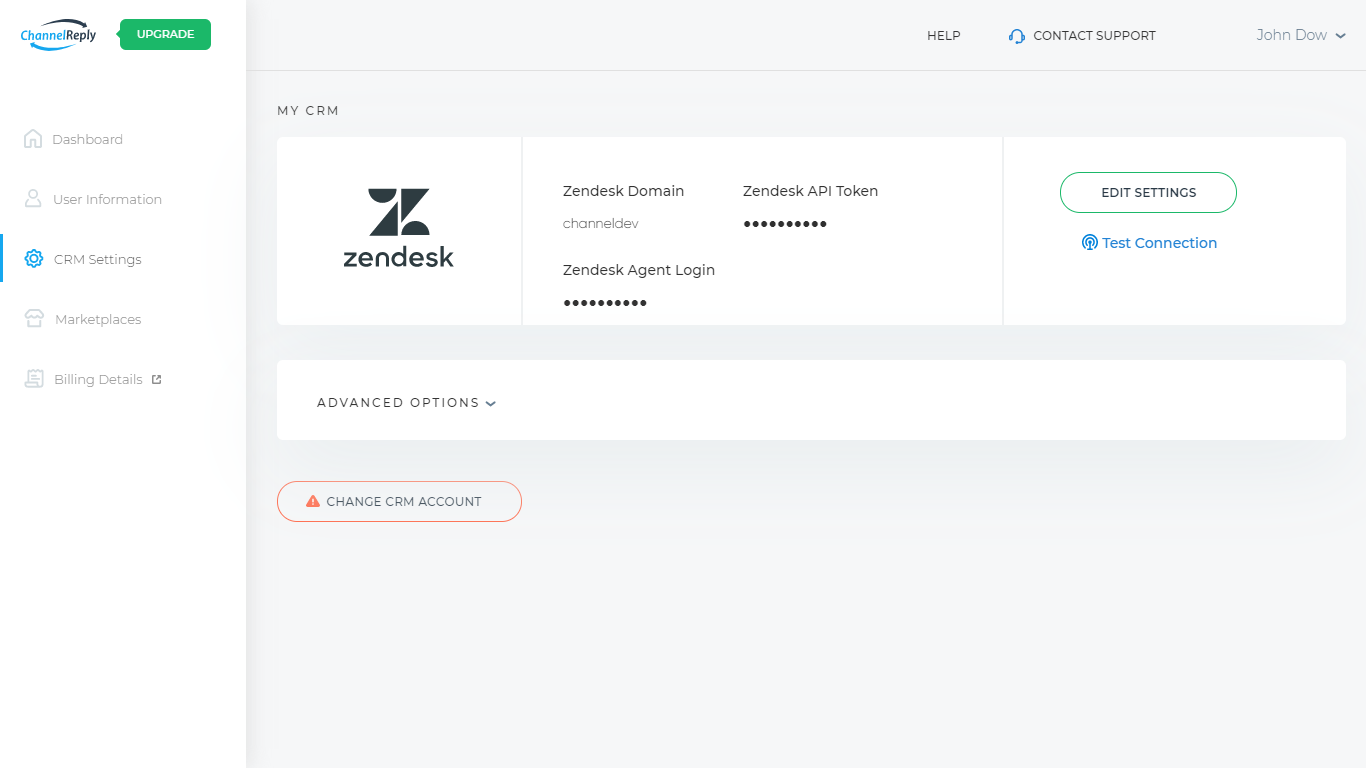
Already chose and connected a helpdesk? In that case, you will see all the options for managing your helpdesk integration here.
The exact options vary between helpdesks, but here are some of the most common features:
- MY CRM: Shows which helpdesk you have selected and basic information about the integration.
- EDIT SETTINGS: Allows you to change details about your integration, such as API tokens/keys and login email addresses.
- Test Connection: Checks whether your connection with your helpdesk is currently working. If it shows that something is wrong, you can follow the instructions provided or contact us for help.
- ADVANCED OPTIONS: Generally includes features like custom fields management.
- CHANGE CRM ACCOUNT: This allows you to disconnect your current helpdesk so you can connect a new one. If you use this option, your helpdesk details will be erased, and you will be shown the menu for selecting a new helpdesk.
Marketplaces
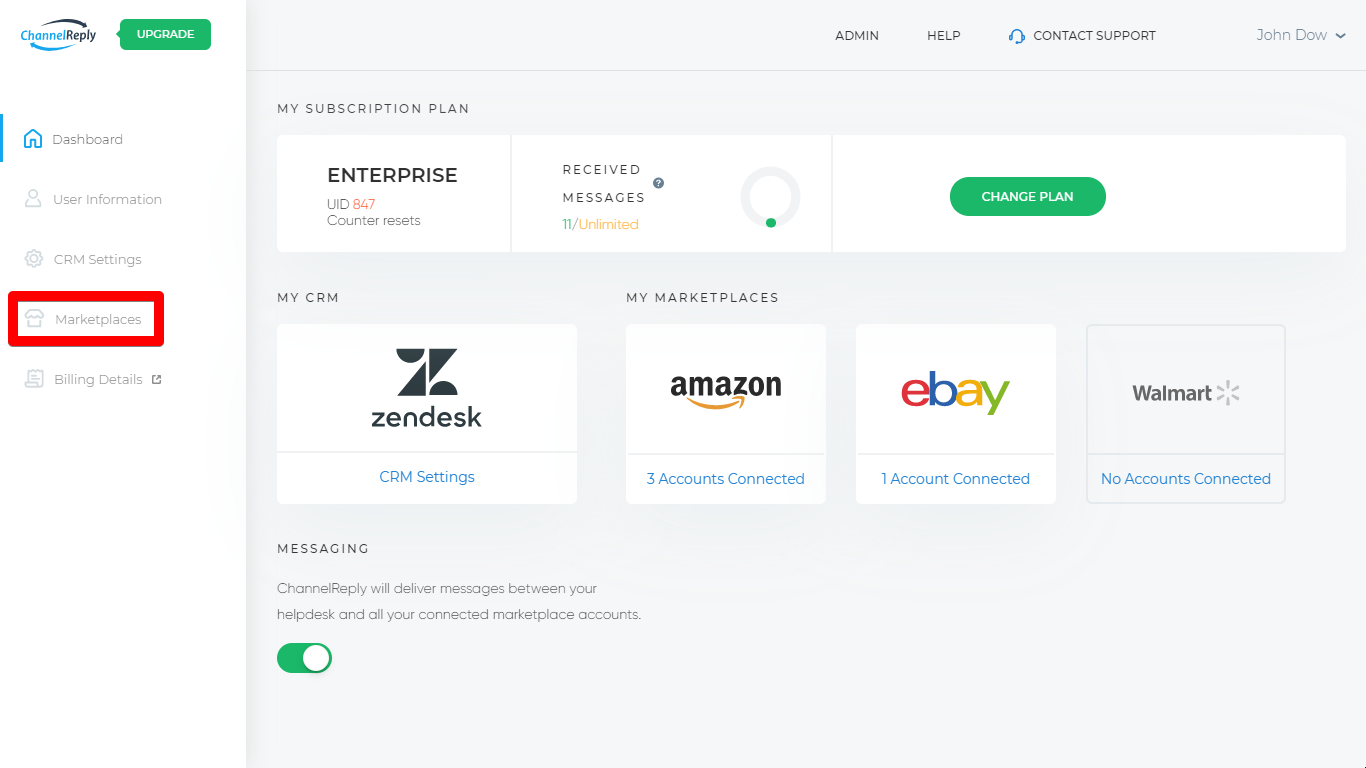
The Marketplaces tab can be accessed in the left-hand menu of your account.
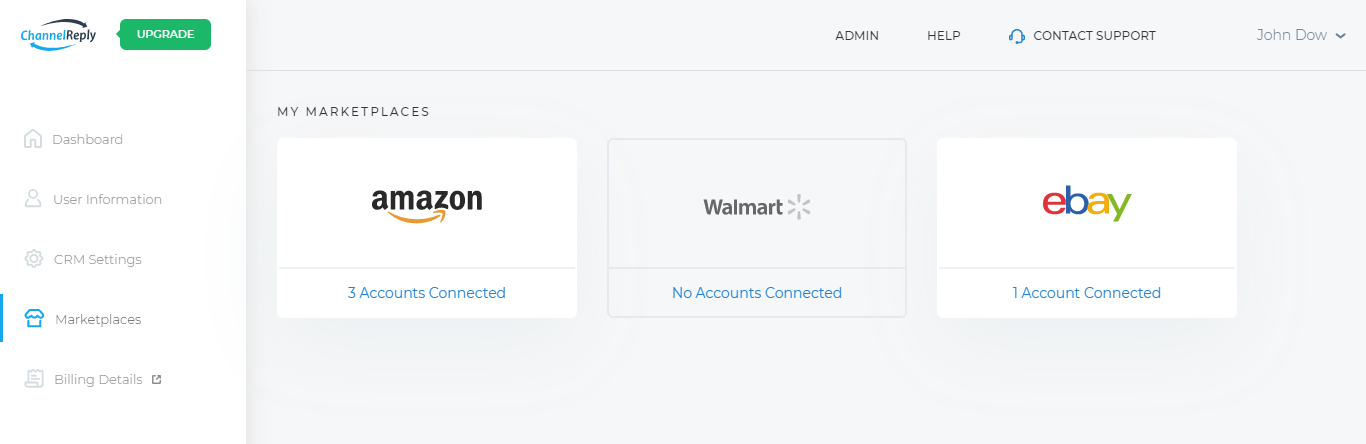
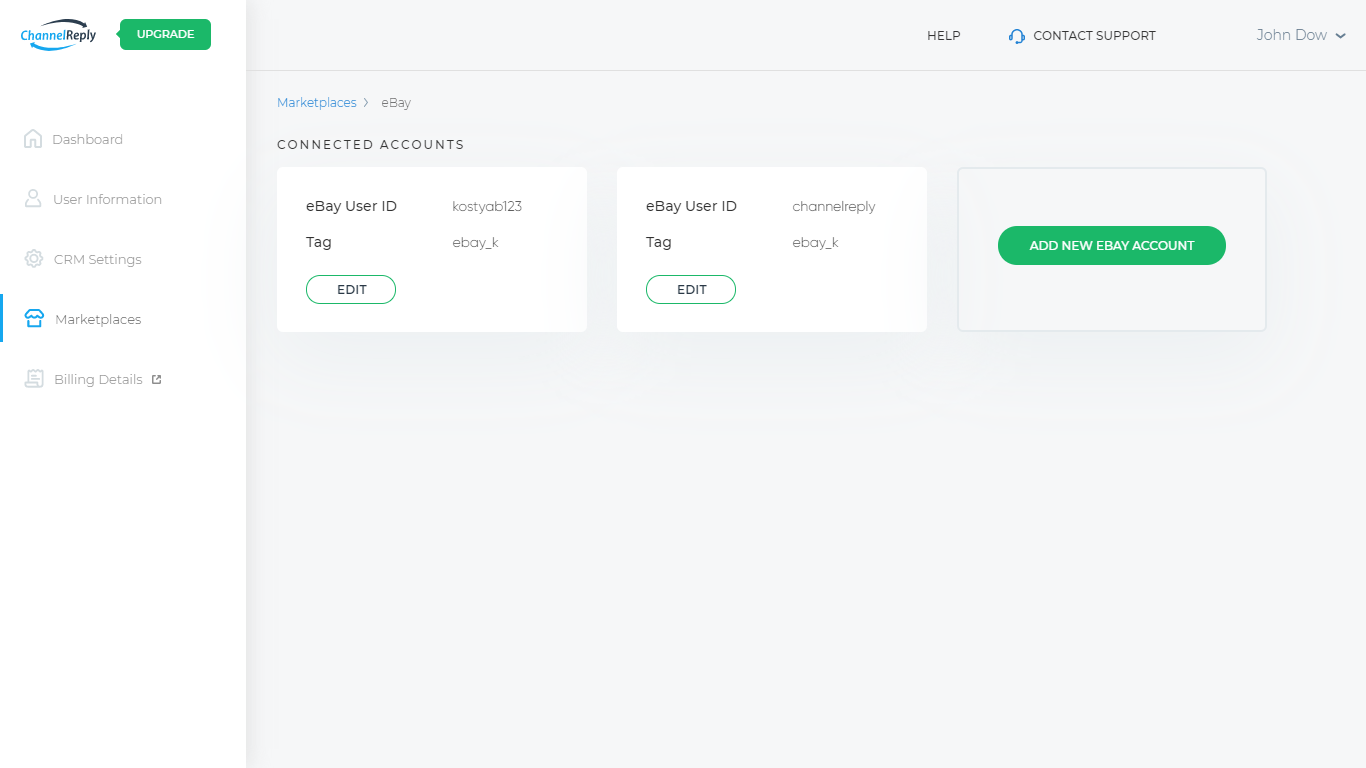
You will be shown the menu of available marketplace integrations: Amazon, eBay and Walmart. If you have no connected accounts, the marketplace will be shown in grey with “No Accounts Connected” under it. Once you’ve added at least one, it will be colored in and show the number of connected accounts.
Clicking on a grey marketplace icon will take you to the setup walkthrough for that marketplace. Clicking on a colored icon will take you to your connected accounts page, where you can review and edit existing accounts or connect a new account.
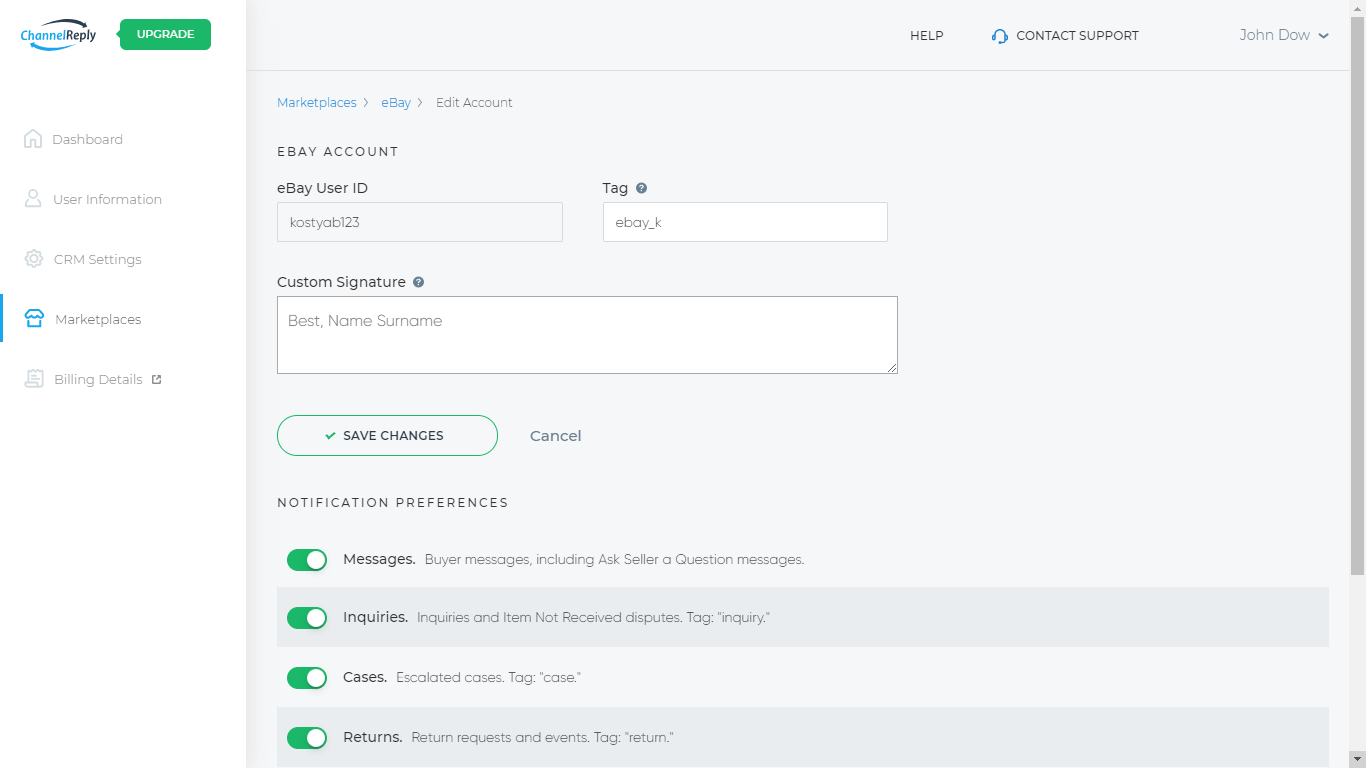
Editing an existing account will allow you to access a wide variety of options you didn’t see during setup. For example, you can create and edit tags and toggle options like eBay Resolution Center Support.
Billing Details
You can find Billing Details in the left-hand menu of your account.
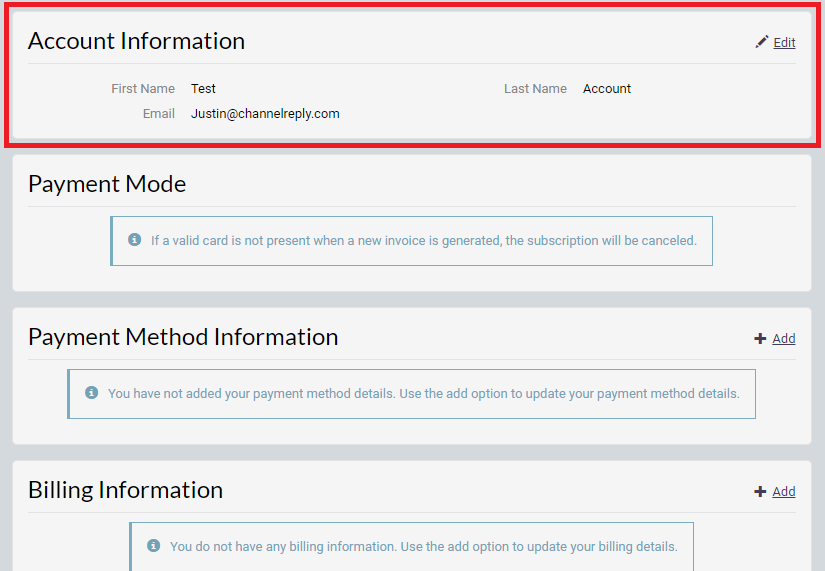
Clicking on it will take you to our Chargebee portal, where you can manage all your billing information. You can:
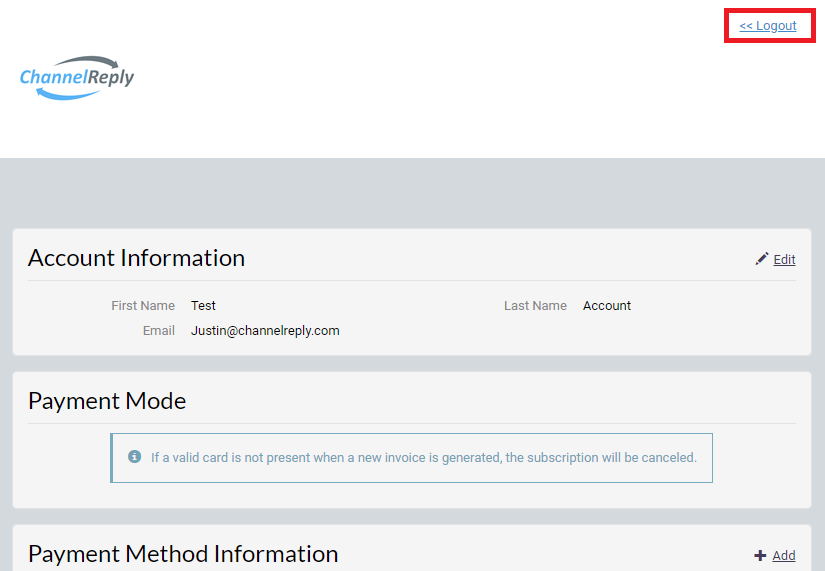
- Change the name used for billing purposes under Account Information. (Note that you must contact us for help changing your billing email address.)
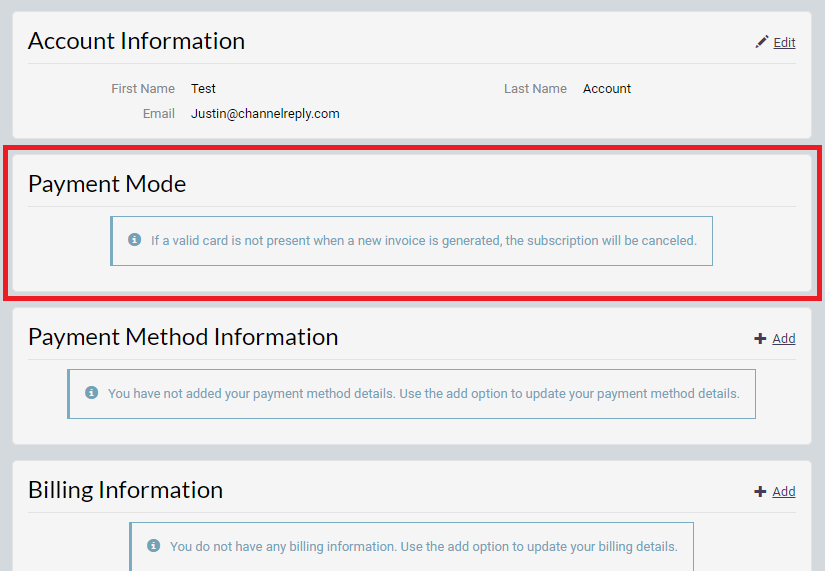
- Check whether you have automatic payments set up under Payment Mode.
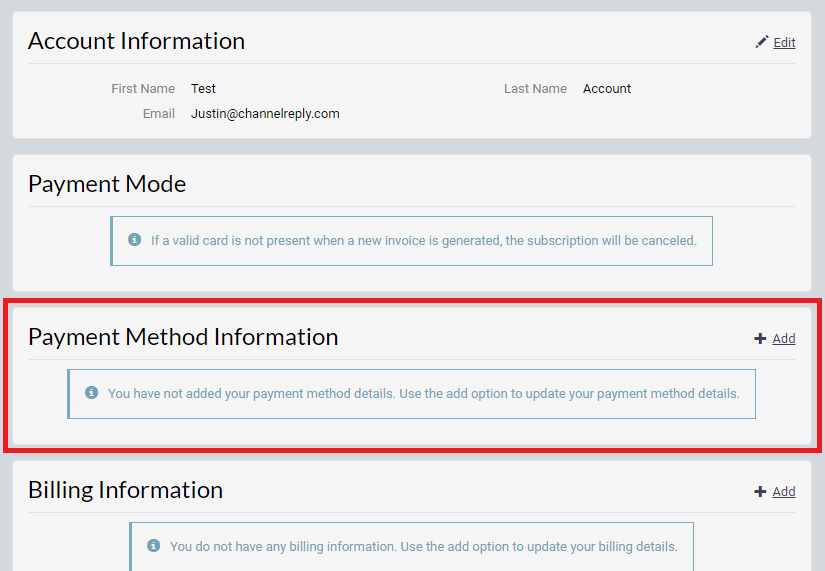
- Review any payment method you have added, or add a new method, under Payment Method Information. Detailed instructions on using this section are available in “How to Manage Your Payment Info in ChannelReply.”
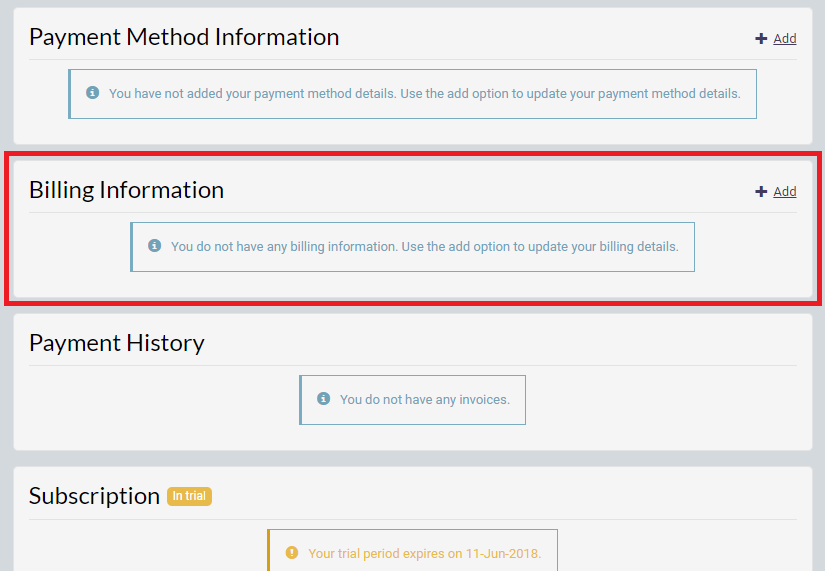
- Enter and update your billing address and related info under Billing Information.
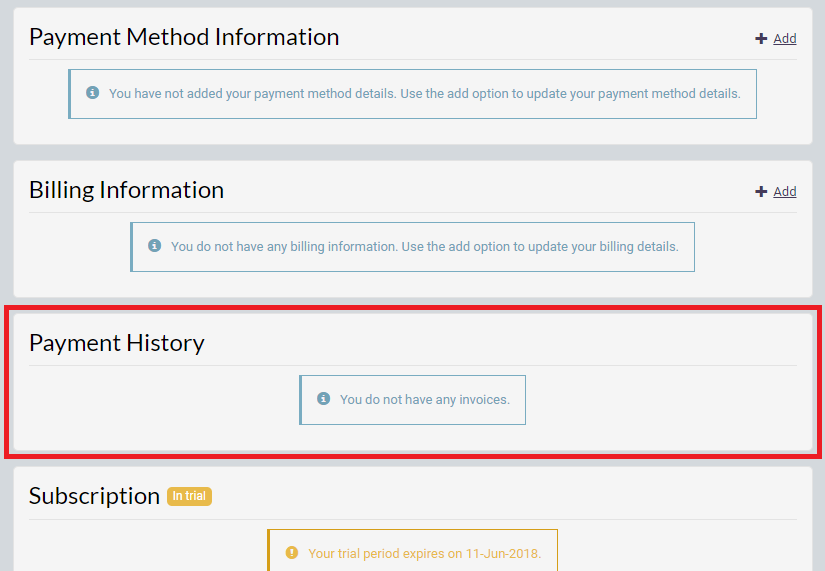
- Keep track of your invoices under Payment History.
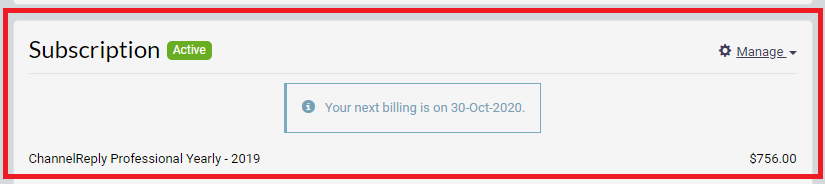
- Review your subscription type, plus any upcoming charges and when you need to renew, under Subscription. You can also edit your subscription and change plans here after you have made your first payment. (You can change your plan anytime by using the “Choose a Plan” page.)
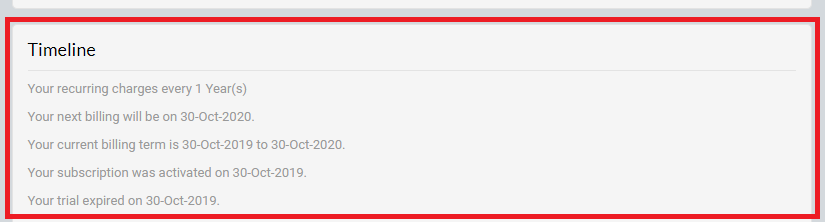
- Get a snapshot of your account history and find the option to cancel under Timeline.
When you’re done using the Chargebee portal, click “Logout” at the top of the screen to return to your ChannelReply account.
My Account Has Been Cancelled and Most Options Are Grey. What Do I Do Now?
If your account has been cancelled, you can reactivate it in no time. Just follow the instructions in “How to Reactivate ChannelReply.” As soon as reactivation is complete, you’ll be able to use all features of ChannelReply again.
Congratulations on setting up your ChannelReply account! If you ever get stuck, please don’t hesitate to contact us.


 Amazon
 eBay
eBay
 Shopify
 Walmart
 Back Market
 Newegg
 Etsy
Etsy
 WooCommerce
 Zendesk
 Freshdesk
 Help Scout
 Gorgias
 Re:amaze
 Zoho Desk
 Kustomer
 Onsite
 Help Center
 FAQ
FAQ
 Blog
Blog