Published on Feb. 08, 2016 | Last updated on Feb. 26, 2020
ChannelReply makes helpdesk-eBay integration a snap. First, connect your Zendesk, Gorgias or Freshdesk account to ChannelReply. Then follow the written instructions below or watch the walkthrough video. In minutes, your accounts will be connected, making eBay customer support easier than ever.
Important: This article uses the classic ChannelReply interface. You can access the classic interface here.
Notes: Click on any screenshot to see the full-sized image. Text last updated 12/17/2019. Some info in the video is outdated, but you can still follow it to complete the integration.
1. Sign In
The first thing you need to do is sign in to your ChannelReply account. Click on “Sign In” and enter your details.
Don’t have a ChannelReply account yet? Just click on “Start Free 14-Day Trial” to create one.
2. Go to “eBay Settings”
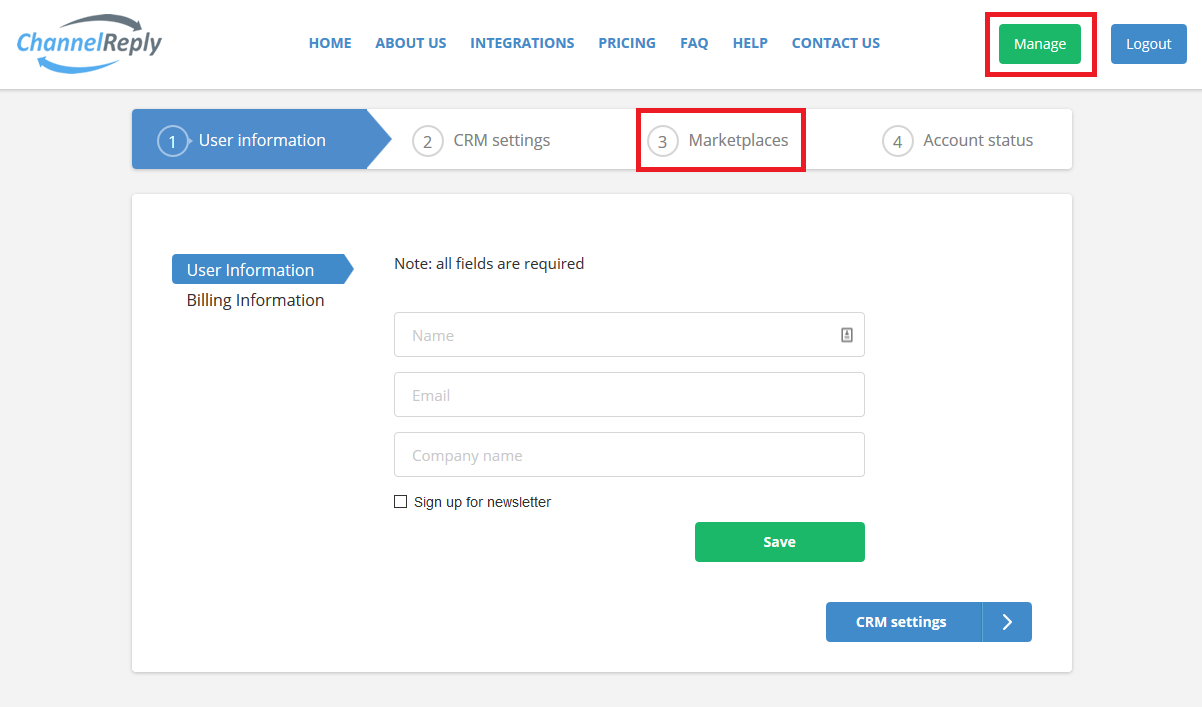
You should see a screen like this one right after you sign in. If you don’t, you can find it by clicking “Manage.” Once you’re there, select “Marketplaces.”
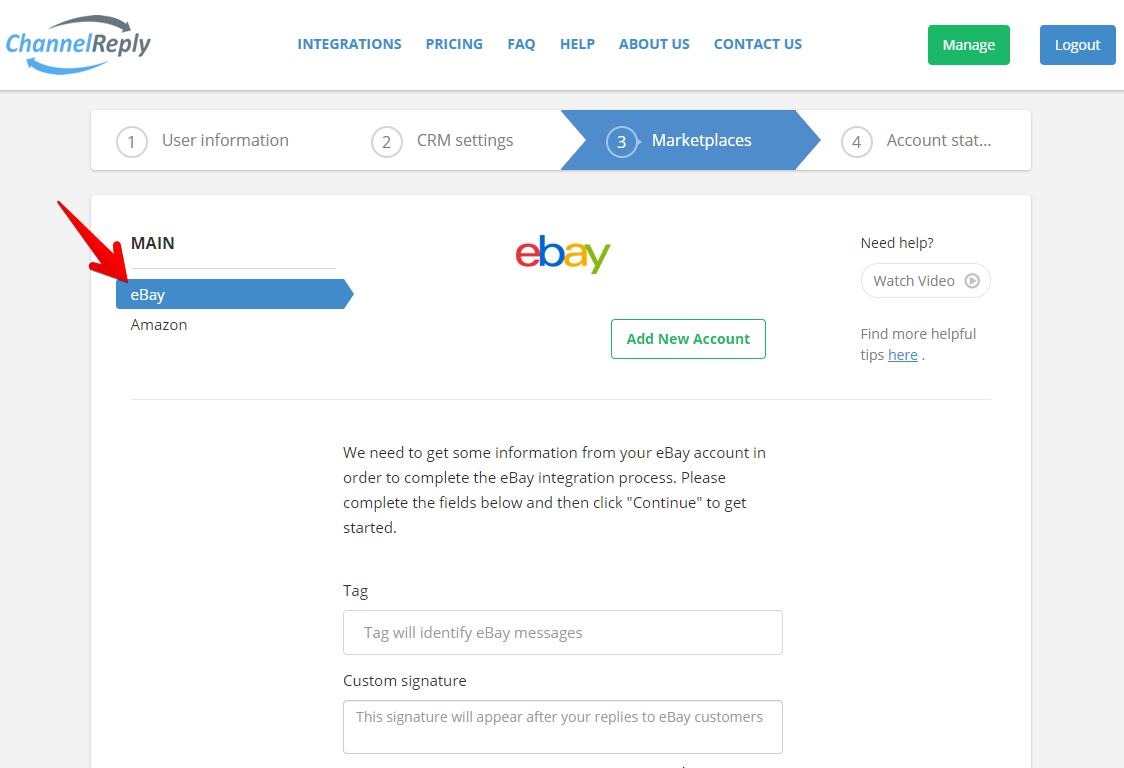
On the Marketplaces page, make sure eBay is currently selected.
3. Customize Your Settings
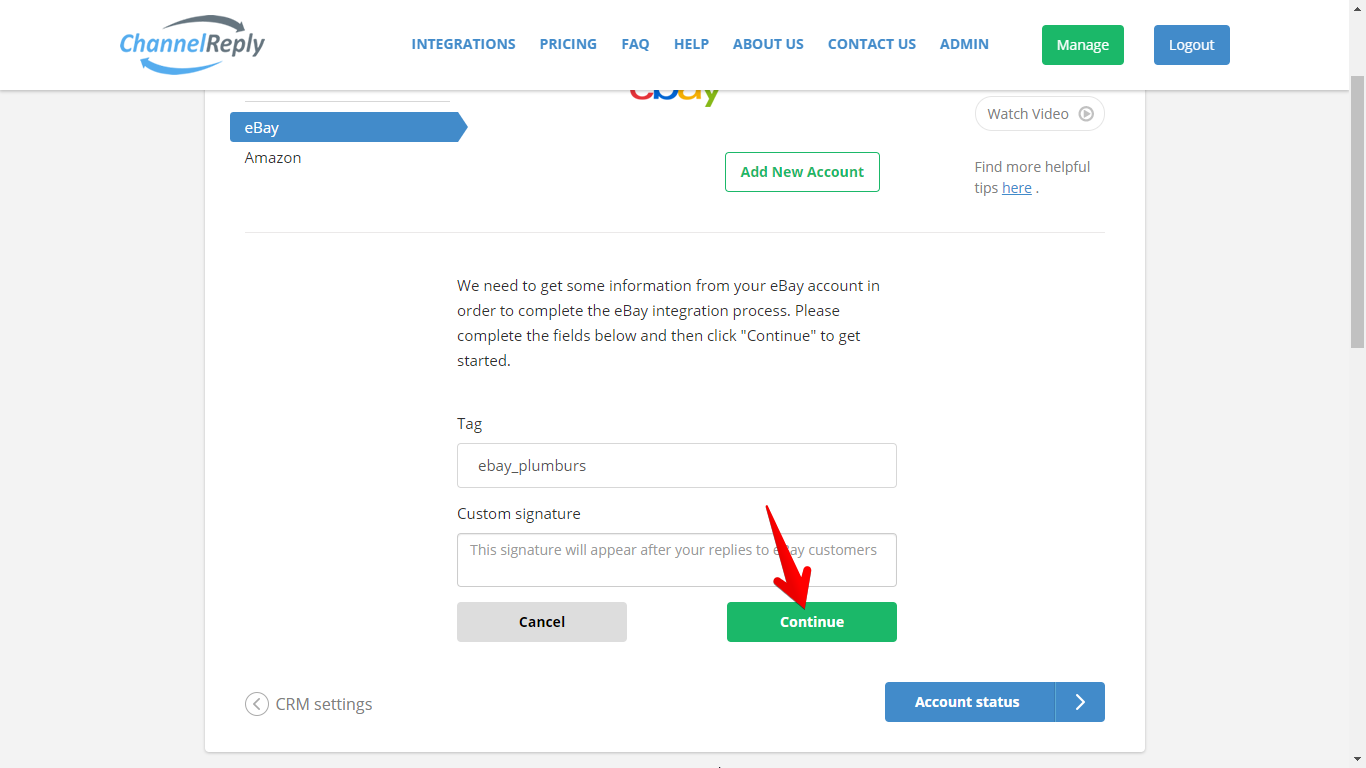
If you haven't connected any eBay accounts yet, you can ignore the "Add New Account" button. The interface for connecting your account will already be open below.
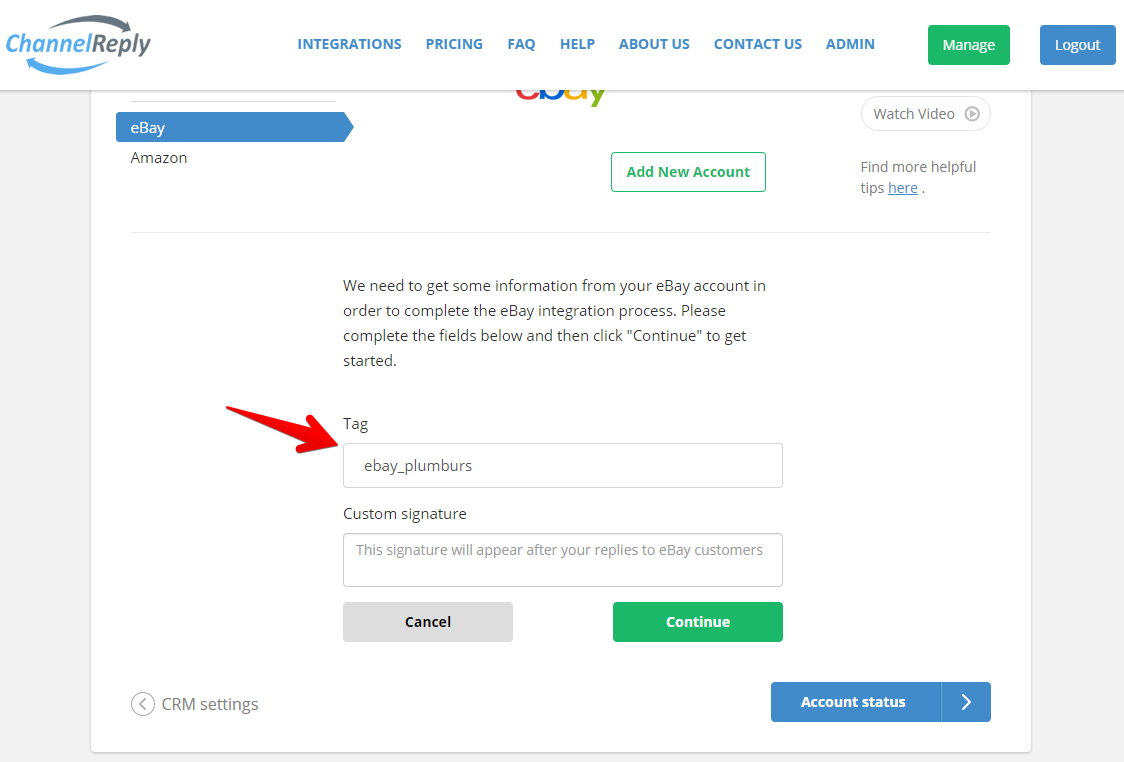
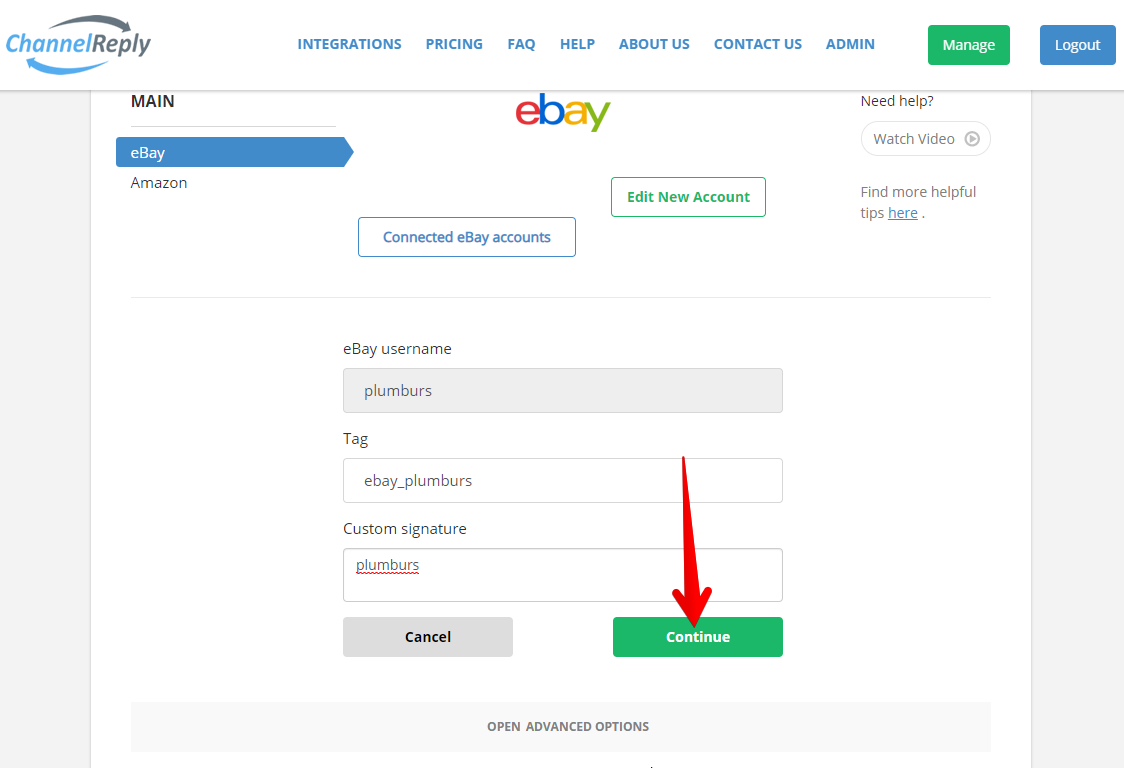
Scroll down and enter the tag of your choice in the “Tag” field. This word or phrase will appear on messages from eBay customers, making it easier to keep track of your support efforts.
Something as simple as “eBay” will do the trick if you only have one account. If you want to include multiple words, we recommend separating them with underscores. Words separated by spaces will appear as different tags in some helpdesks.
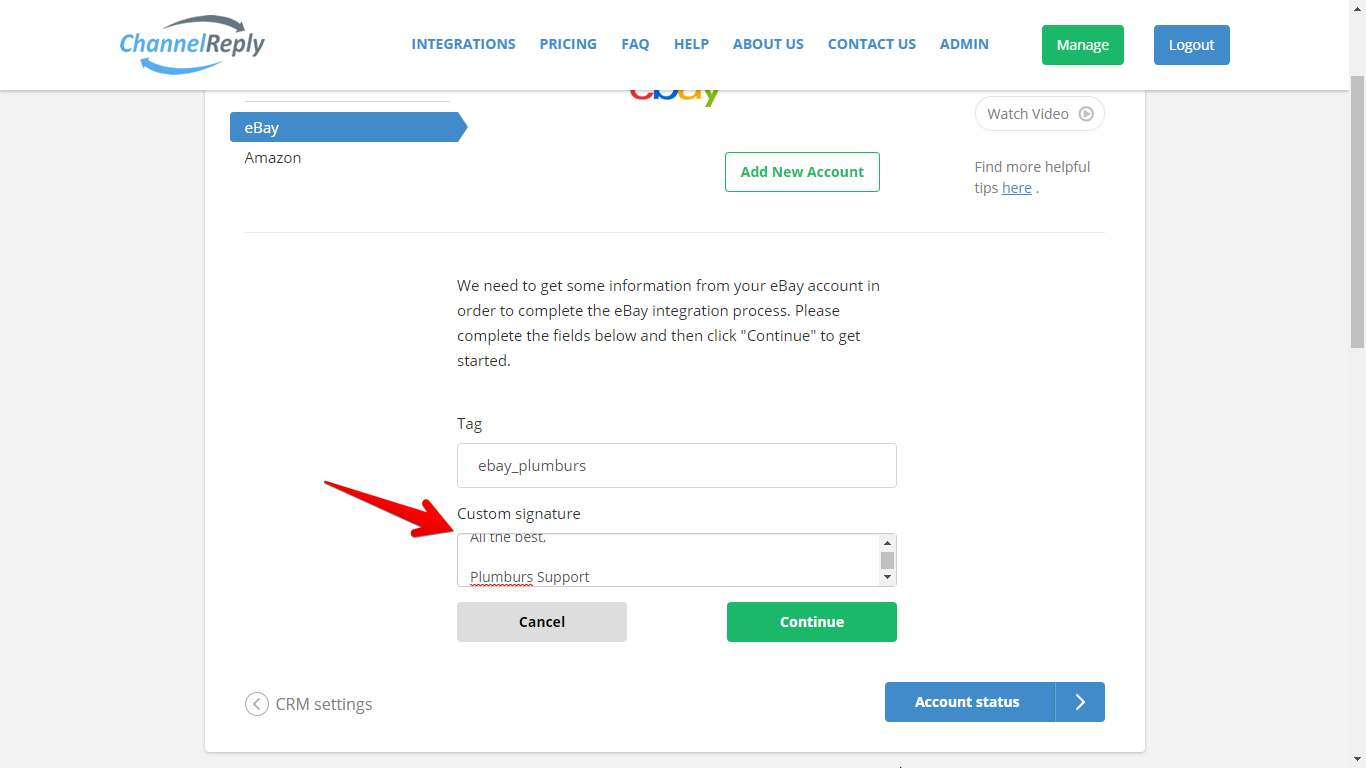
You can also add a custom signature here if desired. This signature will appear at the end of your replies to customers from this eBay account.
Note that if you already have a signature in your helpdesk, this signature will appear after it. You can leave this field blank if you only want your helpdesk signature to appear.
Important: Never include links in any signature used for eBay, as they may violate eBay policy.
Once you’re happy with your settings, click “Continue.”
4. Give Us Permission to Connect Your Account
You should be taken to an eBay sign-in page. Enter your details and click “Sign in” to continue.
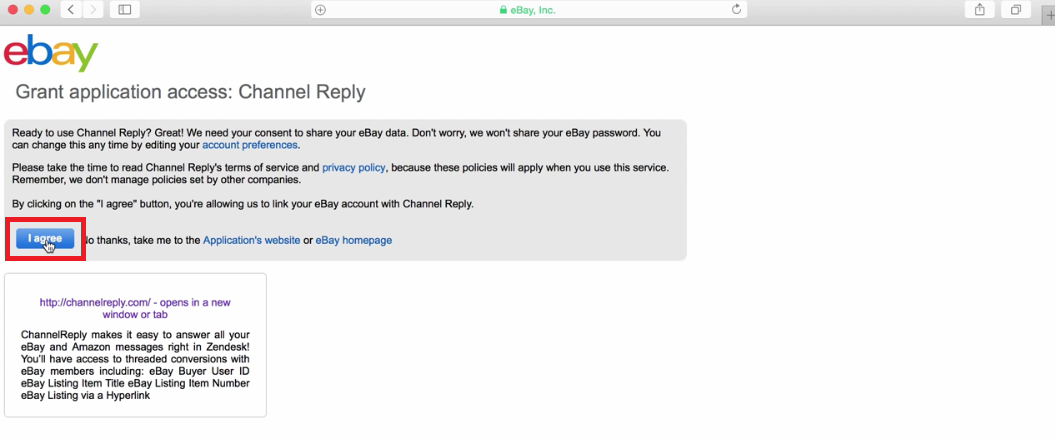
The next page will explain what we’re doing in a bit more detail and give you the terms of using ChannelReply with eBay. If you accept those terms and agree to our Terms & Conditions and Privacy Policy, then click “I agree” to continue.
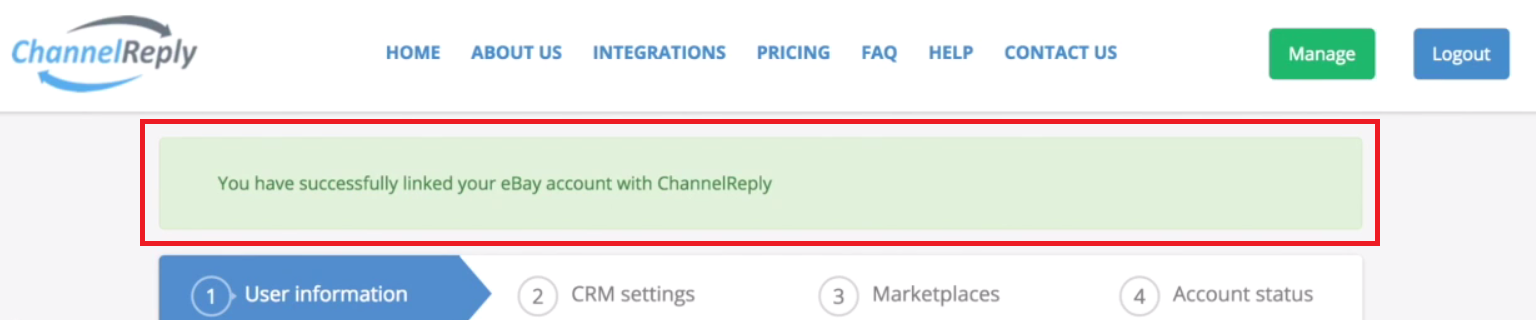
You should see a message like the one shown below telling you that you have successfully linked your eBay account with ChannelReply.
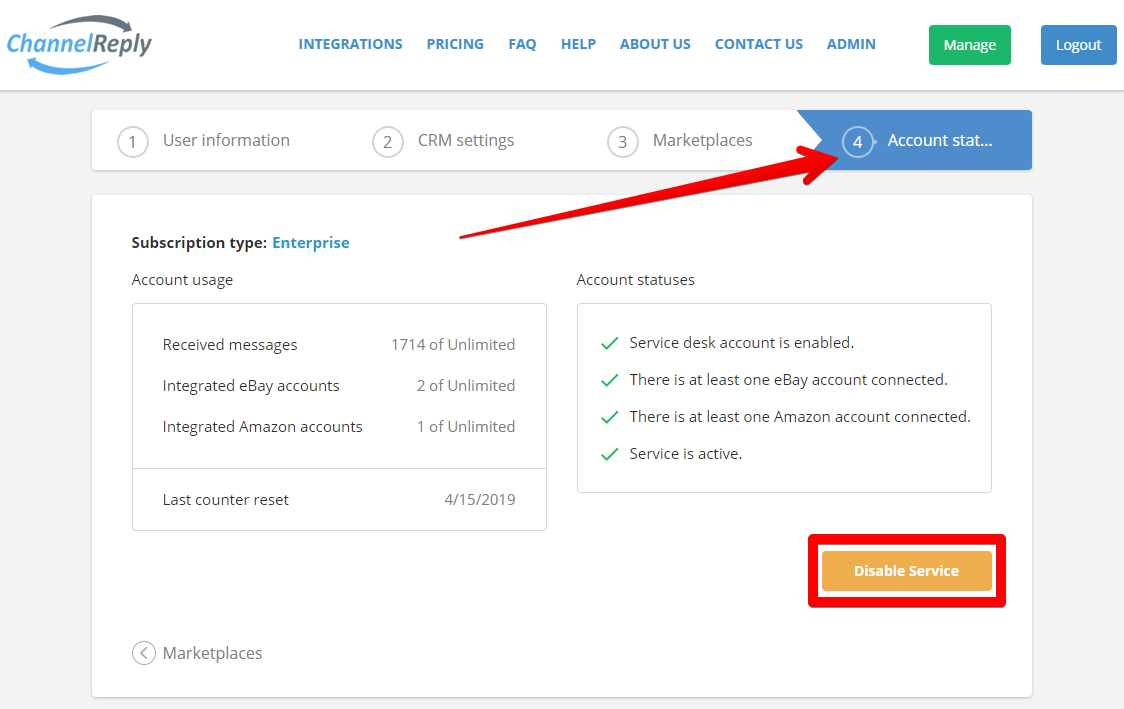
Congratulations—ChannelReply setup is nearly complete! Go to “Account status” and make sure service is enabled. If you see "Disable Service," as shown below, then messaging is already active!
ChannelReply will begin delivering any new eBay messages now. Let's just check a few settings on eBay to make sure they don't cause any interference.
5. Configure eBay Notification Preferences
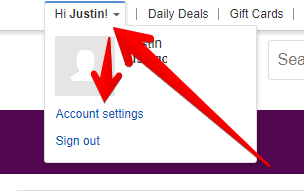
Log in to eBay and go to Account Settings.
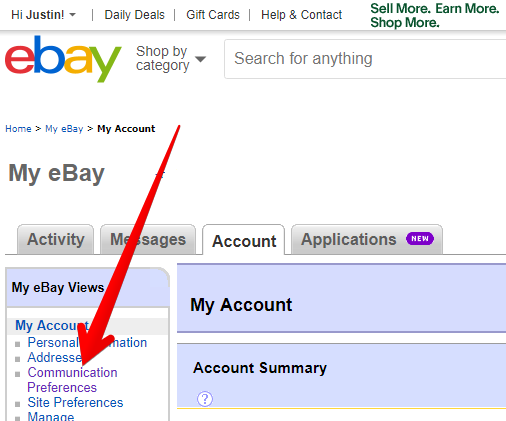
Choose Communication Preferences.
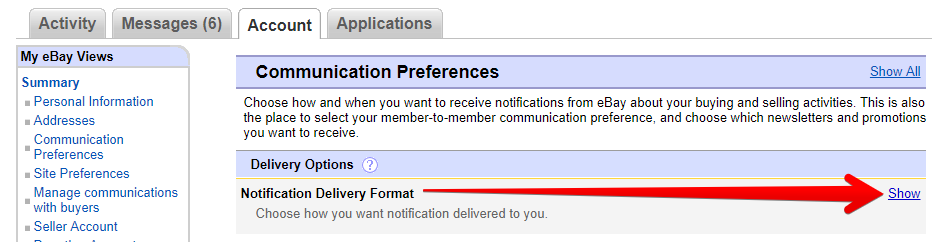
Next to Notification Delivery Format, click "Show."
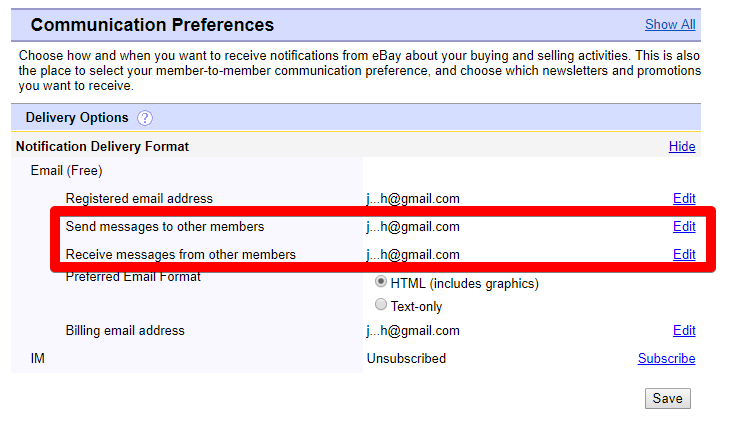
Make sure the email address listed for "Send messages to other members" and "Receive messages from other members" is not connected to your helpdesk. It can be any secure email address that does not send messages to or from your Zendesk, Freshdesk or Gorgias account.
You have now successfully integrated eBay with ChannelReply! You will receive all your buyer messages in your helpdesk and will be able to reply to them directly. No further action is needed, but if you want to customize your setup further, read on.
Optional: Manage Advanced Settings
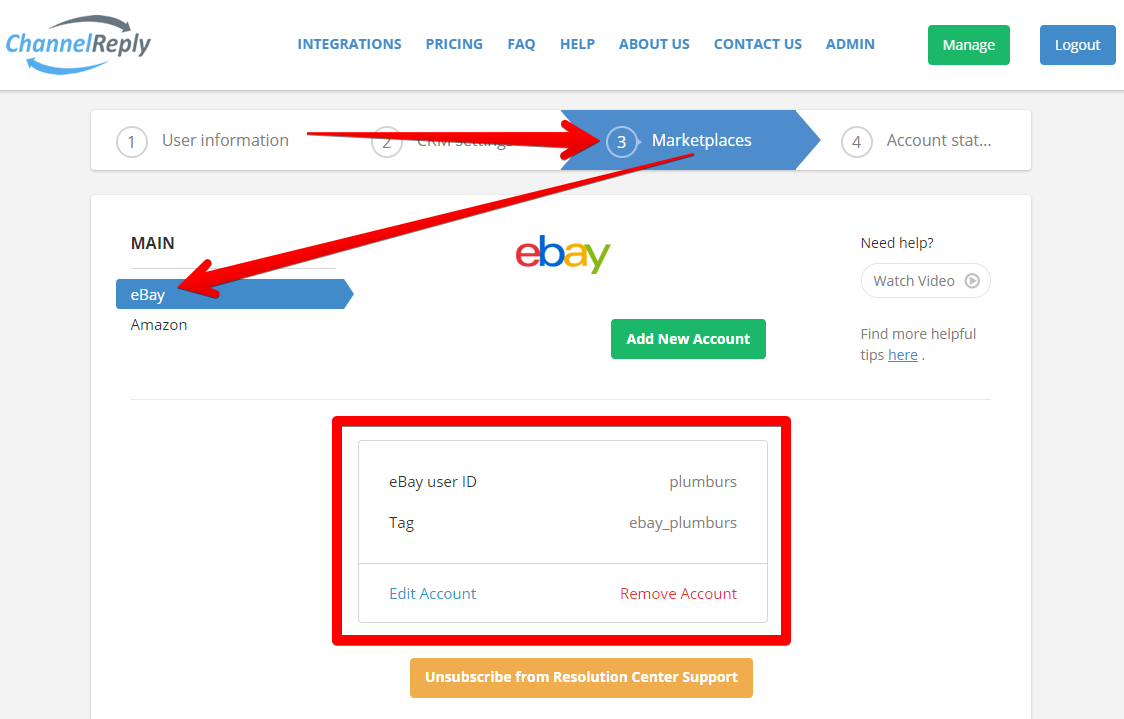
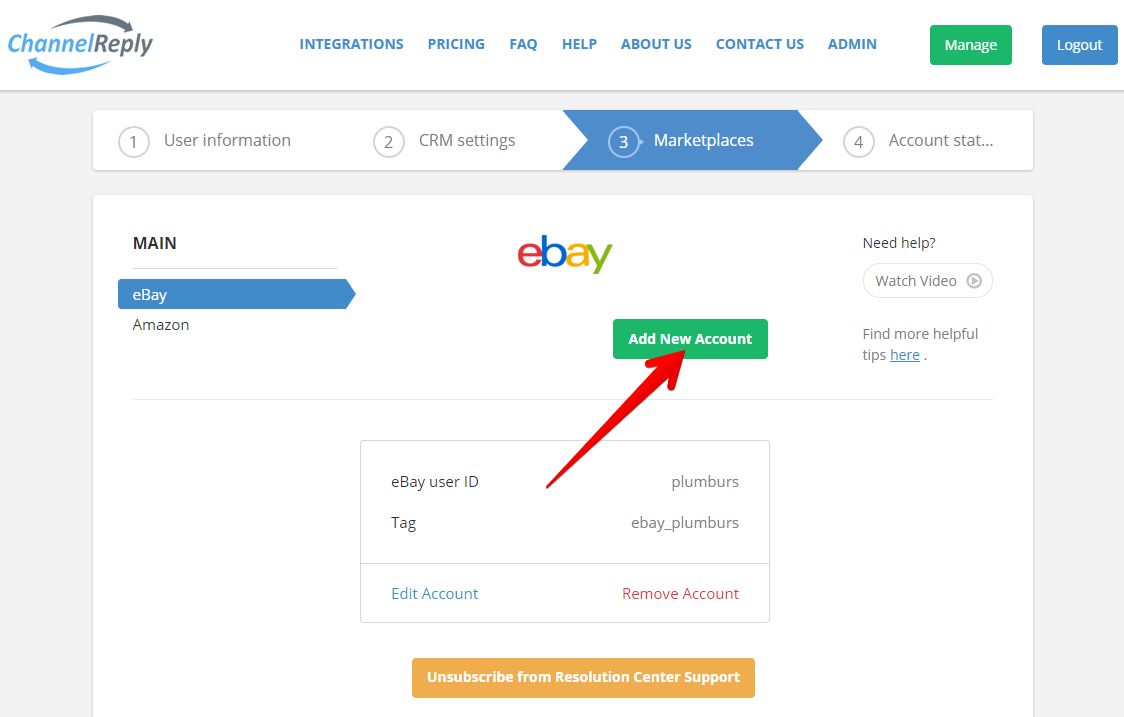
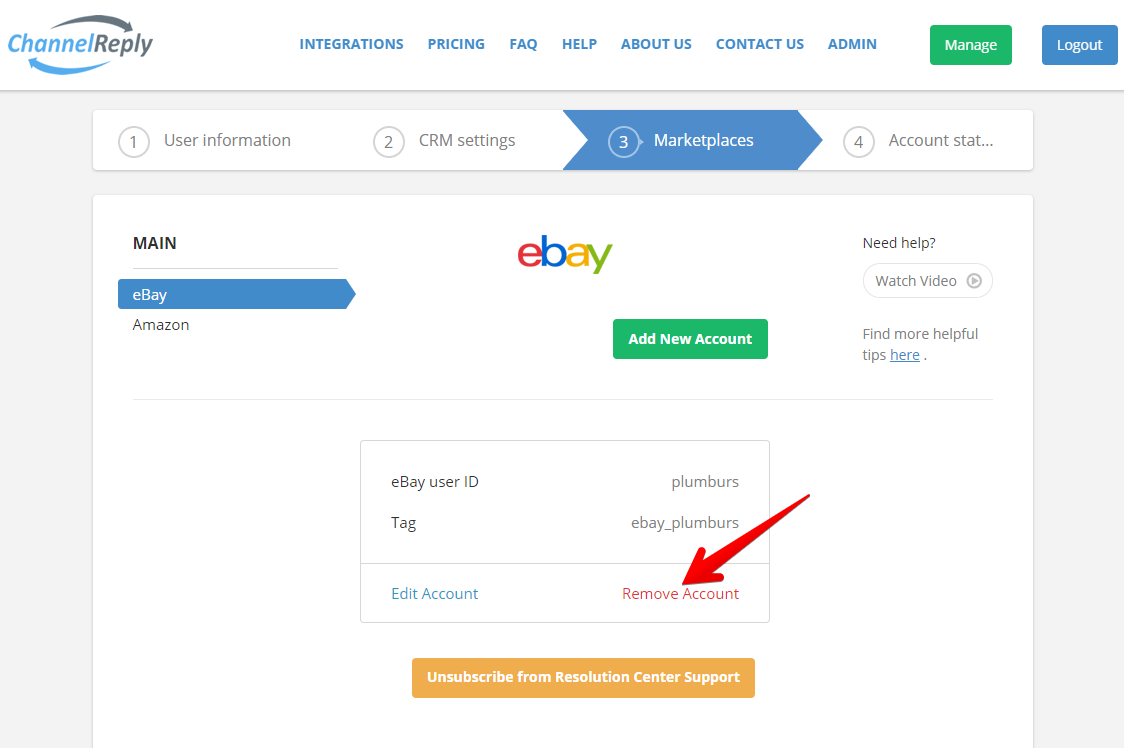
Click on “Marketplaces” and return to the eBay tab. Your eBay user ID and tag will be displayed there.
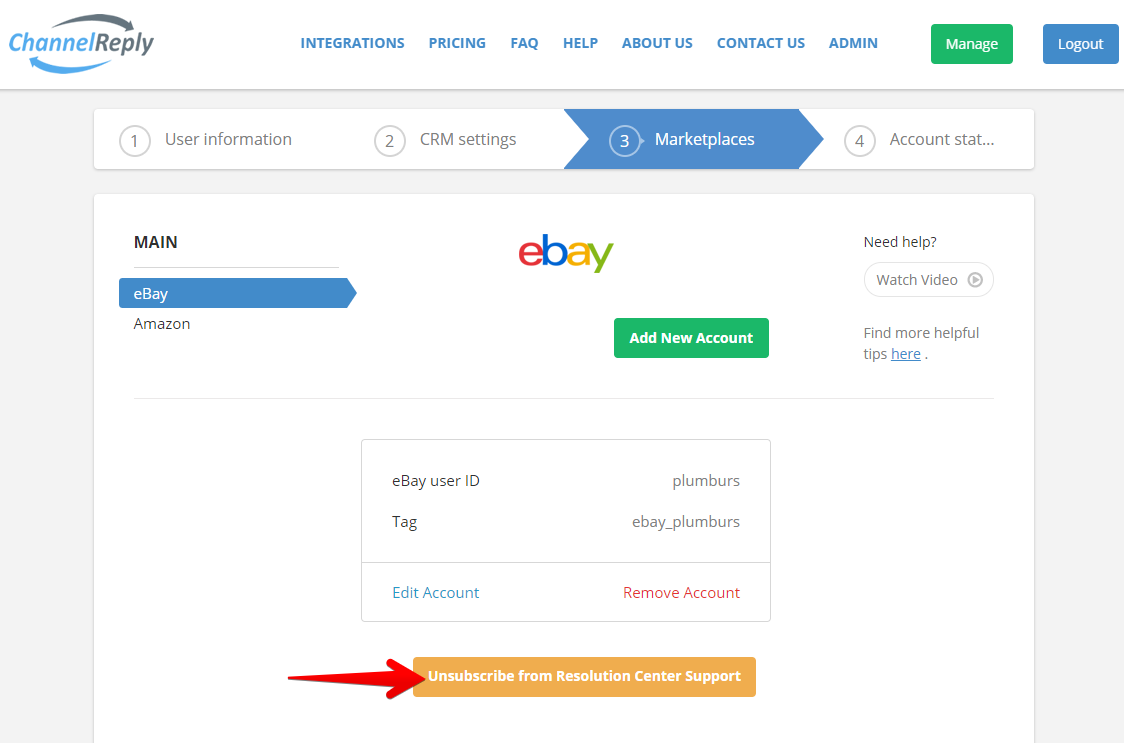
You should also see the option to unsubscribe from Resolution Center Support.
If you see this, it means you are currently subscribed to Resolution Center Support for this account. There is no extra charge for subscribing.
If you are subscribed, we will notify you about eBay Resolution Center inquiries, cases and returns. Zendesk and Freshdesk users can use these to take actions like approving or declining returns directly from their helpdesk. You can learn more in "How Does eBay Resolution Center Support Work?"
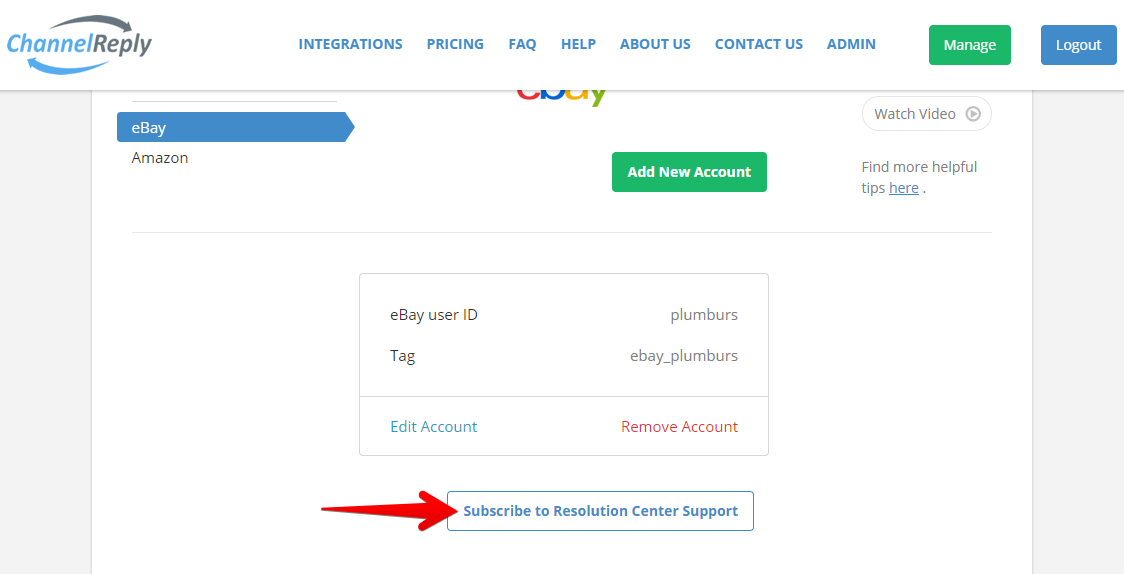
These notifications count toward your monthly message limit. You can unsubscribe at any time to disable them. Once unsubscribed, the button will turn blue and white and say "Subscribe to Resolution Center Support" instead.
You do not need to use Resolution Center Support to get standard eBay notifications. See "How to Import Notifications from eBay" for instructions on sending all your eBay notifications to your helpdesk for free.
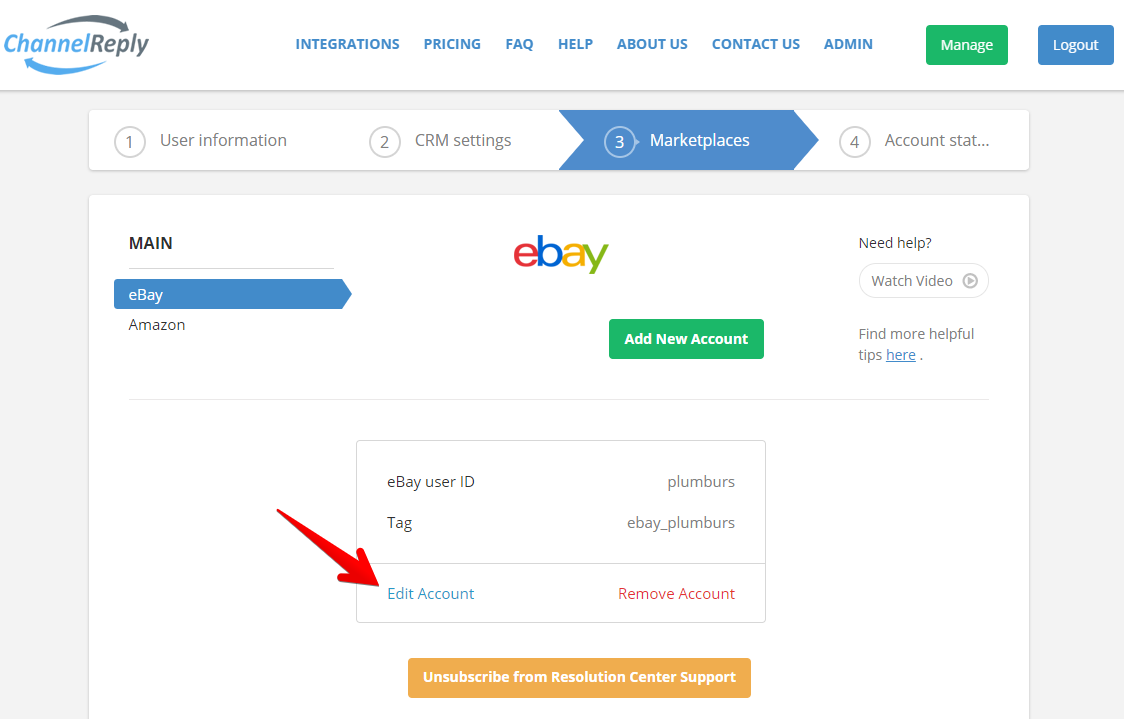
Click “Edit Account” if you want to view or edit your eBay integration settings.
Please note that you won’t be able to edit your eBay username, but you can remove an account and add a new one at any time.
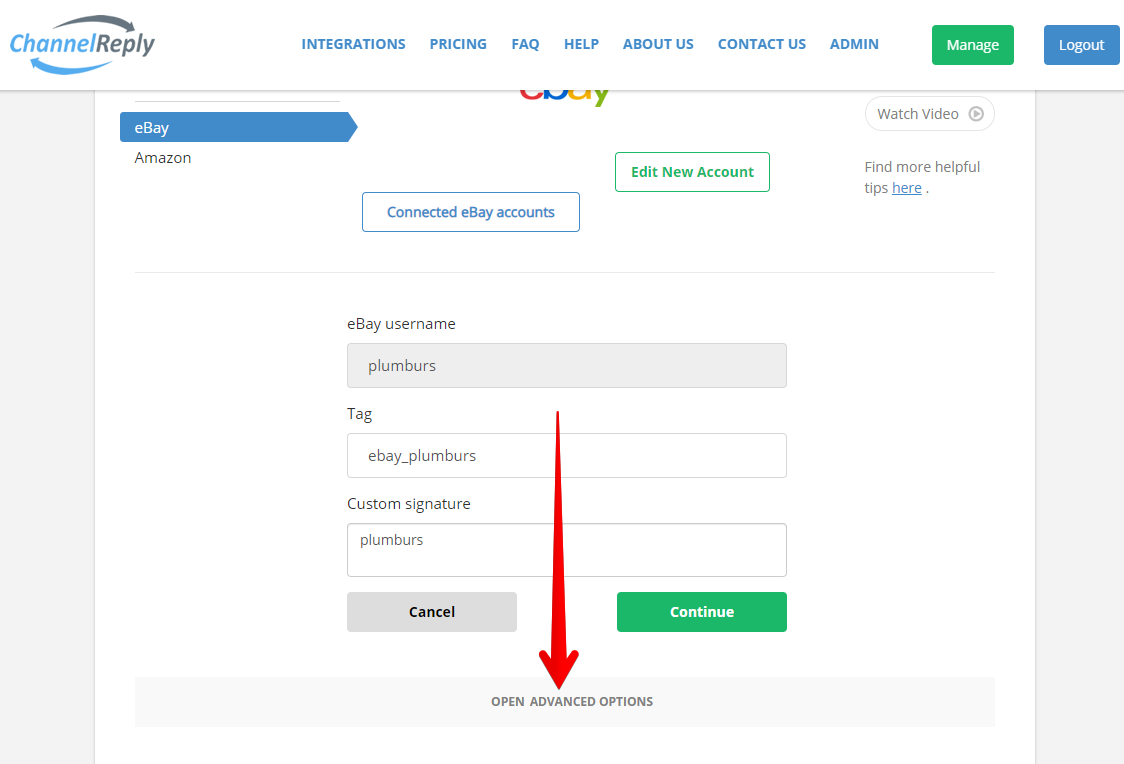
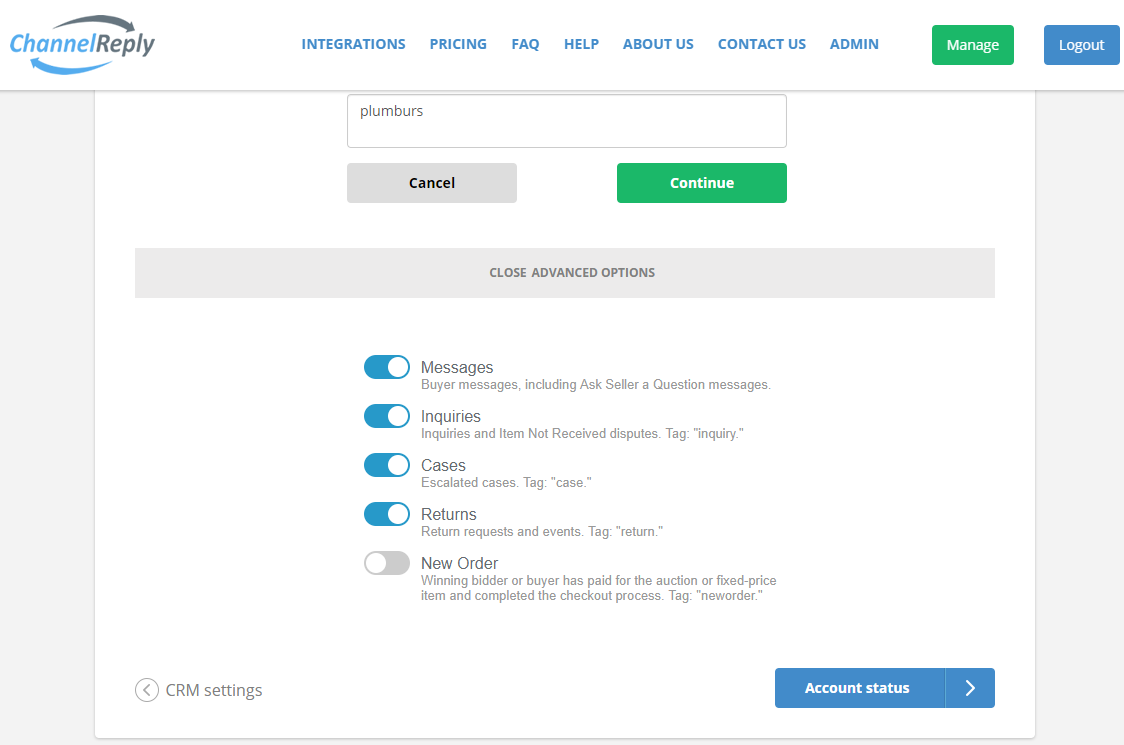
After clicking "Edit Account," you'll see a grey "OPEN ADVANCED OPTIONS" bar.
Opening this allows you to enable or disable buyer messages, specific Resolution Center Support notifications, or new order notifications.
Click “Continue” to save any changes you make.
You can click “Add New Account” to connect additional accounts. Just follow these instructions from the beginning to add another account the same way you added the first.
You can also click “Remove Account” if you’d like to get rid of an old one.
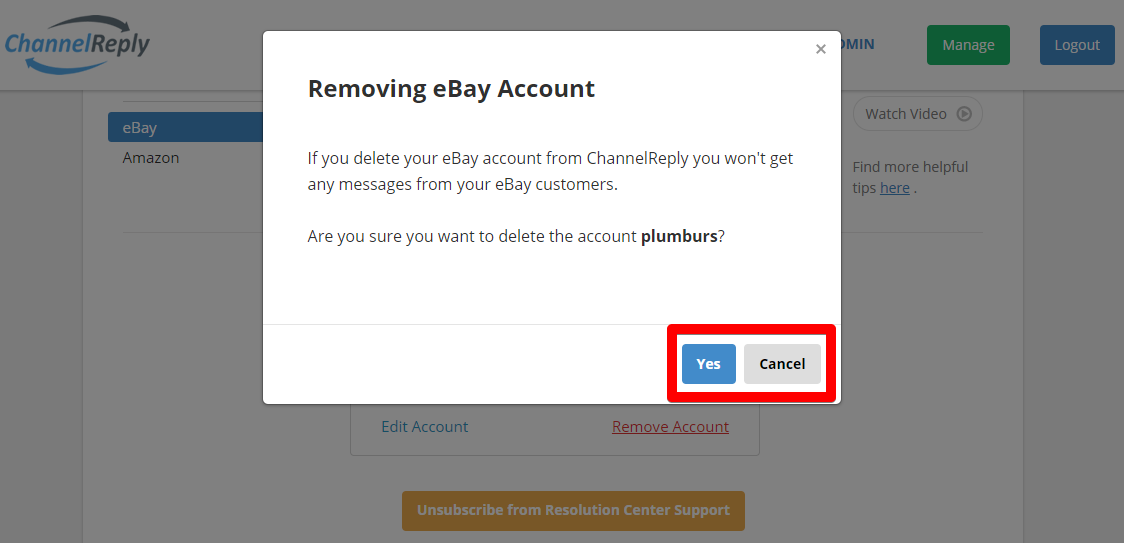
You will be given the chance to cancel before your account is disconnected from ChannelReply. Click “Yes” to remove your account or “Cancel” to leave it connected.


 Amazon
 eBay
eBay
 Shopify
 Walmart
 Back Market
 Newegg
 Etsy
Etsy
 WooCommerce
 Zendesk
 Freshdesk
 Help Scout
 Gorgias
 Re:amaze
 Zoho Desk
 Kustomer
 Onsite
 Help Center
 FAQ
FAQ
 Blog
Blog